


.svg)

What Are Data Supplements?
Data Supplements are a reporting mechanism that allows external integrations to add aggregated performance data to your Everflow reports without requiring click or conversion-level tracking. This is particularly useful when you need to incorporate summary data from external platforms (like mobile measurement partners or ad networks) into your unified Everflow reporting view.
Key Characteristics:
• Aggregate Data: AAdd totals (e.g., "30 conversions for $100 payout") for a specific date, Offer, Partner, and sub-level IDs (sub1-sub8, adv1-adv10)
• Time-Based: Each supplement is tied to a specific date/timestamp
• Integration-Friendly: Designed for external platforms to sync their reporting data
• Append or Revert Only: Supplements can be added or removed, but not edited once created
This makes Data Supplements ideal for incorporating aggregated data from external platforms (like mobile measurement partners, ad networks, or analytics tools) into your unified Everflow reporting view without needing granular conversion-level tracking.
Common Use Cases
Accessing Data Supplements
Data Supplements can be viewed in your Reporting section. The feature is accessible to users with appropriate reporting permissions.
Understanding the Data Supplement View
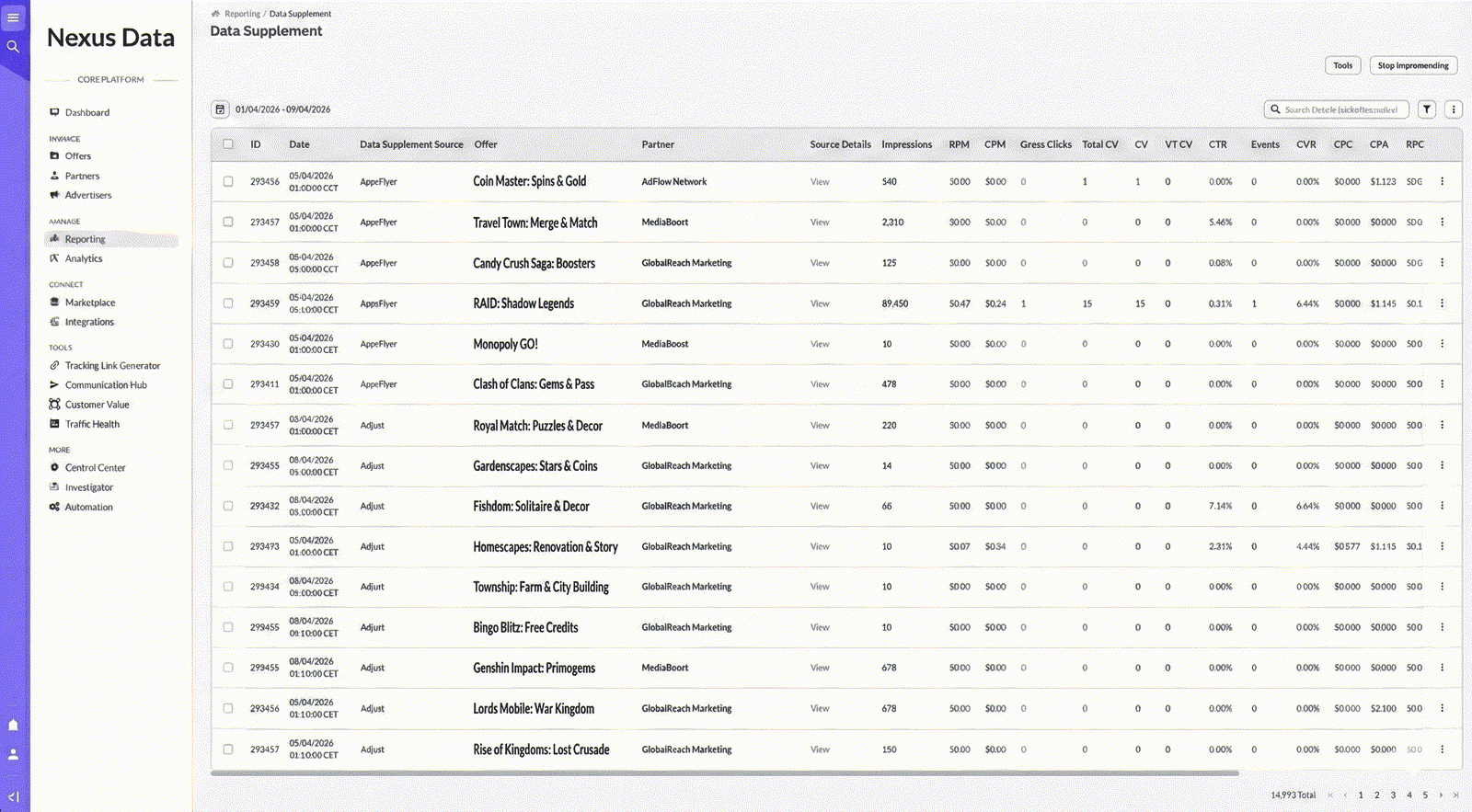
The Data Supplement report displays all supplemental data that has been added to your account through API integrations or manual imports.
Filtering Data Supplements
Use the table filters to narrow down your view and analyze specific data supplement sources, offers, or partners.
Filter by the platform or integration that created the data supplement. This helps you isolate data from specific sources when analyzing multi-platform performance.
Available Sources:
• Adjust: Data supplements from Adjust mobile measurement platform integration
• AppsFlyer: Data supplements from AppsFlyer MMP integration
• Generic: Custom data supplements added via the generic API endpoint (not tied to a specific pre-built integration)
• Google Ads Cost: Ad spend data imported from Google Ads
• TikTok Ads Cost: Ad spend data imported from TikTok advertising platform
How to Use:
1. Click the filter icon or "Table Filters" dropdown
2. Select "Data Supplement" from the filter options
3. Choose one or more sources from the searchable list
4. Click outside the dropdown to apply the filter
You can select multiple sources to compare data across platforms simultaneously.
Filter data supplements by specific Offers (campaigns). This is essential when you want to analyze supplemental data for a particular campaign or compare performance across multiple campaigns.
What You'll See:
The filter shows all Offers in your account with their ID numbers in parentheses. For example: "(5) All Saints (Dynamic CPC)" or "(12) Avocados at Law (Creative)".
How to Use:
1. Click "Table Filters" and select "Offers"
2. Use the search box to find specific Offers by name or ID
3. Click "Select All" to include all Offers, or individually select the ones you want
4. Click "Clear" to reset your selection
Pro Tip: If you're troubleshooting why certain Offer data isn't appearing in your main reports, filter by that specific Offer to see all data supplements associated with it.
Filter data supplements by specific Partners (affiliates). Use this to review all supplemental data attributed to particular traffic sources or partner relationships.
What You'll See:
The filter displays all Partners in your account with their ID numbers in parentheses. For example: "(53) Mandeep Earning Affiliate (EF Pay Unit)" or "(26) Affiliate Pay".
How to Use:
1. Click "Table Filters" and select "Partners"
2. Search for Partners by name or ID using the search box
3. Select one or multiple Partners to view their data supplements
4. Use "Select All" or "Clear" buttons as needed
Common Use Case: If a Partner asks why their reported numbers differ from what they see in Everflow, you can filter to their specific Partner ID and review all data supplements to verify if external platform data has been properly imported.
Table Actions
Export your filtered Data Supplement data for external analysis, archiving, or sharing with team members.
Available Export Formats:
• CSV: Comma-separated values format, ideal for Excel, Google Sheets, or data analysis tools
• JSON: JavaScript Object Notation format, useful for developers or automated data processing
How to Export:
1. Apply any filters you want (date range, source, offers, partners)
2. Click the three-dot menu (⋮) in the top-right corner of the table
3. Hover over "Export" to see format options
4. Select either CSV or JSON
5. Your browser will download the file
What's Included:
The export will include all columns currently visible in your table view, filtered by your selected criteria. Only data from the selected date range will be exported.
Customize which metrics and dimensions appear in your Data Supplement table to focus on the data points most relevant to your analysis.
How to Customize Columns:
1. Click the three-dot menu (⋮) in the top-right corner
2. Select "Columns Customization"
3. A modal will appear with all available columns
4. Check or uncheck columns to show or hide them
5. Drag columns to reorder them
6. Click "Apply" to save your view
Available Metrics:
Beyond the default columns, you can add metrics like:
• Clicks (Total, Unique, Invalid, Duplicate)
• Conversions (Total, View-Through, Invalid)
• Events and Public Events
• Financial metrics (Payout, Revenue, Profit, Margin, ROAS)
• Averages (CPC, CPA, EPC, RPC, RPM, Avg Sale Value)
• Ratios (CTR, CVR, EVR)
• Media Buying Cost
• On-Hold metrics (Potential Revenue, Potential Payout, Conversion Count)
Pro Tip: Your column customization preferences are saved per user, so you won't need to reconfigure every time you visit the Data Supplement view.
View the exact API request that would retrieve the currently filtered data. This is helpful for developers building custom integrations or automating data pulls.
How to View API Request:
1. Apply your desired filters and date range
2. Click the three-dot menu (⋮) in the top-right corner
3. Select "Show API Request"
4. A modal will display the full API endpoint URL with query parameters
What You'll See:
The displayed API request will include:
• Base endpoint URL
• Authentication requirements
• Query parameters for your current filters (date range, source, offer IDs, partner IDs)
• Pagination parameters if applicable
Use Case: Copy this API request structure to build automated reports, scheduled exports, or custom dashboards that pull Data Supplement information programmatically.
Date Range Selection
Data Supplements are time-based entries. Use the date picker to select the time period you want to review.
Date Picker Options:
• Preset Ranges: Today, Yesterday, This Week, Last 7 Days, Last Week, Month to Date, Last Month, Year to Date
• Custom Range: Click on the calendar to select specific start and end dates
• Time Calculation: The interface shows the duration (e.g., "4 weeks, 4 days") for your selected range
If you're not seeing expected data supplements, verify that your date range includes the time period when the supplements were imported to Everflow.
Working with Data Supplements via API
Who Uses the API?
• Integration Partners: Platforms like AppsFlyer, Adjust, Google Ads, and TikTok use Everflow's API to automatically sync their data
• Custom Integrations: Your development team can build custom connectors to import data from proprietary systems
• Third-Party Services: Integration platforms (like Zapier or custom ETL tools) can push aggregated data to Everflow
API Authentication Required:
All API requests require a valid Bearer token with appropriate permissions. Users must have the "network.datasupplement" module enabled in their account.
For complete API documentation, endpoint specifications, and authentication details, visit the Everflow Developer Documentation.
Endpoint: POST /v1/networks/supplements
Use this endpoint to add new data supplement entries to your Everflow reporting. You can submit a list of supplements in a single API call.
Required Parameters:
• unix_timestamp: The date/time for this supplement (Unix timestamp format)
• supplement_source: The source identifier (e.g., "generic", "appsflyer", "adjust")
• network_offer_id: The Offer ID this data belongs to
• network_affiliate_id: The Partner ID this data belongs to
• currency_id: Currency code (e.g., "USD", "EUR", "GBP")
• reporting: Object containing metric values (clicks, conversions, payout, revenue, etc.)
Optional Parameters:
• source_id: External platform's unique identifier for this data
• source_details_json: Additional metadata in JSON string format
Example Use Case:
Your internal CRM exports daily conversion totals. You build a script that reads this export file and posts the aggregated data to Everflow via this endpoint, creating Data Supplement entries that appear in your unified reporting.
For detailed request examples, parameter specifications, and response formats, see the Everflow API Documentation.
Endpoint: DELETE /v1/networks/supplements
Use this endpoint to remove previously added data supplements. This is the only way to "undo" a data supplement—they cannot be edited, only added or reverted.
Required Parameters:
• supplement_ids: Array of Data Supplement IDs to remove
How Reverting Works:
When you revert a data supplement, it is completely removed from your reporting. The metrics that were added (clicks, conversions, payout, revenue, etc.) are subtracted from the totals for that date, Offer, and Partner combination.
Important Notes:
• Reverting is permanent—once reverted, the data is deleted and cannot be restored
• You can revert multiple supplements in a single API call by passing an array of IDs
• To find the ID of a data supplement, use the Data Supplement UI (the ID column) or query the reporting endpoint
• Only users with appropriate API permissions can revert data supplements
Example Use Case:
An integration accidentally imports duplicate data for a specific day. You identify the duplicate supplement IDs from the Data Supplement table and use the revert endpoint to remove them, correcting your reporting totals.
For detailed request specifications and error handling, see the Everflow API Documentation.
When creating a Data Supplement via API, you can include any of the following metrics in the reporting object:
Impression & Click Metrics:
imp, total_click, unique_click, invalid_click, duplicate_click, gross_click
Conversion Metrics:
cv (conversions), invalid_cv_scrub, view_through_cv, total_cv, event, public_events
Ratio Metrics:
ctr (click-through rate), cvr (conversion rate), evr (event rate)
Cost Metrics:
cpc (cost per click), cpm (cost per mille), cpa (cost per acquisition), epc (earnings per click), rpc (revenue per click), rpa (revenue per acquisition), rpm (revenue per mille)
Financial Metrics:
payout, revenue, event_revenue, gross_sales, profit, margin, roas (return on ad spend), avg_sale_value, media_buying_cost
On-Hold Metrics:
on_hold_potential_revenue, on_hold_potential_payout, on_hold_conversion_count
Note: You only need to include the metrics relevant to your data. All metrics are optional within the reporting object, but at least one metric should be provided for the supplement to be meaningful.
Data Supplement vs. Reporting Adjustments
Use Reporting Adjustments when you need to correct or modify existing Everflow conversion data that was already tracked at the individual transaction level. Learn more: Performance Data Adjustments (Clicks, Conversions, Revenue, & Payout)
Many accounts use both: Data Supplements for platform integrations (AppsFlyer, Google Ads) and Reporting Adjustments for manual corrections or special business logic.
Supported Data Supplement Sources
/v1/networks/supplements API endpoint with supplement_source: "generic" to import data from proprietary systems, custom CRMs, internal analytics platforms, or any third-party tool that can make API calls to Everflow. This provides maximum flexibility for unique integration needs.
Important Considerations
Before implementing Data Supplements in your workflow, be aware of these critical constraints:
- No Editing After CreationOnce a Data Supplement is created, it cannot be modified or updated. If you need to correct data, you must revert (delete) the incorrect supplement and create a new one with the correct values. This is fundamentally different from Reporting Adjustments, which can be edited.
- Requires API AccessData Supplements can only be created via the Everflow API—there is no UI-based creation interface. You must have API credentials with the
network.datasupplementmodule permission enabled. The UI is for viewing and analyzing supplements only. - Aggregate Data OnlyData Supplements do not create individual conversion records. They add aggregate totals to your reporting for a specific date, Offer, and Partner combination. If you need transaction-level detail or individual conversion tracking, use standard postback tracking instead.
- No Conversion-Level AttributionBecause supplements are aggregates, they don't have associated click IDs, transaction IDs, or user-level attribution data. They appear as summary entries in your reporting but won't show up in conversion drill-downs or transaction logs.
- Reverting is PermanentWhen you revert (delete) a data supplement via the API, it is permanently removed. There is no "undo" or recovery mechanism. Always verify supplement IDs before reverting, especially when removing multiple entries in bulk.
- Time Zone ConsiderationsThe
unix_timestampparameter determines when the supplement appears in your reporting. Ensure your integration accounts for Everflow's timezone settings and daylight saving time adjustments to avoid data appearing on incorrect dates. - Currency Must MatchThe
currency_idin your supplement API request must match your account's configured currencies. Mismatched currencies may cause reporting discrepancies or API errors. Common values: USD, EUR, GBP, CAD, AUD.
• Flex Report - Customize reporting views to analyze Data Supplement metrics
• Variance Report - Compare Everflow data with external platform reports
• Reporting & Analytics Overview - Complete guide to Everflow reporting features
Integrations:
• AppsFlyer Integration - Set up AppsFlyer Data Supplement sync
• Meta (Facebook) Integration - Connect Meta advertising data
• Integrations Library - Browse all available platform integrations
Tracking & Attribution:
• Introduction to Tracking - Understanding Everflow's tracking fundamentals
• Server-to-Server Postbacks - Learn about standard conversion tracking
• Conversion Attribution - How Everflow attributes conversions to partners
API Documentation:
• Everflow Developer Portal - Complete API reference and authentication guides
• Contact Support - Get help with Data Supplement implementation


