


.svg)

What this guide covers
You can connect Zoho to Everflow. This works for any Zoho product you use, including Zoho CRM, Zoho Desk, Zoho Invoice, Zoho Books, and Zoho Flow. Everflow does not have a one click Zoho app, and it does not need one. Zoho sends a postback? to Everflow whenever something important happens, like a new lead or a paid invoice. That message tells Everflow to record the conversion.
How the connection works
Data can move in two directions. Most setups only need the first one.
| Direction | What happens |
|---|---|
| Zoho to Everflow | Something happens in Zoho (a lead is created, an invoice is paid). Zoho sends a postback to Everflow, and Everflow records the conversion and credits the right partner. This is the common setup. |
| Everflow to Zoho | After Everflow credits a conversion, it can send the details back out to Zoho or to a partner's own platform. This step is optional. |
Zoho can send that postback in three ways: through Zoho Flow, through Zapier, or straight from Zoho itself. You will pick one of these below. They all end up doing the same thing, which is calling an Everflow web link that records the conversion.
What you need before you start
Grab these three things from your Everflow account first.
Save the transaction ID
Everflow gives every click a transaction ID?. Everflow forgets the click once the visitor leaves your landing page, so your Zoho record has to store this code and send it back when the conversion happens. Where you find it depends on your tracking link type.
Pick how Zoho sends the data
The right method depends on which Zoho product you use, because Zoho products send webhooks differently. Some can call Everflow directly. Others send their webhook as a POST with a JSON body, which the Everflow postback link cannot read on its own, so they need Zoho Flow or Zapier in the middle to turn the message into a simple link. Use this table to find your product.
Zoho Flow works for every product, so start there if you are not sure. Open the option you want below.
Zoho Flow is the automation tool built into Zoho. It works with every Zoho product and needs no extra vendor. For the full walkthrough with screenshots, see Set up Zoho Flow, step by step, further down this article.
Zoho guides: Outgoing webhooks in Zoho Flow and Webhook trigger in Zoho Flow.
Use this if you already run Zapier. You start a Zap with a Zoho trigger, or with a Catch Hook that Zoho sends to, then finish it with Webhooks by Zapier set to a GET request pointed at your Everflow postback link. For the full walkthrough with screenshots, see Set up Zapier, step by step, further down this article.
Zapier guide: Send webhooks in Zaps.
Zoho CRM can call Everflow on its own, with no middleware, because its webhook supports the GET method and lets you build the link with merge fields. This direct method is for Zoho CRM only. Zoho Desk and Zoho Books send their webhooks as a POST and cannot call the Everflow link directly, so use Option 1 or Option 2 for those. For the full walkthrough with screenshots, see Set up a Zoho CRM webhook, step by step, further down this article.
Zoho guide: Configuring webhooks in Zoho CRM.
Other Zoho products can feed Everflow too. Zoho Forms submissions, which are great for lead generation, and Zoho Checkout payments can both start a Zap or a Zoho Flow, then send the conversion to Everflow the same way. Pick Zoho Flow or Zapier as the connector, just like the options above.
Set up Zoho Flow, step by step
Zoho Flow is the recommended path because it works with every Zoho product. Here is the full setup.
1. Create a new flow
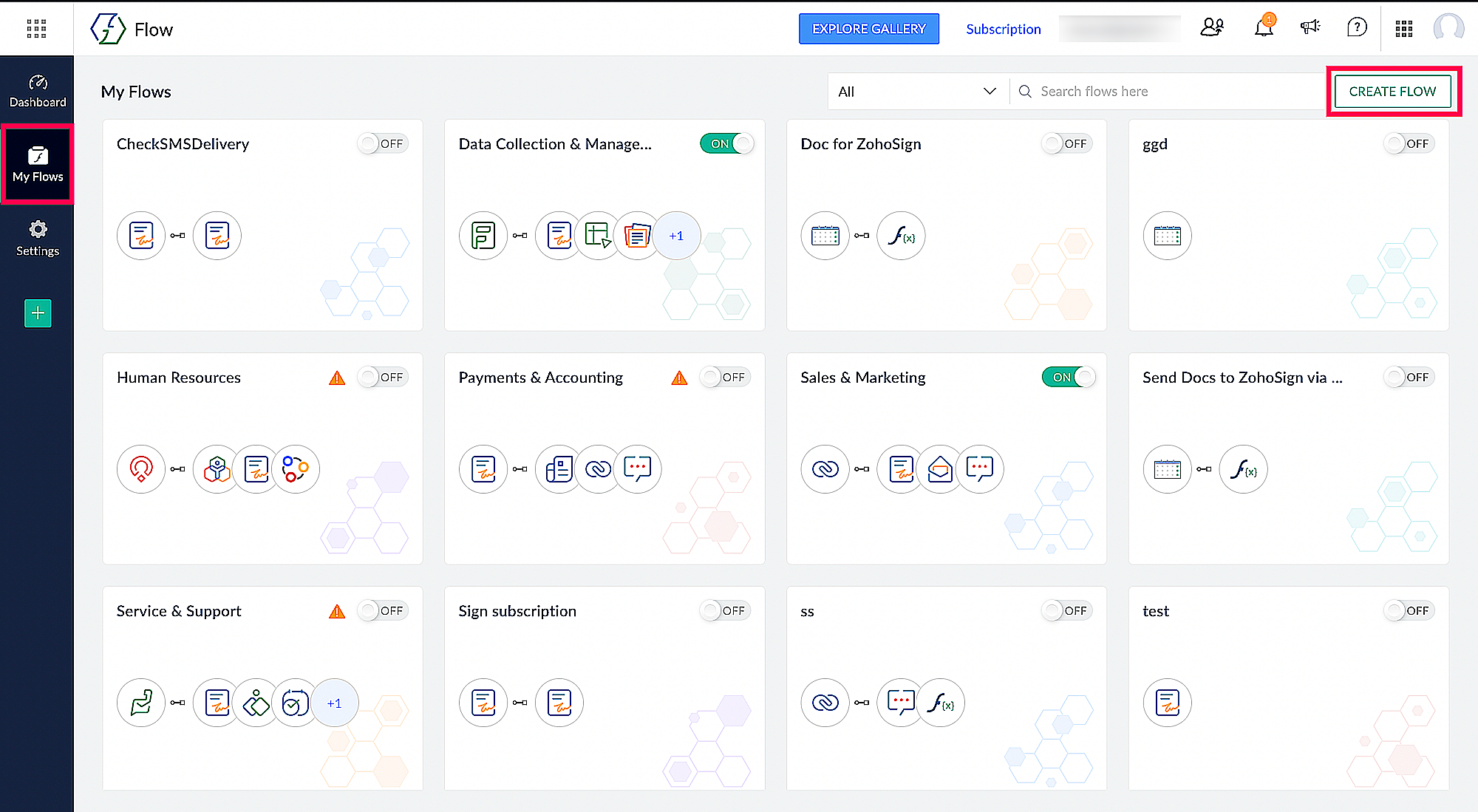
In Zoho Flow, open My Flows and click Create Flow. Give it a clear name, such as Everflow conversion.
2. Choose what triggers the flow
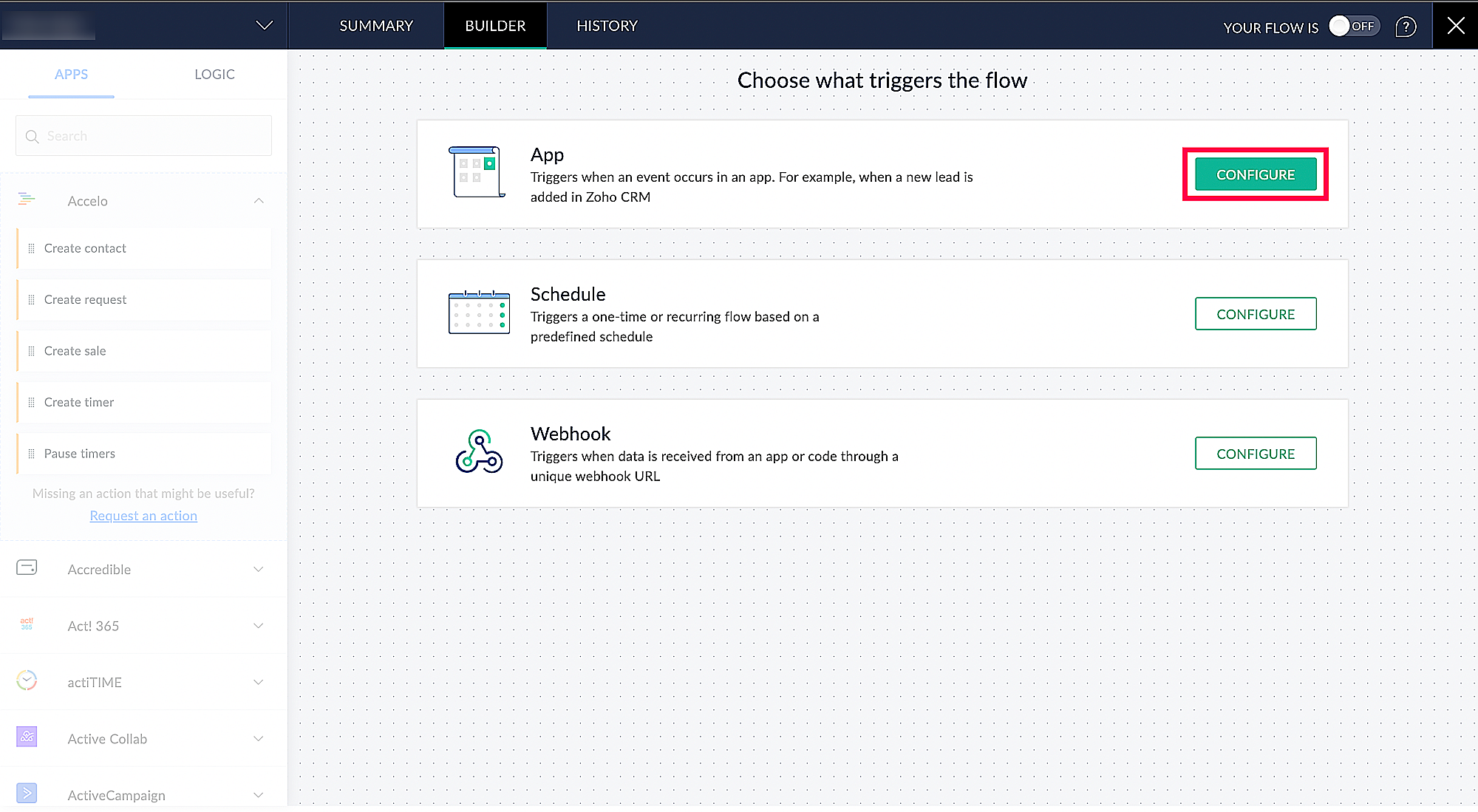
Choose the App option, then pick your Zoho event, such as a new lead in Zoho CRM or a paid invoice in Zoho Books. The Webhook option on this screen is for receiving data into a flow, which you do not need for this setup.
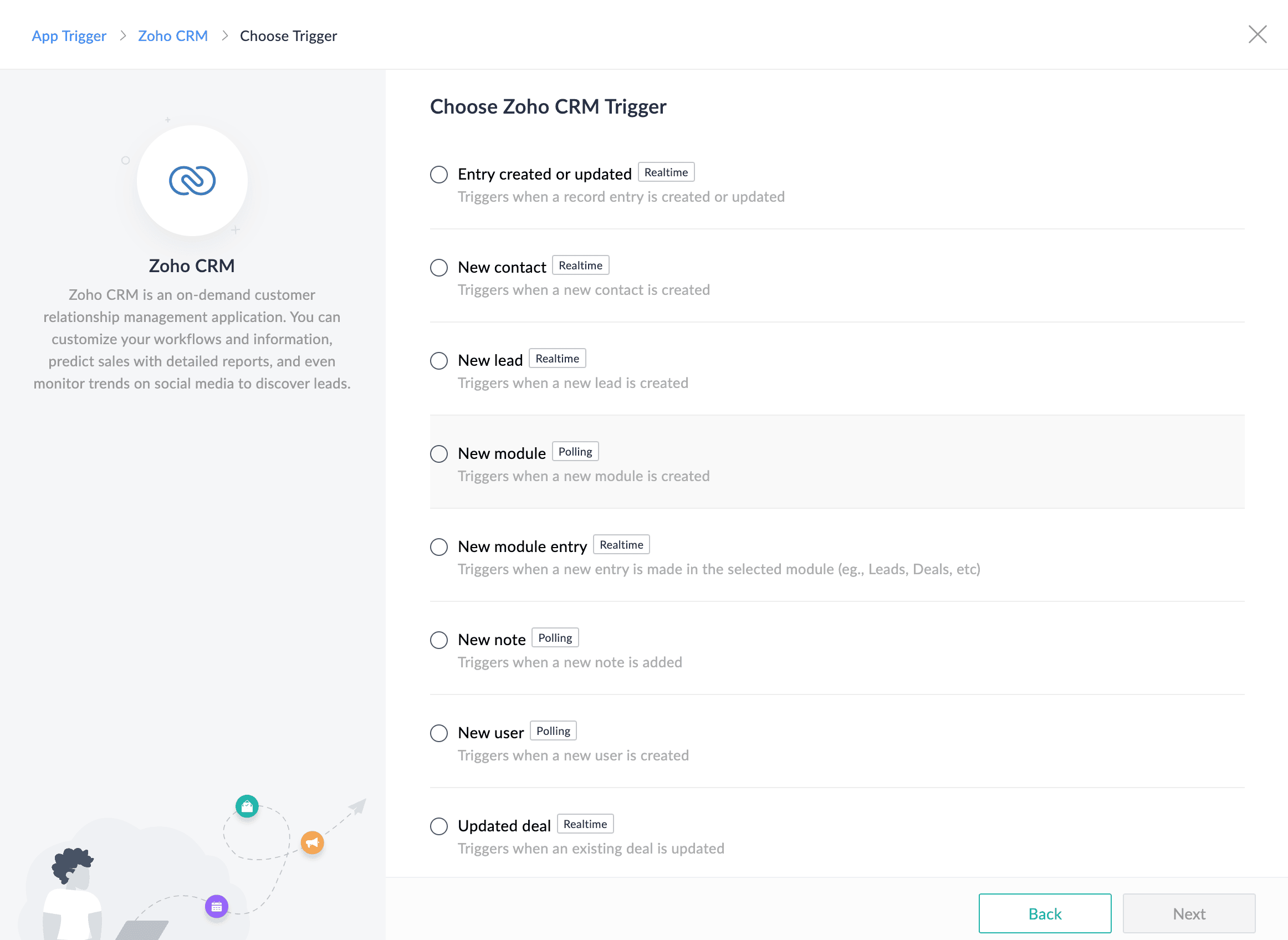
Then choose your Zoho app and the exact event, such as New lead or Updated deal in Zoho CRM.
3. Add a Webhook action that calls Everflow
Add a Webhook action, which is Zoho's outgoing webhook. Search for Webhook in the actions panel, set the method to GET, and paste your Everflow postback link. Then map your Zoho fields into the link, especially the saved transaction ID.
4. Turn the flow on
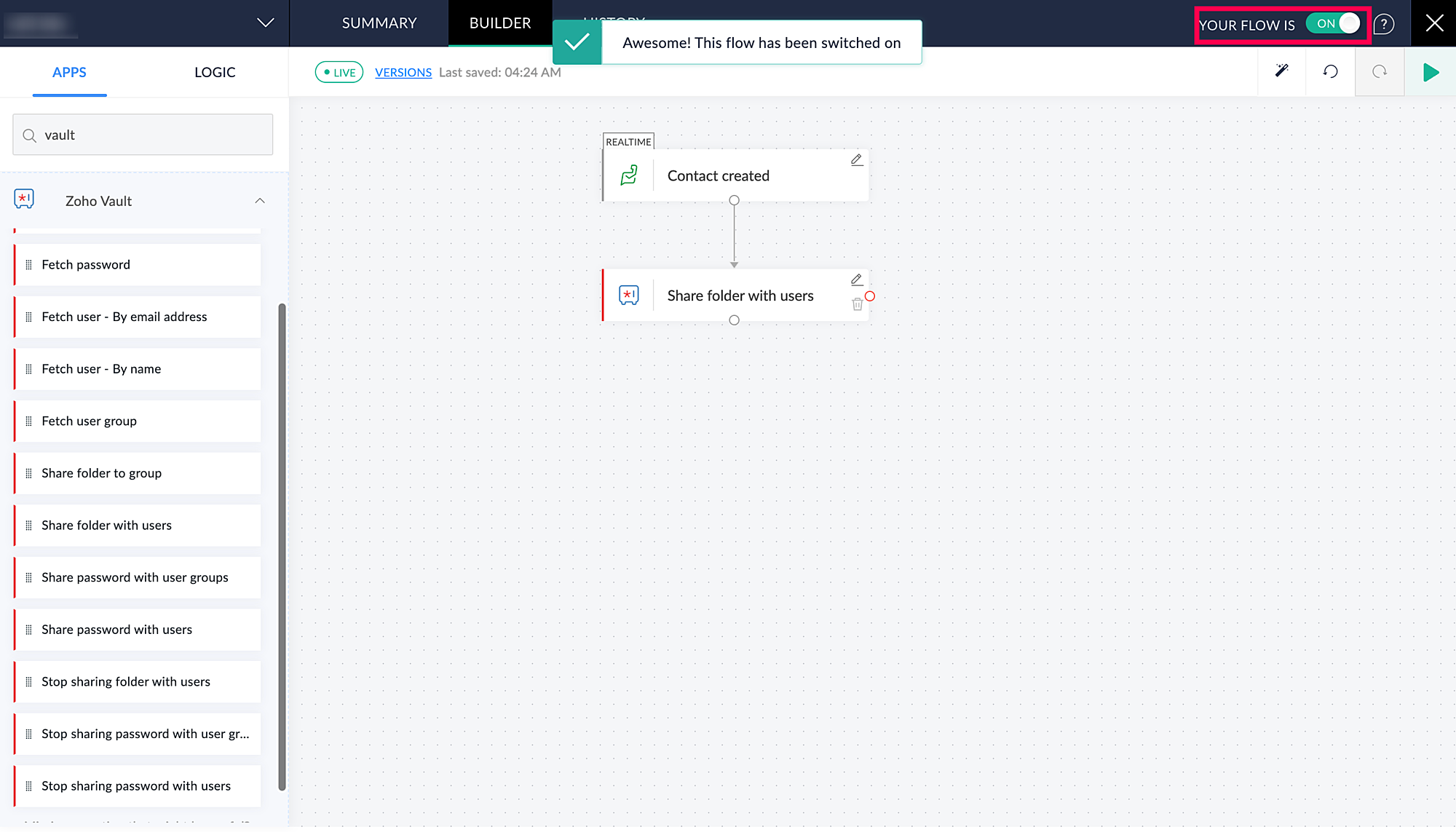
Switch the flow on with the toggle in the top right, then fire a test event and confirm the conversion appears in your Everflow Advertiser Postback Report.
Set up Zapier, step by step
Use Zapier if you already work in it, or when your Zoho product cannot call Everflow directly. This path uses the Catch Hook trigger.
1. Add a Catch Hook trigger
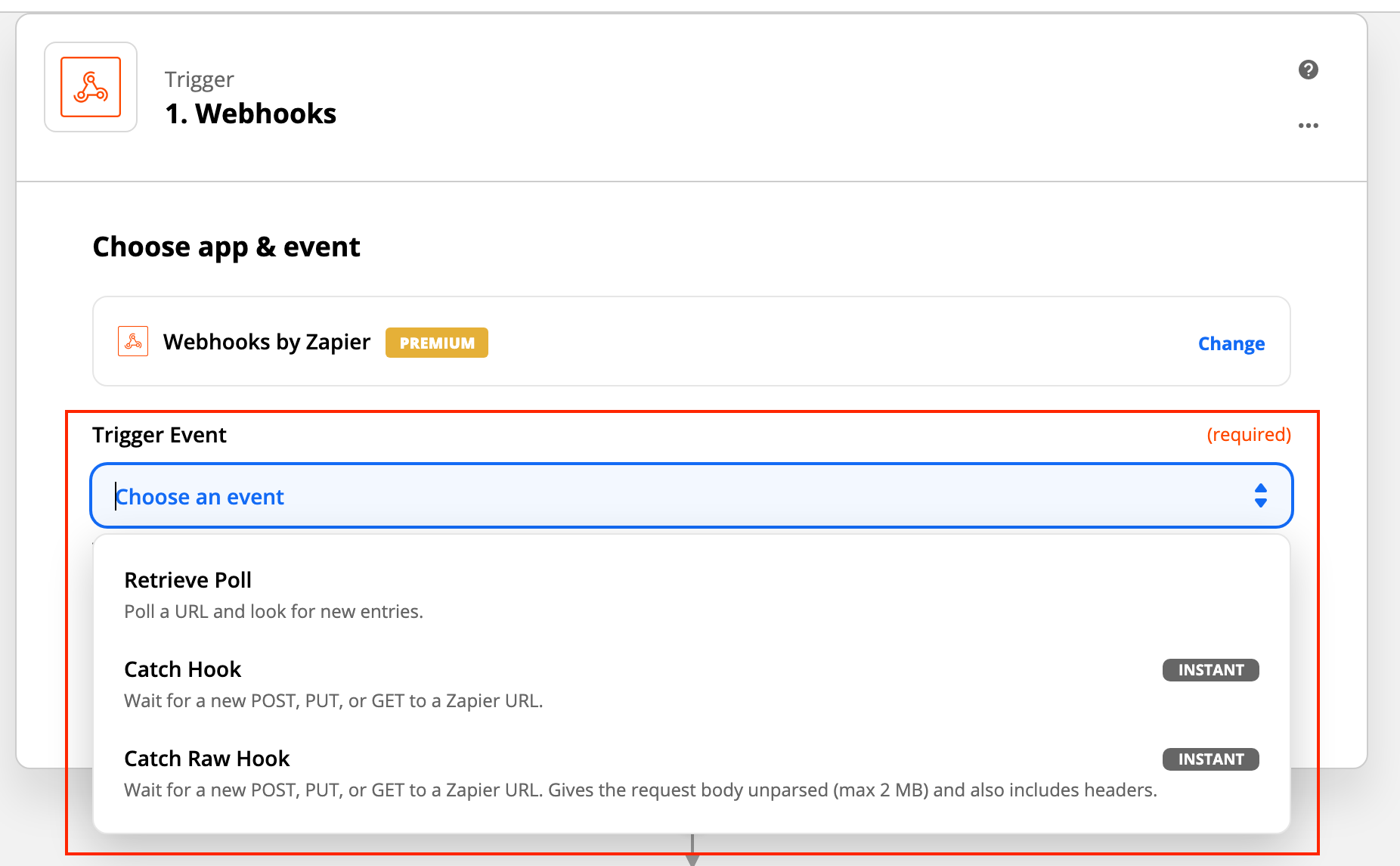
In Zapier, create a Zap and choose Webhooks by Zapier as the trigger. For the trigger event, pick Catch Hook, which waits for a request sent to a Zapier URL.
2. Copy the webhook URL
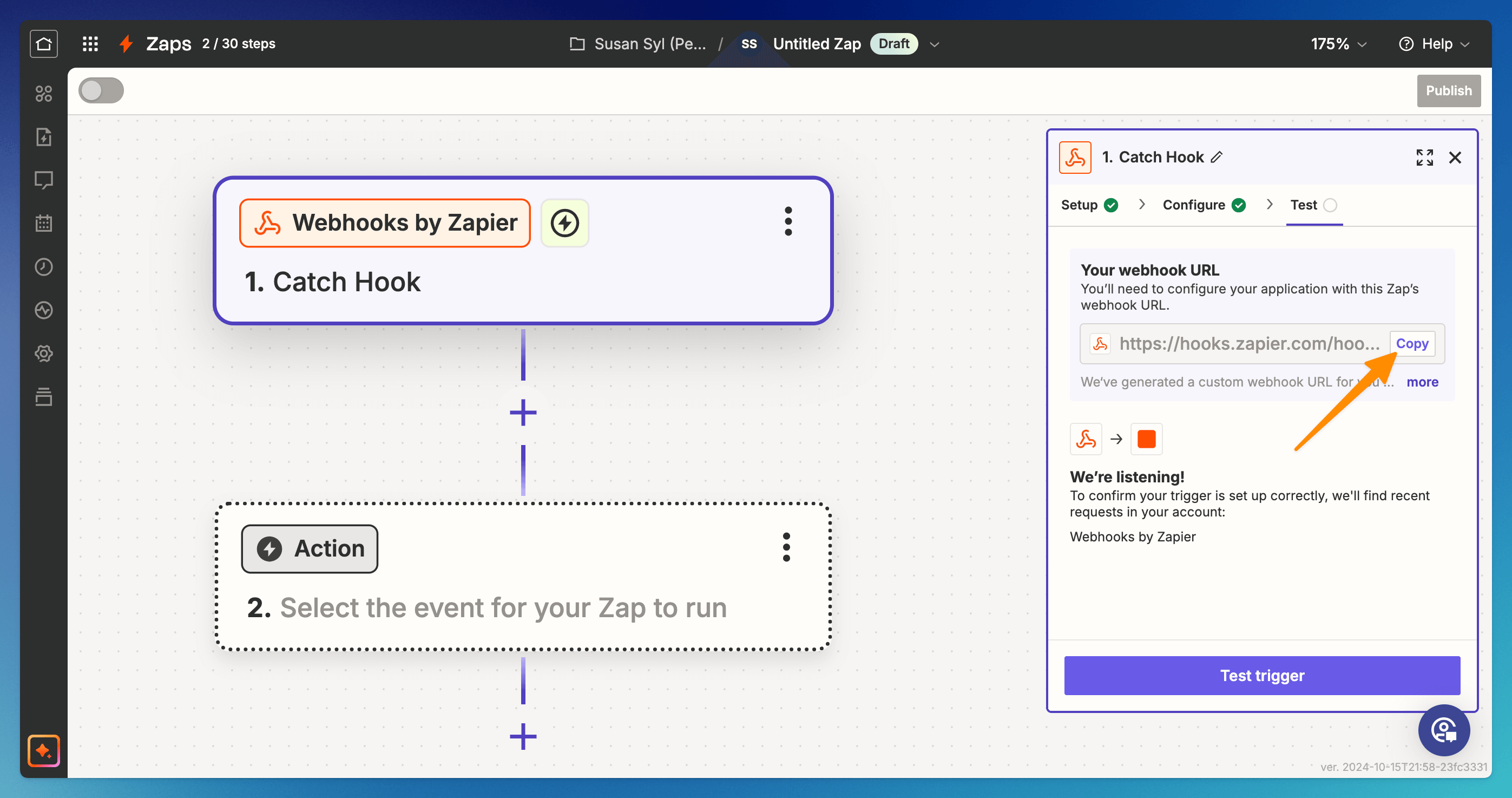
Zapier generates a webhook URL. Copy it, then paste it into Zoho as the place to send data. In Zoho CRM you add it as a Workflow Rule webhook. In Zoho Desk or Zoho Books you point the app's webhook or workflow at it.
3. Send a GET to Everflow
Add an action step with Webhooks by Zapier, set it to a GET request, and use your Everflow postback link as the URL. Map the Zoho fields into it, especially the saved transaction ID, then turn the Zap on.
Set up a Zoho CRM webhook, step by step
This is the direct path, and it is for Zoho CRM only. It needs no Flow or Zapier, because Zoho CRM can call your Everflow link on its own.
1. Create a workflow rule
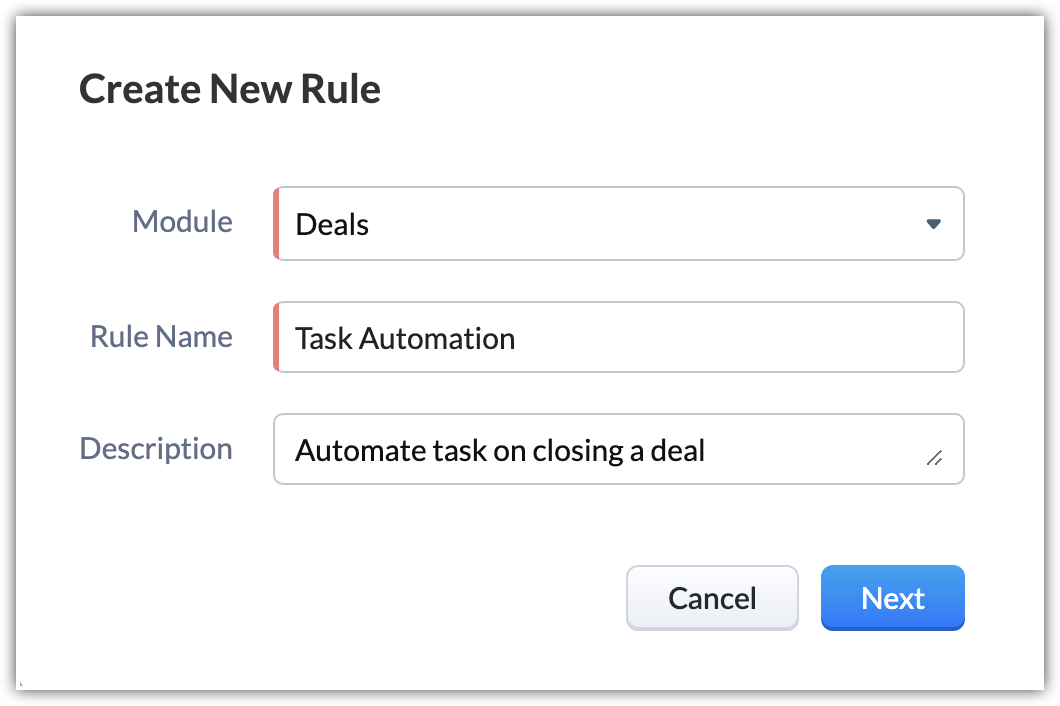
In Zoho CRM, go to Settings, then Workflow Rules, and click Create Rule. Pick the module, such as Deals or Leads, and give the rule a name.
2. Choose when the rule runs
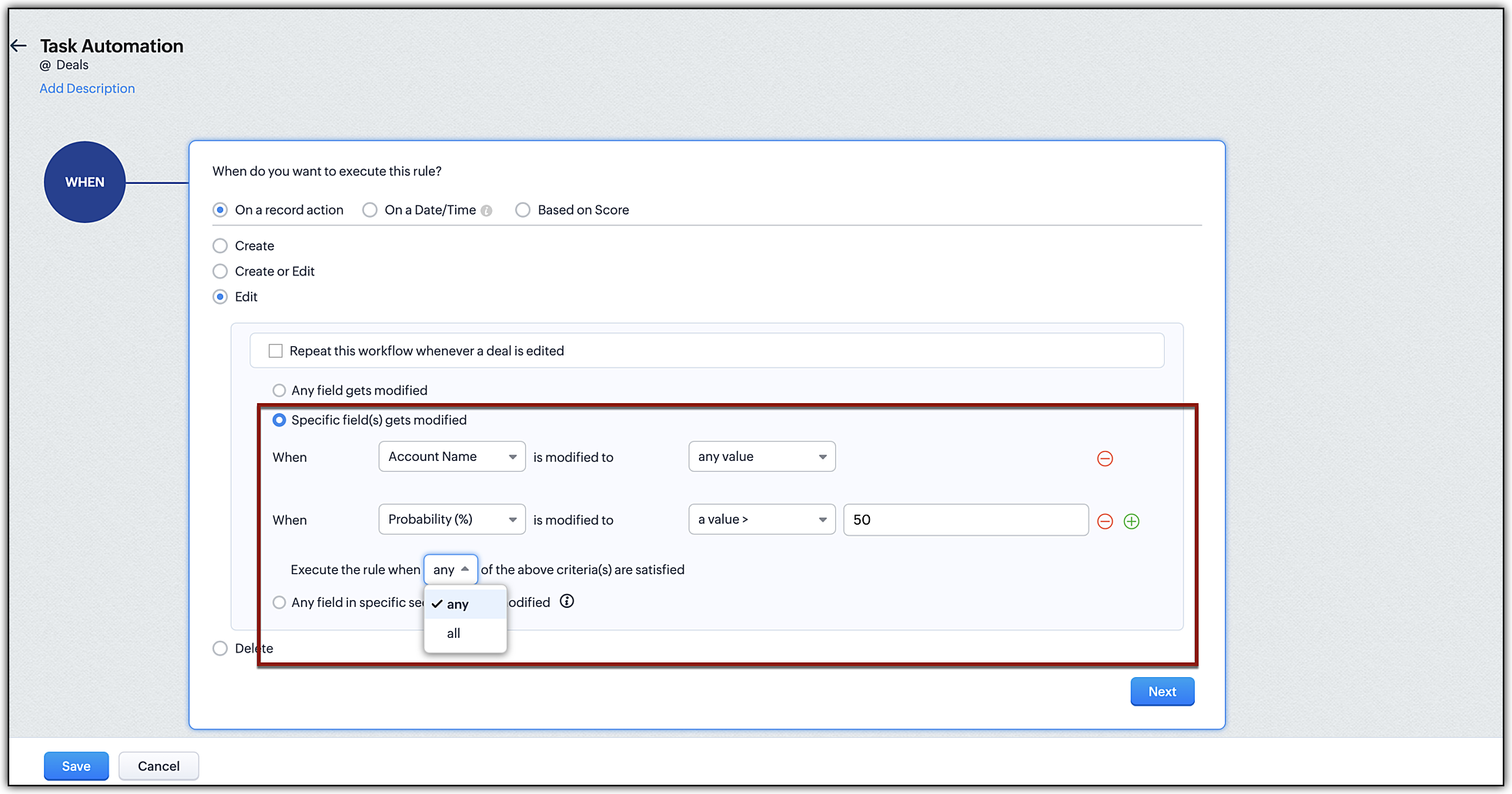
Set when the rule should fire, for example on edit when a deal stage changes to Closed Won, or when a specific field is modified. This decides which events send data to Everflow.
3. Add the Webhook action
Add a Webhook action to the rule. Set the API method to GET, and in the URL to Notify paste your Everflow postback link with merge fields where each value goes, for example
Build the postback link
An Everflow postback is a single web link. At a minimum it needs your Network ID and the transaction ID.
https://www.yourtracking.com/?nid=YOUR_NID&transaction_id={saved_transaction_id}Add more details as your funnel needs them. A lead that carries the Zoho status, a sale amount, and the lead's email looks like this. It is shown on several lines to make it easy to read, but you send it as one link.
https://www.yourtracking.com/?nid=123
&transaction_id={saved_transaction_id}
&event_id=3
&amount=149.99
¤cy=USD
&adv1={zoho_status}
&order_id={zoho_record_id}
&email={zoho_email}Match your Zoho fields to Everflow
Everflow gives you ten spare fields, named adv1 through adv10, to carry any Zoho data you want to see in reports or use in rules. You add them to the postback link as shown above. Here is a common mapping.
If you send personal data such as an email, you can hash it first. Add
Only pay for real conversions
This is where the Zoho connection really pays off. With Postback Controls, Everflow reads a value you passed from Zoho and decides whether to accept the conversion. This means you only pay partners for leads that Zoho has already confirmed.
Here is a real example. A medical services advertiser only pays when a Zoho invoice is actually paid. They send the Zoho invoice status into adv1 and set one simple rule:
Set up the Postback Control
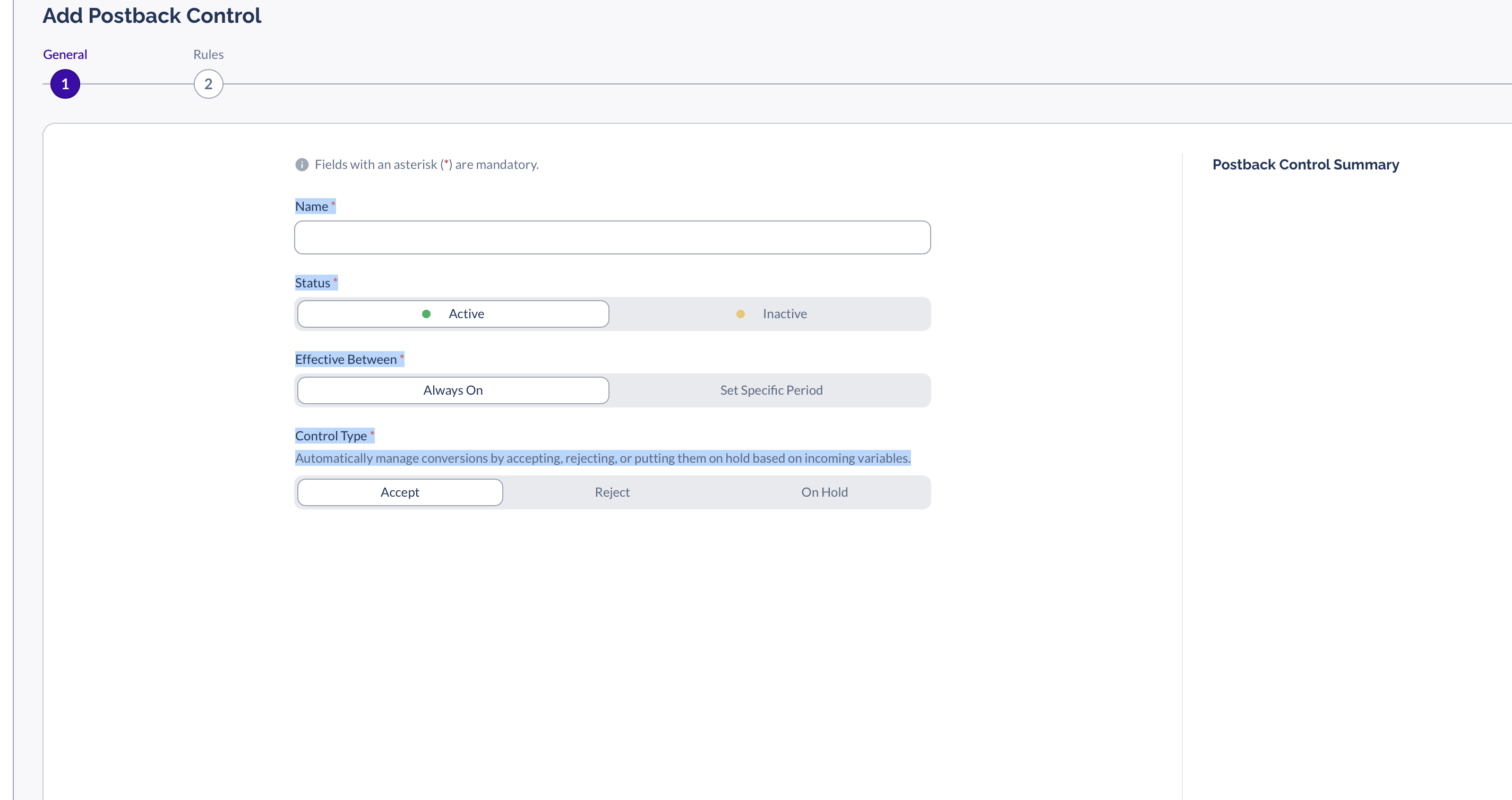
In Everflow, go to Advertisers, then Postback Controls, and click Add. On the General step, name the control, set Status to Active, and choose the Control Type Accept.
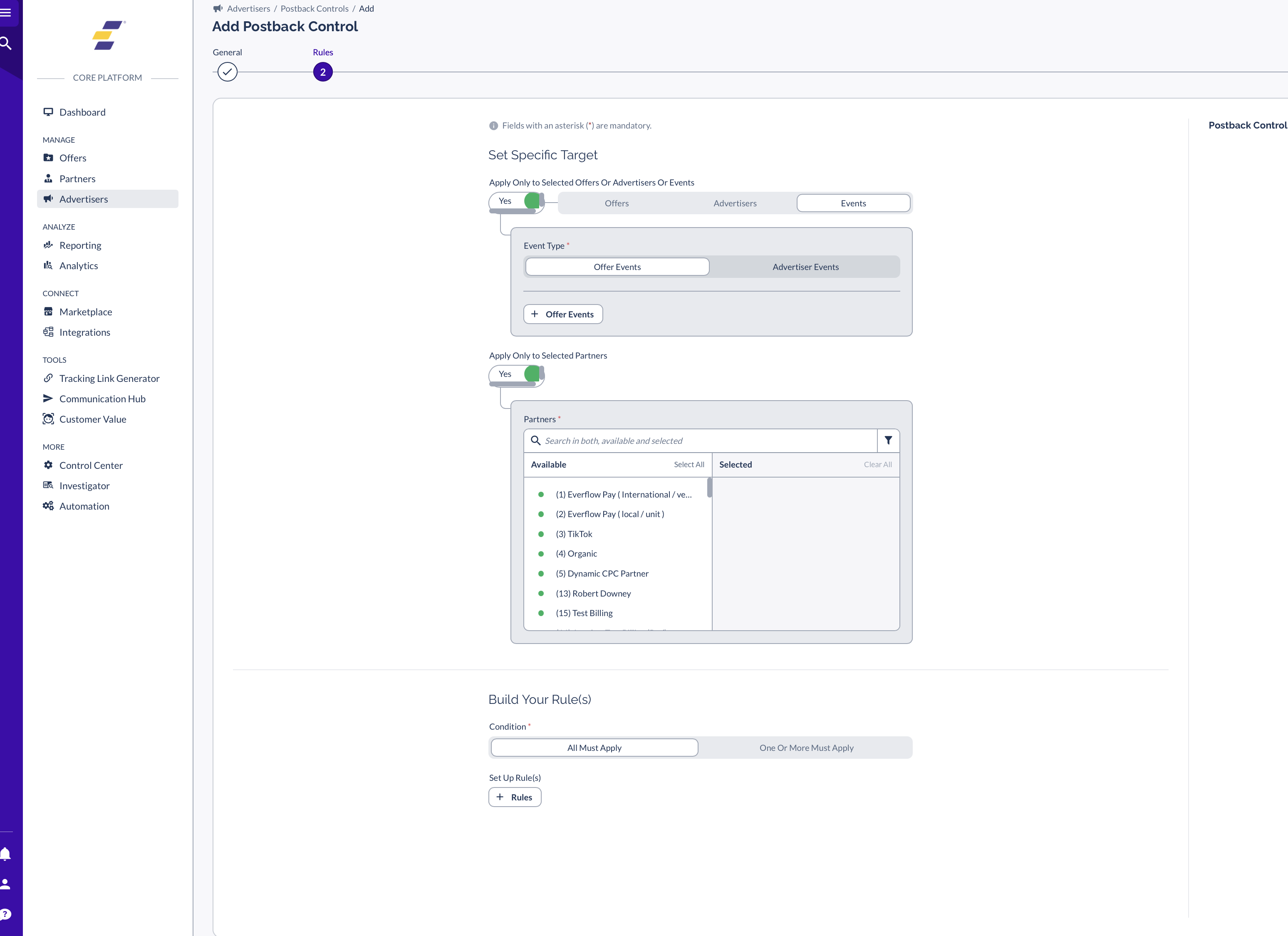
On the Rules step you can target specific offers, advertisers, or partners, then build the rule. Set the condition to All Must Apply and add a rule where the variable adv1 equals paid.
One more thing to know. Postback Controls can only read data that is in the postback link. If a Zoho field is not mapped to an adv value, no rule can use it, so map it first.
Send data back to Zoho
You can also push data the other way, from Everflow into Zoho, so a Zoho record updates when a conversion is confirmed. Everflow has an outbound webhook feature for this. Go to Control Center, then Automations, then Webhooks, add a webhook, choose an event such as Conversion Registered, pick GET or POST, and set the URL to a Zoho Flow incoming webhook or a Zapier Catch Hook, which then updates Zoho. The webhook payload carries the details you need, including the transaction ID, the adv fields, the order ID, and the sale amount.
Test it before you trust it
Run one full test from click to conversion before you turn partners loose.
Troubleshooting
If something is not working, open the matching question below.
This is almost always a capital letter mismatch in a Postback Control, such as Paid versus paid. Open the Advertiser Postback Report, copy the exact value Zoho sent, and match it word for word in your rule.
The transaction ID was never saved, was typed wrong, or the click is more than 90 days old and has been removed. Check that you are saving the ID, and for long sales cycles fire an early event to lock it in.
The verification token in your postback does not match the one set on the Advertiser under Advanced Options. Tokens are case sensitive and can be up to 50 characters.
Everflow could not match the conversion to a click. Add the email field to turn on email attribution, or make sure the transaction ID makes the full round trip through Zoho.
This usually means the login token expired, a required header is missing, or you used the wrong Zoho region address. Refresh the token and confirm your region, such as zoho.com or zoho.eu.
For developers
Most teams use Zoho Flow or Zapier and never open this section. It is here for developers who want to build their own listener for Zoho Desk.
Zoho Desk can create and manage webhooks through its API at desk.zoho.com/api/v1/webhooks. Each call needs an OAuth token and your orgId header. Desk sends each event as a POST with a JSON body, and your endpoint must reply with a 200 within 5 seconds or the event is counted as failed. A 410 response removes the subscription, and five failures in a row disable the webhook.
To confirm an event really came from Zoho, check the X-ZDesk-JWT header on the request. It is a signed token you verify against Zoho's public keys at desk.zoho.com/.well-known/jwks.json. To avoid loops when your own API calls trigger events, set an ignoreSourceId on the webhook and send the same value as a sourceId header on those calls.
Because Desk sends a POST with JSON, it cannot call the Everflow postback link directly. Use Zoho Flow or Zapier to turn the event into a GET, or have your own listener read the JSON and then call the Everflow link.
→ Understanding Tracking With Server To Server Postbacks — how server to server postbacks work.
→ Accessing & Editing S2S Postback URLs — where to find and edit your postback URL.
→ Postback Controls To Reject, Approve, Or Hold Conversions — gate payouts on a value like adv1.
→ Your Guide To Parameters & Macros — every macro you can pass, including the adv fields.
→ Passing Data Into Everflow With Zapier — the Zapier method in full.
→ What Are Automations? — set up Everflow's own outbound webhooks.
On the Zoho side: Configuring webhooks in Zoho CRM, Outgoing webhooks in Zoho Flow, Setting up webhooks in Zoho Desk, Webhooks in Zoho Books, and Send webhooks in Zaps.


