


.svg)

Overview
You can use Zapier to pass conversion and event data into Everflow using our postback feature whenever we don't offer an existing integration to serve that purpose. As long as you know when a conversion or event should fire, it can be passed into Everflow using either the direct Everflow Zap or a webhook.
Although this guide follows a HubSpot example, you can set up any external system to pass data the same way—this is useful for scenarios like passing deal amounts, storage fee commissions, or other custom data that standard integrations don't capture.
Example: Passing HubSpot Deal Data Into Everflow
In this example, you want to receive the Deal Amount from HubSpot when a deal reaches the "customer" stage—something the standard HubSpot integration doesn't pass. Here's how to set it up:
Option A: Everflow Zap (Recommended) — Use the direct Everflow integration for a simpler setup with dropdown selections. Requires an invite link.
Option B: Webhook — Use Zapier's Webhook feature to fire a GET request to Everflow's postback URL. More flexible but requires manual URL configuration.
Choose your method and follow either Step 3a or Step 3b below.
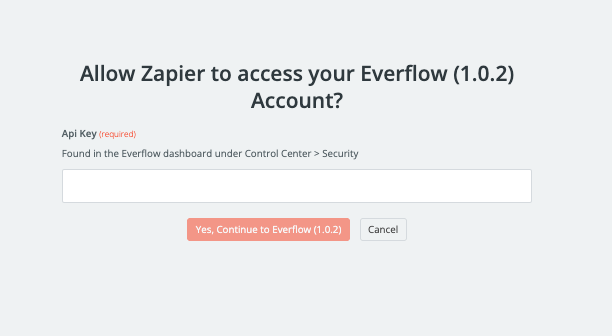
Access the Everflow Zap using this invite link: Zapier Invite
When prompted, generate an API Key from your Everflow account at Control Center > Security and enter it to connect.
Select your Action Event—either Create Affiliate Signup or Create Conversion.
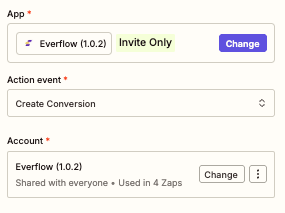
For the Create Conversion event, configure these required fields:
• Transaction ID — The unique click identifier from the original tracking link
• Coupon Code — If using coupon-based attribution
• Affiliate ID (with Offer ID) — Hard-code a specific Partner to receive the conversion
• Email — Only works if the email was already captured from a previous conversion for email attribution
You can pass additional data in the Amount, Order ID, and ADV fields.
For the Zapier action, select Webhooks by Zapier and choose GET as the event type.

In Everflow, copy your offer's postback conversion URL from the Tracking Card (when Offer is configured with Conversion Method - Server Postback).

https://[your-tracking-domain].com/
In Zapier, paste the tracking URL and add the necessary Everflow parameters under Query String Parameters. This example is designed for an Offer with email attribution enabled.

The configuration above fires an event conversion into Everflow for Offer 9 and Event 34. The Event is attributed to the Partner whose click led to the lead, matched by email, with an event amount of $1000.
affid parameter to receive these events: affid=[partner id]HubSpot tip: Deals don't include email by default. Create a custom deal field, then set up a workflow automation to copy the Contact Email into the new field.
Click Continue and test action in Zapier. You should receive a conversion if there's a Partner attributed to that email (or the hard-coded affid).
For your first test, we recommend hard-coding an affid to make sure everything works before relying on email attribution.
In Everflow, navigate to Reporting > Conversions and run a report. Verify the event conversion was received with all the expected data points—Offer, Event, Partner, Amount, and any ADV fields you configured.
Common Use Cases
Beyond HubSpot deal amounts, here are other scenarios where Zapier + Everflow works well:
How Zapier Conversions Appear in Reporting
Pulling the Contact Email from a HubSpot Deal
HubSpot deals do not include the contact's email by default, which is needed for email attribution. Instead of copying the email into a custom deal field, you can look it up directly within your Zap using HubSpot's association steps:
Check the Email Exists Before Firing (Avoid Disabled Zaps)
With CRM setups you will often have traffic that originated outside of Everflow. If your Zap fires a conversion for an email that Everflow has never seen, it returns an error — and after enough errors Zapier may automatically turn the Zap off. To prevent this, check whether a matching conversion already exists before firing the Create Conversion step.
Before the Everflow action, add a Webhooks by Zapier step using the GET method to query Everflow for an existing conversion with that email:
https://api.eflow.team/v1/networks/search/metaq = the Contact Emailjsonx-eflow-api-key = your API KeyAdd a Filter by Zapier step set to only continue if the Results Resource Type from the GET step Exists. If no match is found the response is blank and the Zap stops there, so the invalid conversion never fires into Everflow.


