


.svg)

Overview
When a sync fails, it means a specific Bill or Bill Payment couldn't be created in your accounting software. The connection itself is still working — the problem is with that individual sync operation.
This article is your error-by-error fix guide. It covers every sync-level error you may encounter, what causes it, and the exact steps to resolve it. If instead you were refreshing your vendor or account list and it didn’t finish, that’s a different kind of problem — see Fixing Accounting Connection Errors In Everflow Pay.
Sync errors vs. connection errors: This article covers sync-level errors — problems with individual transactions. If your entire integration is down due to expired credentials or a lost connection, see Fixing Accounting Connection Errors in Everflow Pay.
How to Find Sync Errors
You can spot sync failures in three different areas of the platform:
- Dashboard Card: A red card reading "[#] Action(s) Needed!" indicates fixable errors. Click View Details to jump to the Syncs tab.
- Integration Overview: Navigate to
MANAGE → Accounting Integration - Manage Payments: Navigate to
TRANSACTIONS → Payments
Understanding the Error Modal
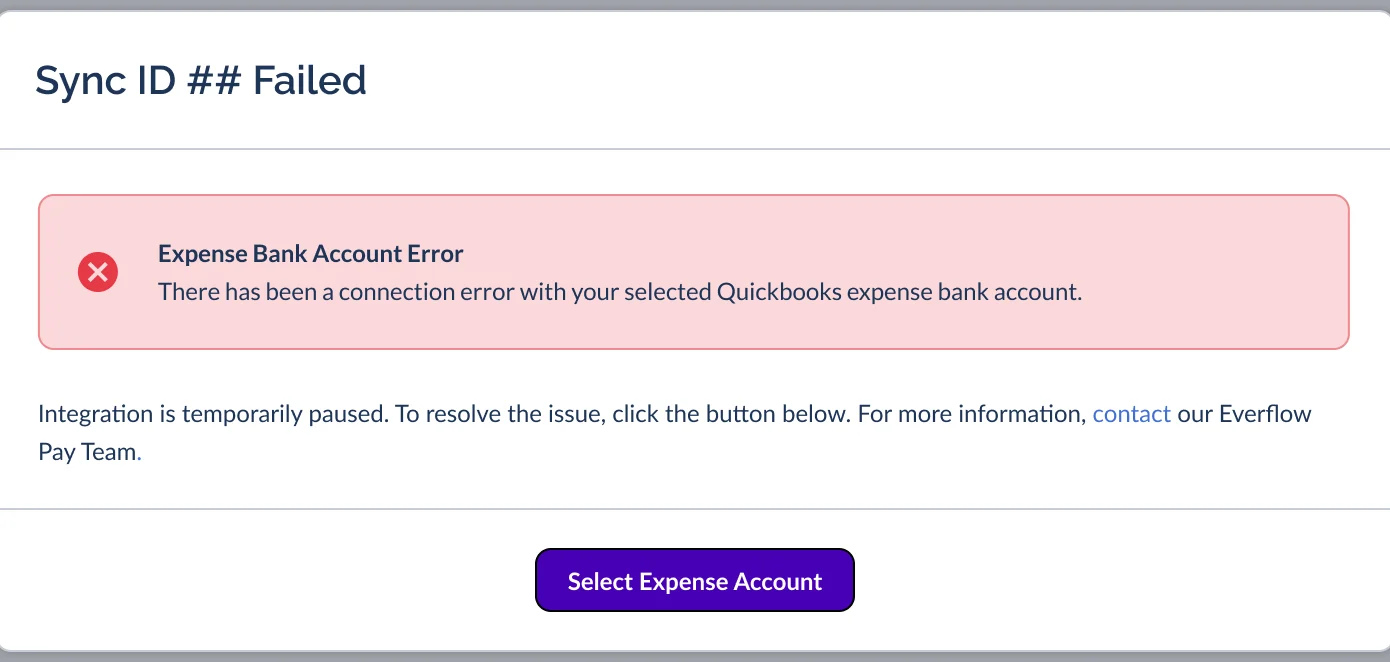
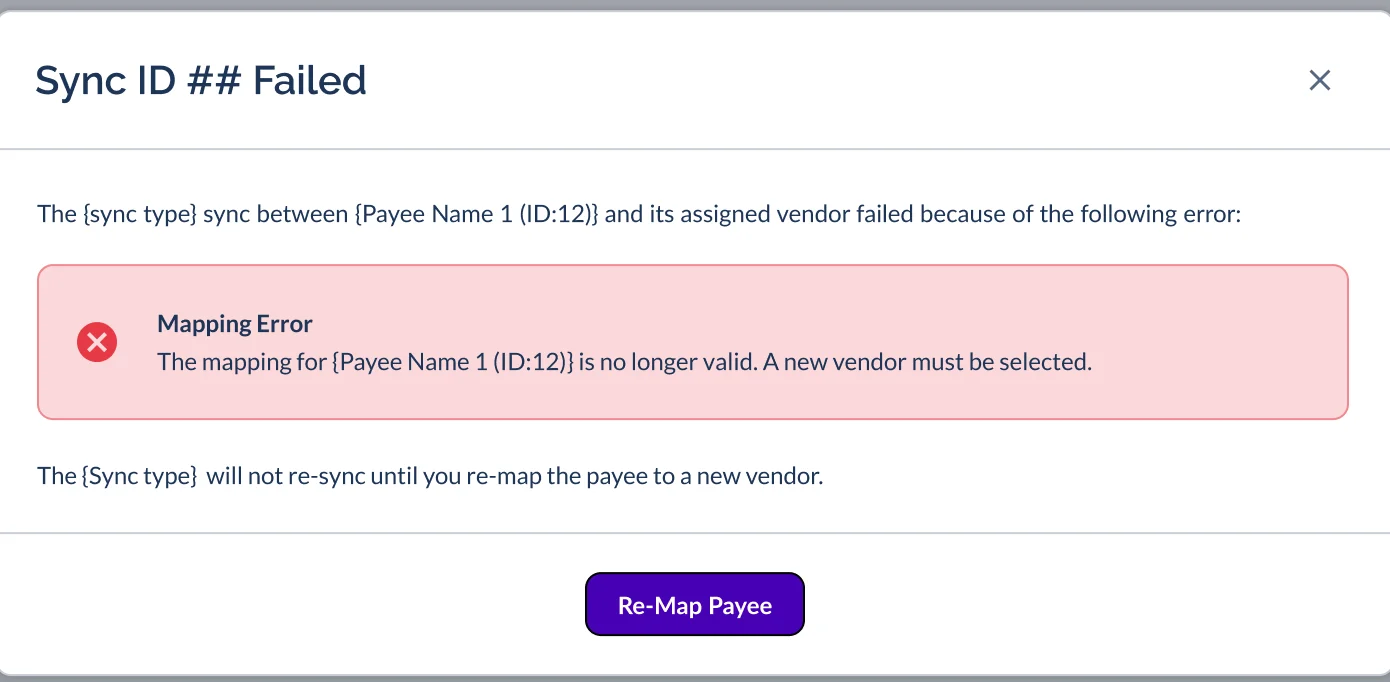
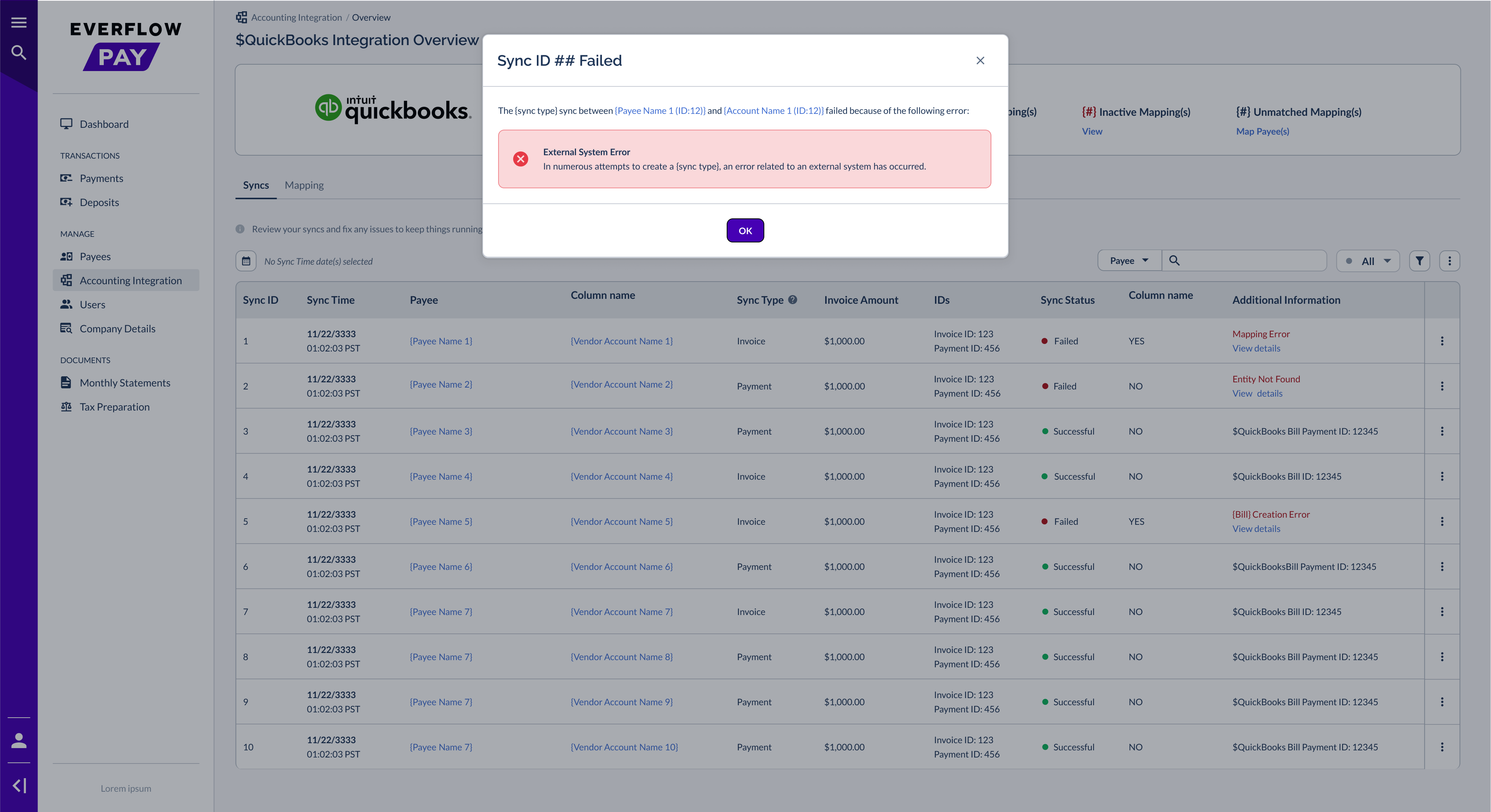
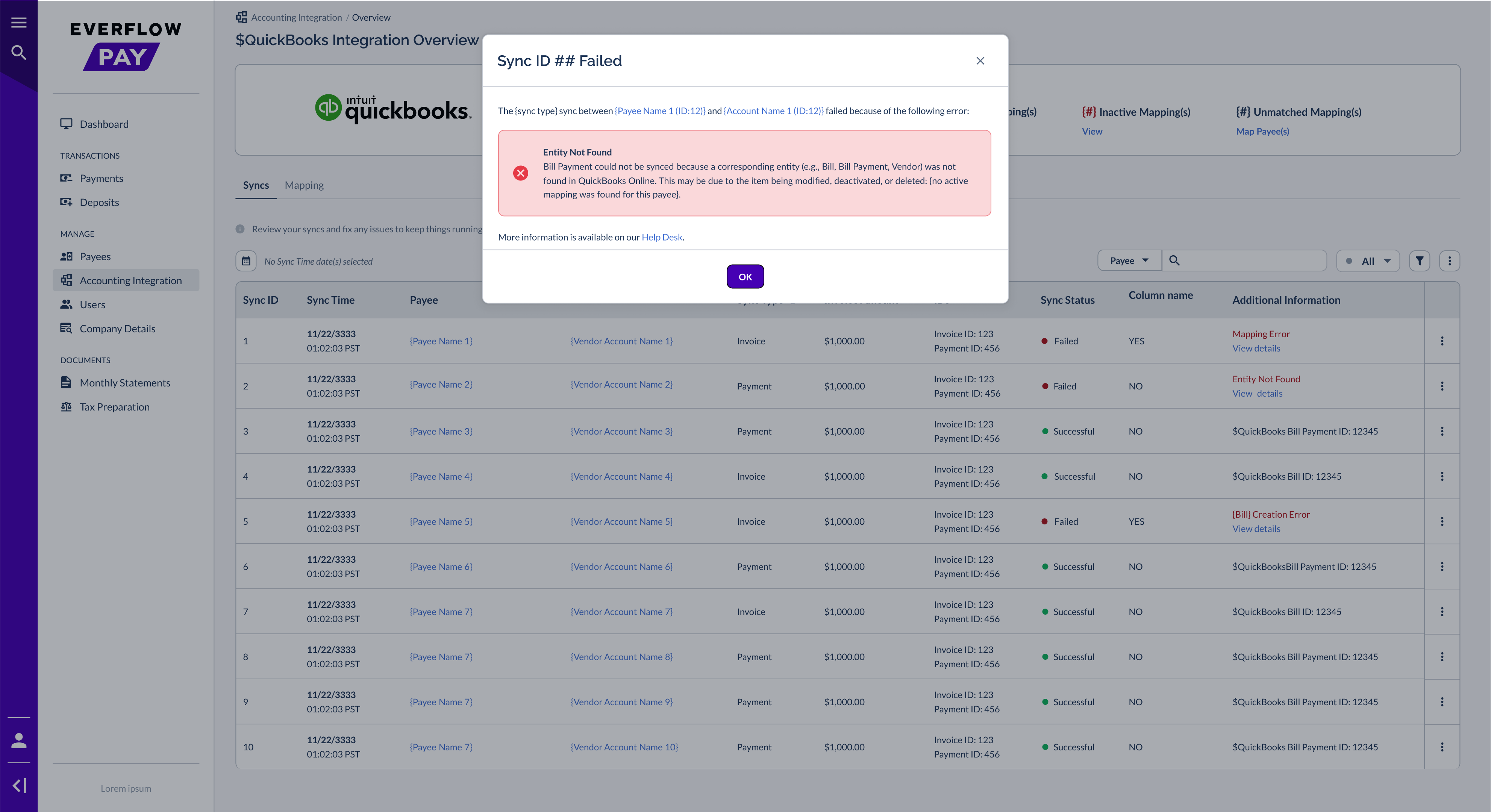
Every sync error surfaces in the same modal: “Sync ID ## Failed”. It always displays:
- The Payee and Vendor involved in the sync
- The Error Name and a plain-language description
- What’s Blocked until the issue is resolved
- A Specific Action Button to fix the problem
The Five Sync Errors
Click any card to see the screenshot, what causes it, and how to fix it.
If a Vendor or Account Refresh Doesn’t Finish
Refreshing your vendor or account list is a different job from syncing a payment, so it fails differently too. You won’t see it on the Syncs tab — instead you’ll get a message in the window you were using, a banner on the page, and an email.
A refresh isn’t something you can retry yourself. Use Contact Us on the banner and the Everflow Pay team will get it moving again. For the full walkthrough, see Fixing Accounting Connection Errors In Everflow Pay, and for how refreshes work in the first place see How Accounting Syncs Work in Everflow Pay.
Preventing Sync Errors
- Don’t delete or deactivate mapped Vendors in your accounting software — this causes a Mapping Error for every future sync with that Payee
- Xero users: don’t archive mapped Contacts — archiving has the same effect as deleting
- Don’t delete or deactivate your Expense Account — this pauses the entire integration
- NetSuite users: keep accounting periods open until all syncs for that period have completed
- Map all Payees to Vendors at setup — unmapped Payees won’t sync at all
- Check the Dashboard card regularly — catching errors early prevents them from stacking up
Most errors are caused by changes made in your accounting software that invalidate what Everflow Pay relies on. Follow the tips above to avoid common issues.
When to Get in Touch
Most errors can be resolved from the error modal. Email the Everflow Pay team at pay.help@everflow.io if:
- The same error keeps recurring after you’ve fixed it — include the Sync ID, error name, and steps you already took
- You see a Bill Creation Error you can’t explain — include the Sync ID so support can investigate the root cause
- Your accounting software shows data that doesn’t match what Everflow Pay sent — include the Sync ID + the EF_INVOICE_ID from the memo field
- You’re seeing an error not listed in this guide — include the Sync ID + a screenshot of the error modal
→ How Accounting Syncs Work in Everflow Pay — What gets created, what triggers a sync, and the rules
→ Checking Sync Status in Everflow Pay — Where to monitor sync health day-to-day
→ Fixing Accounting Connection Errors in Everflow Pay — Connection-level issues (expired credentials, lost connection)
→ Understanding & Managing Payee-To-Vendor Mapping in Everflow Pay — Mapping management


