


.svg)

Overview
When Everflow Pay can’t communicate with your accounting software, you have a connection error. A connection error means the entire integration is down, and all syncs are blocked until you fix it. This is different from a sync error, which only affects individual payees.
This article covers what a connection problem looks like, what usually causes one, and how to get things running again. It also covers what to do when a vendor or account refresh doesn’t finish.
How You’ll Know
Everflow Pay tells you in more than one place, so you don’t have to be on the right screen to find out.
- In the window you were using — if you were connecting or refreshing, a pop-up appears saying Unable to complete the connection, with a short explanation.
- On the Accounting Integration page — a red Accounting Integration Connection Failed banner appears, with a Contact Us button.
- On Manage Payments — the same banner appears here too, so you’ll spot it while you’re working with payments.
- By email — Everflow Pay emails you when a connection or refresh fails, so nothing goes unnoticed.
What Usually Causes It
A connection problem nearly always comes down to one of four things happening on your accounting software’s side. Everflow Pay shows the same message either way — what differs is the fix.
The Four Causes
Click any card to see what tends to cause it and how to put it right.
Getting the Connection Working Again
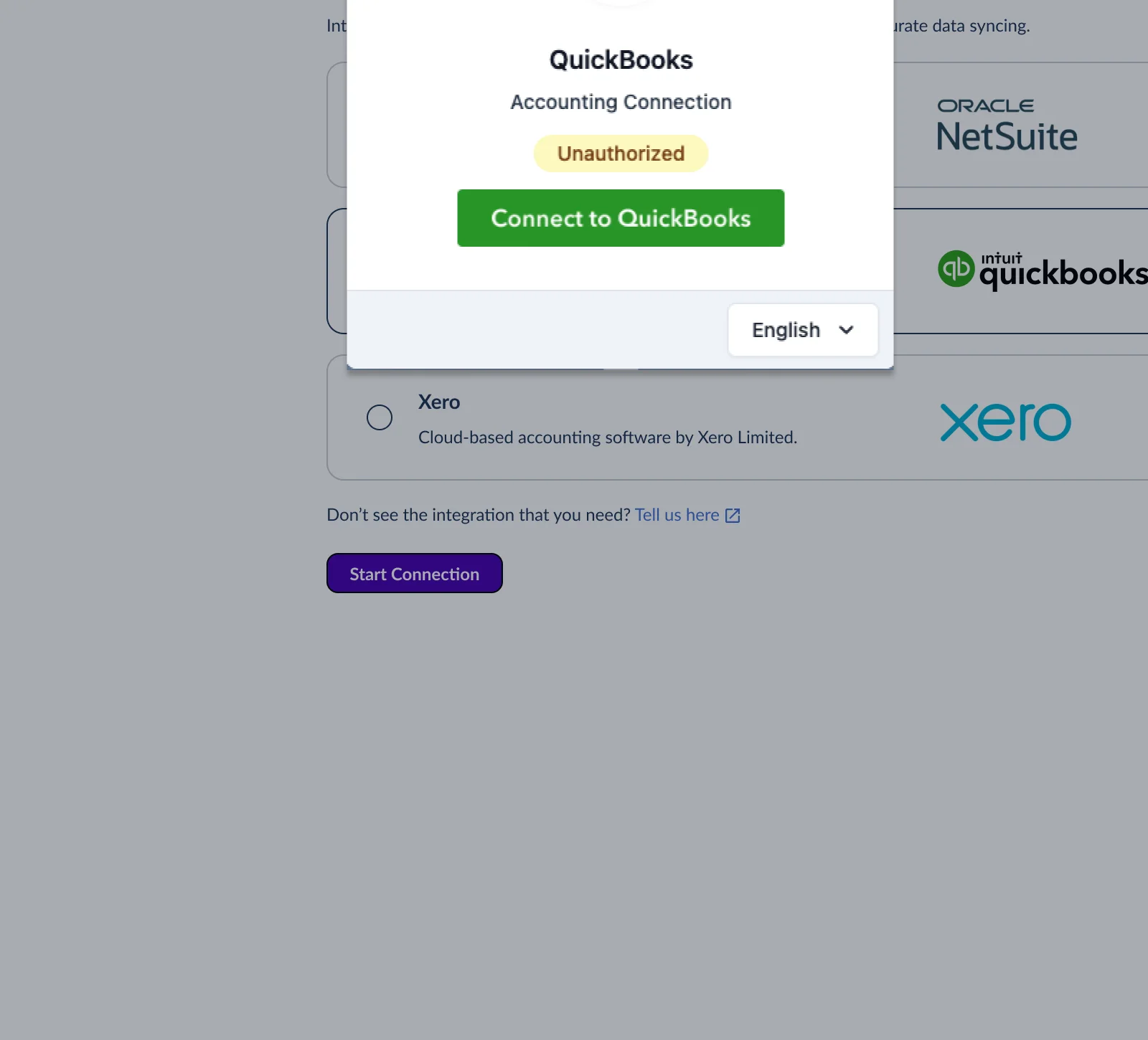
Connection and refresh problems can’t be retried from your side, so there’s no button to press. Here’s what to do instead.
Notes for Each Accounting Platform
QuickBooks Online
Log in with your Intuit credentials and approve. QBO tokens refresh automatically in the background, so Invalid Credentials errors are relatively rare.
Xero
Log in with your Xero credentials and approve. If you have multiple Xero organizations, make sure you select the correct one during re-authorization.
NetSuite
Re-authorization may require additional steps. Because NetSuite uses token-based authentication, verify that the app you created during initial setup is still active in your NetSuite admin dashboard before you connect again. If connecting again doesn’t resolve it, that’s usually the cause.
If a Vendor or Account Refresh Doesn’t Finish
Refreshing your vendor or account lists uses the same connection, so it can run into the same problems. When one doesn’t finish you’ll see Unable to Refresh Vendors (or Accounts) in the window, plus a banner on the page and an email.
Refreshes can’t be retried from your side either, so use Contact Us on the banner. The causes above apply here too — it’s worth checking access in your accounting software first. For how refreshes work normally, see How Accounting Syncs Work in Everflow Pay.
What Happens To Payments While It’s Down
- All syncs pause — No Bills or Bill Payments are created for any Payee while the connection is down.
- Approved payments queue — If your team continues approving payments during the outage, those payments are not lost. They queue and sync automatically once the connection is restored.
- The Dashboard reflects the error state until the connection is fixed.
Preventing Connection Errors
- Don’t revoke Everflow Pay’s access in your accounting software’s app or settings — this immediately invalidates the OAuth token
- Check after password changes — changing your accounting software password can break the existing token. Visit the Integration Overview page to verify the connection is still healthy.
- Keep your subscription active — an expired or suspended accounting software account will drop the connection
- Coordinate with your team — if multiple people manage your accounting software, make sure everyone knows that removing connected apps affects the Everflow Pay integration for your entire organization
- NetSuite: keep app credentials active — if the app created during initial setup is deactivated or deleted in NetSuite, the connection breaks
Quick Reference
→ How Accounting Syncs Work in Everflow Pay — What gets created, what triggers a sync, and the rules
→ Checking Sync Status in Everflow Pay — Where to monitor sync health day-to-day
→ Fixing Accounting Sync Errors in Everflow Pay — Sync-level errors (individual transactions)
→ Understanding & Managing Payee-To-Vendor Mapping in Everflow Pay — Mapping management


