


.svg)

Overview
Once your Accounting Integration is set up, you have three places to check its health — the Dashboard card, the Integration Overview page, and the Manage Payments page. This article explains what each indicator means and where to go when something looks wrong.
For step-by-step fix instructions, see Fixing Accounting Sync Errors in Everflow Pay.
Your Dashboard Card — First Thing You See
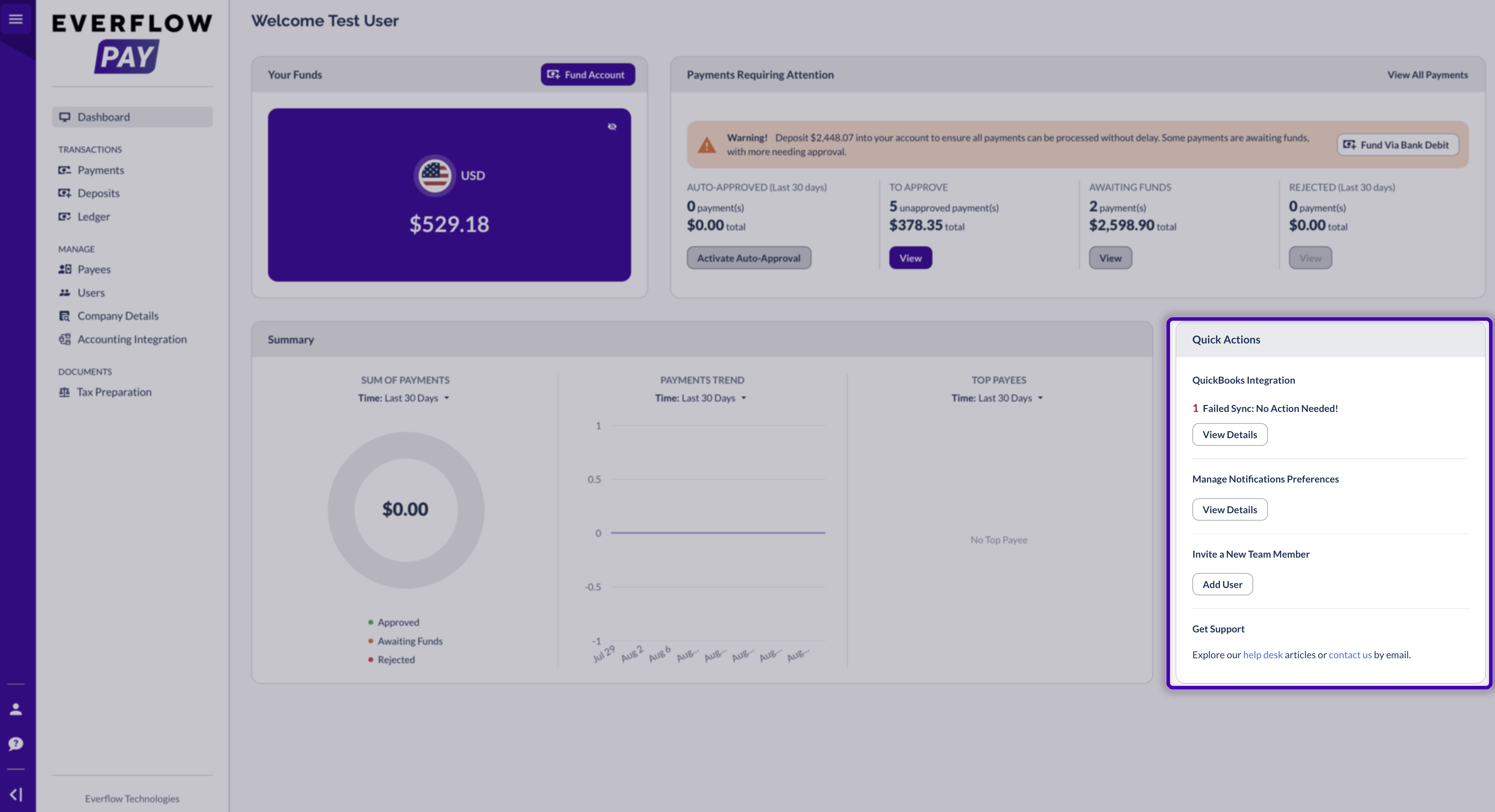
The Accounting Integration card on your Everflow Pay Dashboard gives you an at-a-glance status every time you log in.
Here’s what each card state means:
- “All syncs are successful” (green) — Everything is working. No action needed.
- “[#] Failed Sync: [#] with Action(s) Needed!” (red) — Syncs failed that you can fix. Click “View Details” to go to the Syncs tab.
- “[#] Failed Sync: No Action Needed!” (red) — Syncs failed but they’re system-level. Monitor — these will self-resolve.
- “Connect your accounting software” — Integration isn’t set up yet. Click “Connect Now” to start.
If the Connection Itself Has a Problem
Sometimes the problem isn’t one sync, it’s the connection to your accounting software. When that happens you’ll see a red Accounting Integration Connection Failed banner rather than a per-sync failure, and nothing syncs until it’s sorted. Fixing Accounting Connection Errors In Everflow Pay covers what causes that and how to get going again.
Integration Overview Page — The Full Picture
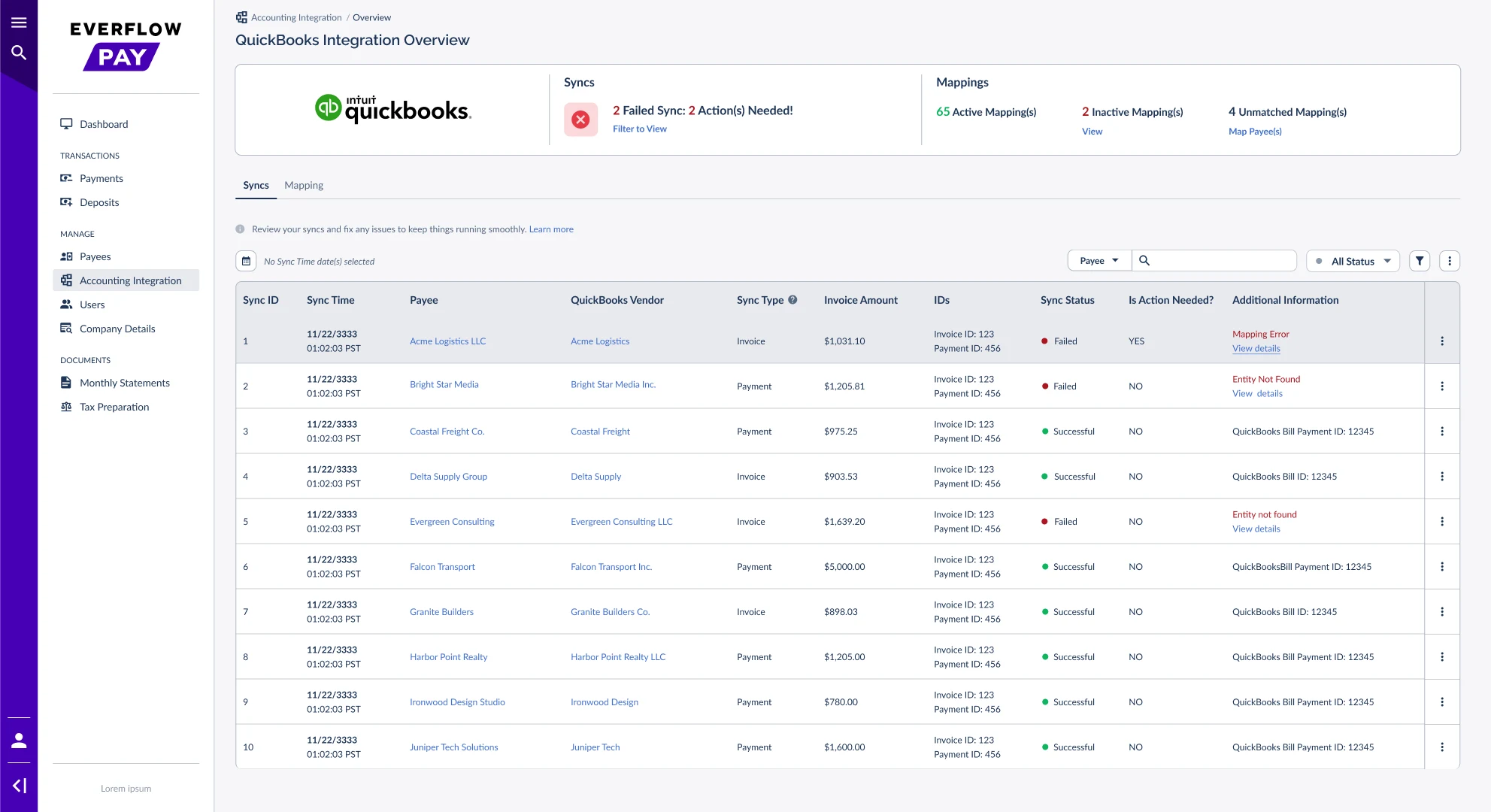
The Integration Overview page is your main hub for monitoring syncs and mappings. Navigate to:
Summary Bar
The bar at the top gives you a snapshot across two areas:

Syncs
- "All syncs are successful" (green) — no issues
- "[#] Failed Sync: [#] with Action(s) Needed!" (red) — click "Filter to View" to isolate failures in the Syncs tab
- "[#] Failed Sync: No Action Needed!" (red) — system-level, will self-resolve
Mapping
- [#] Active Mapping(s) — Payees mapped to Vendors; syncs will work for these
- [#] Inactive Mapping(s) — previously mapped Payees no longer active; click "View" to review
- [#] Unmatched Mapping(s) — Payees with no Vendor map; click "Map Payee(s)" to fix
Payments for unmapped Payees will not sync. See Understanding & Managing Payee-To-Vendor Mapping in Everflow Pay to fix this.
Syncs Tab — What to Look At
You don't need to review every row. Here's the recommended daily routine:
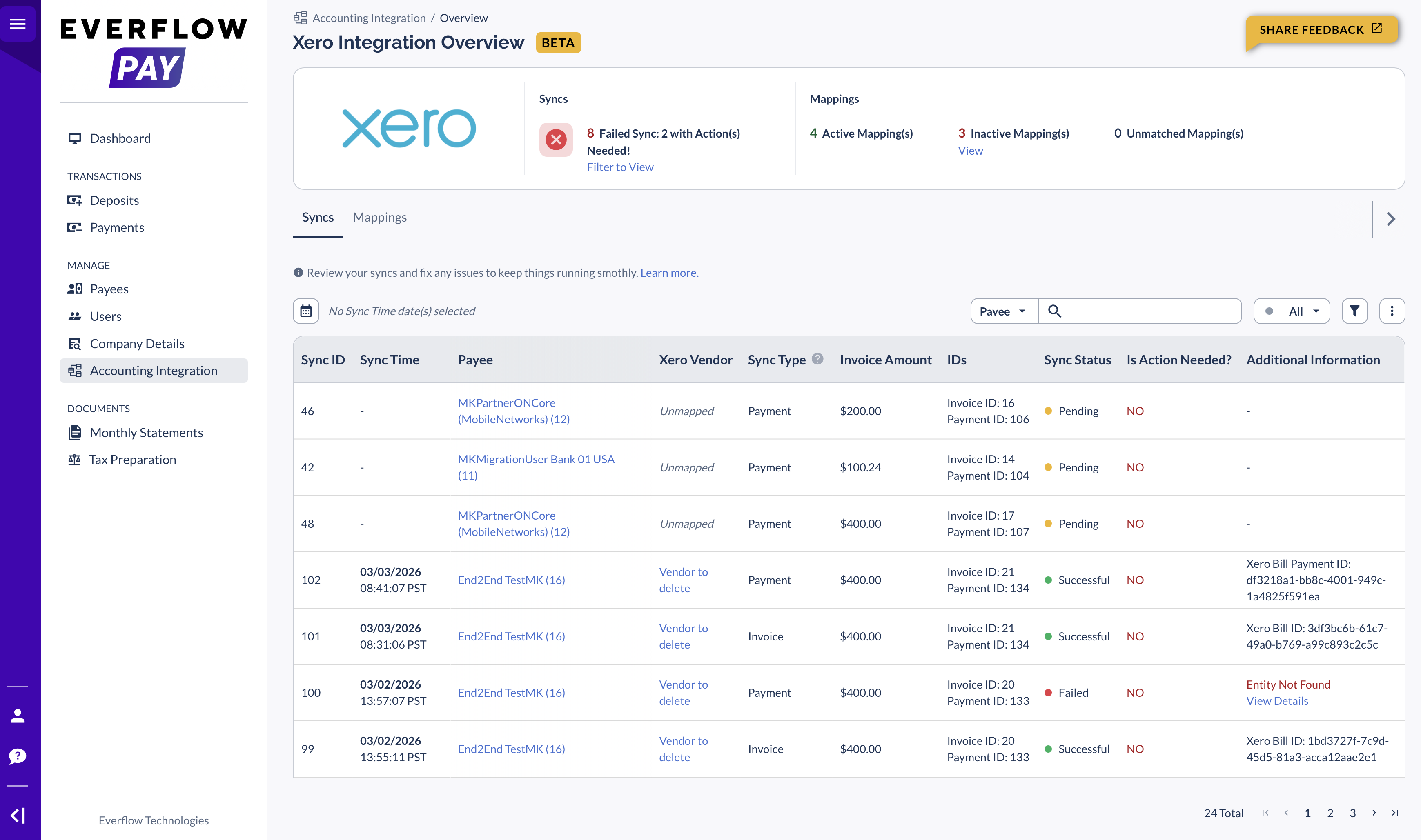
Sync Statuses and Action Needed
- Pending — Sync in progress
- Successful — Successfully sent to your accounting software
- Failed — Sync failed. Check the Additional Information column. If Action Needed = YES, click "View Details" to fix. If NO, it's a system-level issue that will self-resolve.
- Skipped — Payee isn't mapped to a Vendor — no sync attempted
- Not Started — No sync associated with this record
Searching and Filtering
Narrow down the Syncs tab by date range, status, or using the search bar (Payee name, Vendor name, or Payment ID). The filter icon gives additional options: Action Needed, Payee, Vendor, or Sync Type.
Pro tip: To focus only on what needs your attention, set Status filter to Failed, then Action Needed filter to Yes.
Verifying a Sync in Your Accounting Software
Every synced Bill and Bill Payment includes a memo field: EF_INVOICE_ID_{#}. Search for this in your accounting software to trace any record back to the original Everflow Pay invoice.
Platform-Wide Pause
Occasionally syncing pauses for all users due to a platform-wide issue. An orange Syncing is temporarily paused banner appears at the top of the Syncs tab when this happens, telling you the team has been notified. No action needed — syncs restart automatically once the issue is resolved.
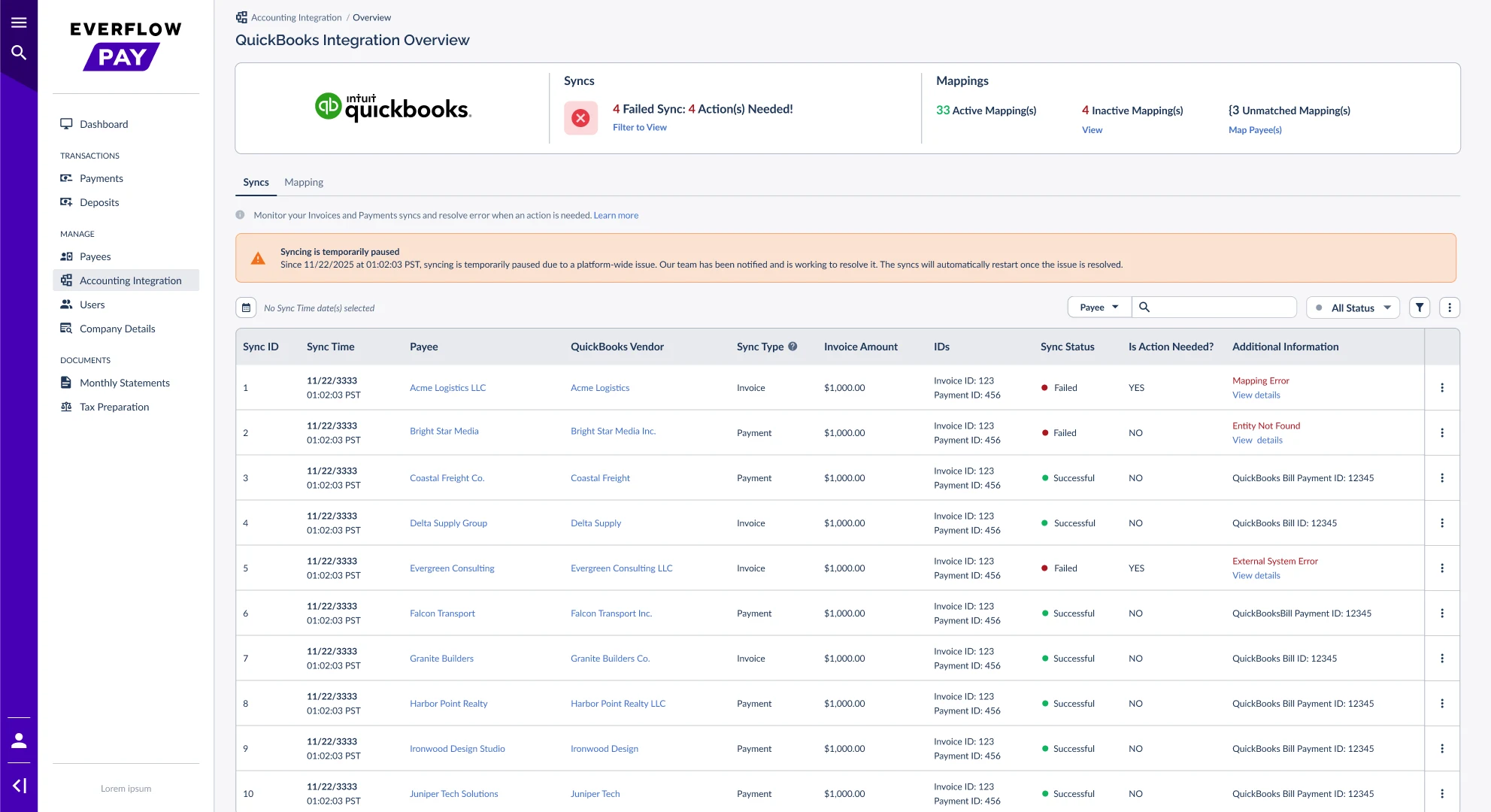
Table Refresh
If you've just fixed an error and the Syncs tab still shows "Failed," refresh the page. The table doesn't always update in real time.
Checking a Vendor or Account Refresh
As well as your syncs, you can see the state of your vendor and account lists. Wherever you can refresh a list, Everflow Pay shows when it last happened, for example Latest Vendors Refresh: Mar 22, 2026. While one is running that line reads In progress… and the refresh button is unavailable, so you can’t start the same job twice.
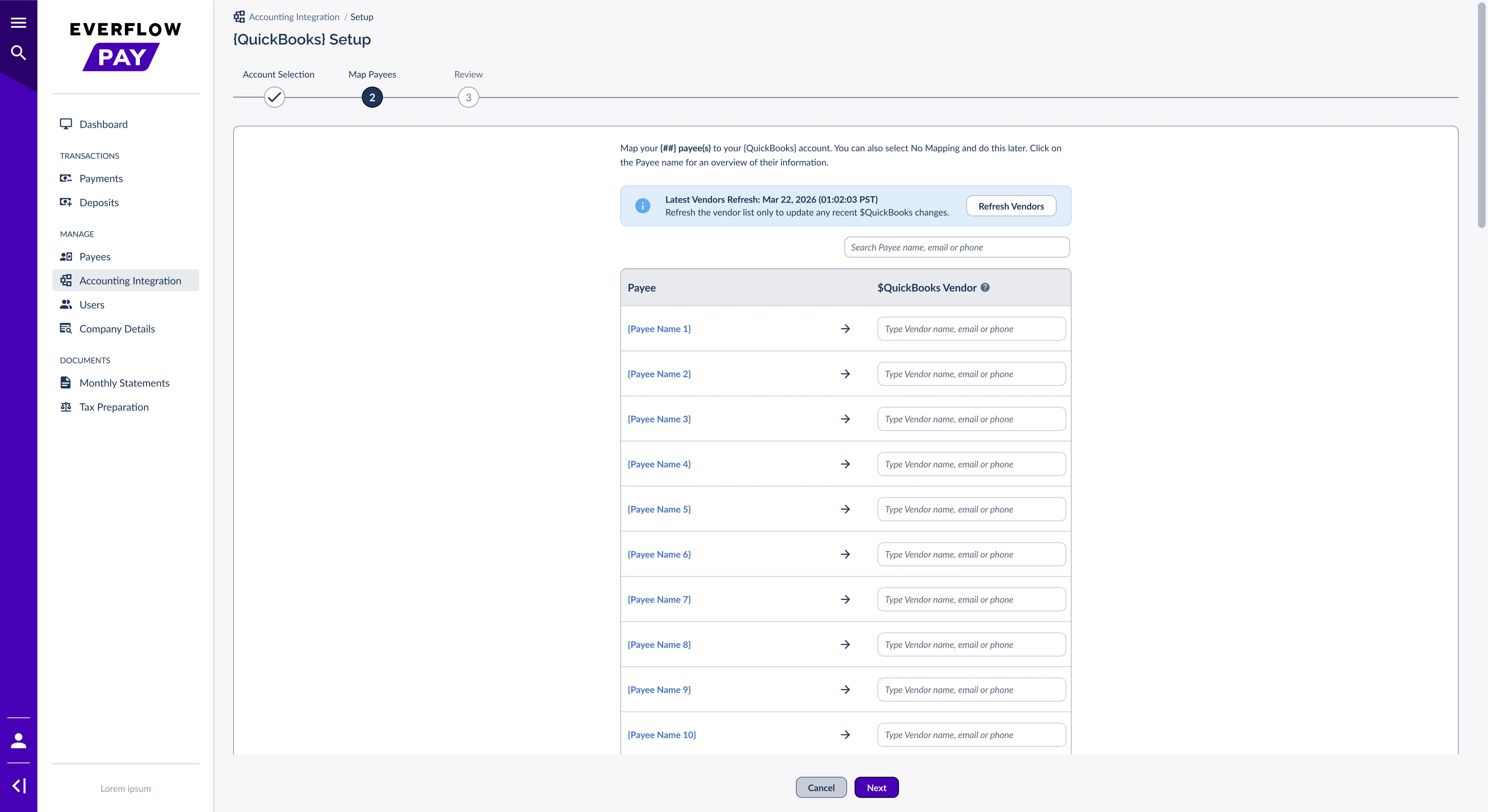
You don’t need to watch it. A message appears in the corner of the screen when a refresh finishes or fails, and Everflow Pay emails you either way.

For how refreshes work, see How Accounting Syncs Work in Everflow Pay. If one doesn’t finish, see Fixing Accounting Connection Errors In Everflow Pay.
While You’re Still Connecting
The first time you connect, Everflow Pay pulls in your vendors and accounts before you can map anything. You can leave the page while that happens, and the Accounting Integration page tells you where it’s up to when you come back.
- Almost there… — still pulling in your data. Everflow Pay will notify you here and by email as soon as it’s ready.
- Your Data Is Ready! — you can carry on and finish connecting.


Manage Payments Page — Sync Status Per Payment
You can also check sync status without leaving the payments view.
Look at the "Accounting Sync's Status" column on the far right.

- Successful — Synced to your accounting software
- Pending — Sync in progress
- Failed — Sync failed — click "View details"
- Not Synced — Payee is unmapped, so no sync was attempted
- Not Started — no sync has begun for this record yet
From any payment row, the three-dot menu gives you:
- Manage Accounting Integration — goes directly to Integration Overview
- View Payment Timeline — shows the full payment lifecycle including sync events
Quick Reference: What Does This Mean?
Nothing to do — everything is working.
Click "View Details" to go to the Syncs tab and fix the failed syncs.
Monitor only — these are system-level issues that will self-resolve.
A problem with the connection itself, not one sync. See Fixing Connection Errors.
Platform-wide pause. Wait — syncs resume automatically.
Click to filter the Syncs tab to failed syncs only.
Click to map unmapped Payees to Vendors.
Re-map the Payee — see Managing Payee-To-Vendor Mapping.
Payee is unmapped. Map the Payee to a Vendor first.
Click "View details" on the payment row, or go to the Syncs tab for the full picture.
Cross-reference this ID back to the original Everflow Pay invoice for traceability.
→ How Accounting Syncs Work in Everflow Pay — What gets created, what triggers a sync, and the rules
→ Fixing Accounting Sync Errors in Everflow Pay — Step-by-step fix guide for every error type
→ Fixing Accounting Connection Errors in Everflow Pay — Troubleshooting connection-level issues


