Home
Domain Management
Traffic Health
Setting Up SMS Notifications for Traffic Health

SERIES:

Setting Up SMS Notifications for Traffic Health

Get a text the moment a domain incident, task, or reputation flag is detected. Learn how to enable SMS notifications in Traffic Health, choose which alerts you receive, and manage opt-out.

Introduction

The most costly domain issues are often the ones you don't know about — and you're not always at your desk when they happen. SMS notifications let Traffic Health text a key contact the moment a domain incident, task, or reputation flag is detected (or resolved), so the right person knows within seconds.

SMS is one of four External Notification channels in Traffic Health, alongside Email, Slack, and Webhook — all built to keep key contacts informed even if they don't have an Everflow account.

Heads Up! SMS notifications are part of the Traffic Health Premium package and can be sent to U.S. and Canada mobile numbers. For recipients outside North America, use the Email, Slack, or Webhook channels instead.

Before You Start

Have these three things ready before you begin:

Enabling SMS Notifications

First, open the SMS form: from the left navigation go to Traffic Health, click Manage External Notifications in the top-right, then External Notification and choose SMS from the Notify Via menu. (The other channels are Email, Slack, and Webhook.)
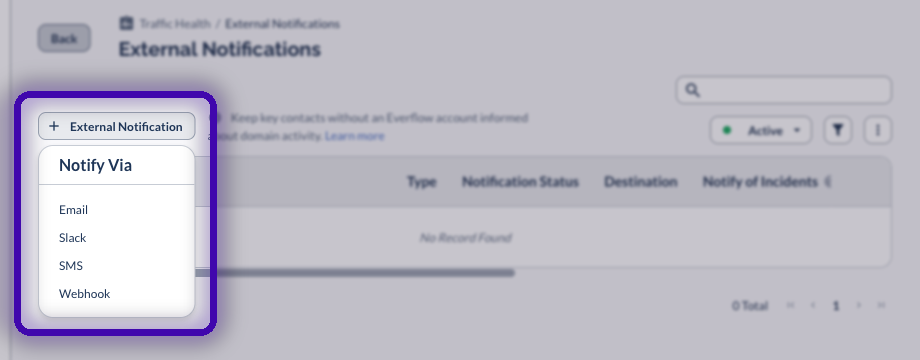
The External Notification button and the Notify Via menu with Email, Slack, SMS, and Webhook

That opens a three-step wizardGeneral, Domains, then Preview:

STEP 1
General
STEP 2
Domains
STEP 3
Preview
1 General — enter the recipient's details Fill in who the texts go to. Fields marked with an asterisk (*) are required: Recipient Name * — the person receiving the texts, for your own reference. Phone Number * — pick the country from the flag dropdown (defaults to U.S. +1), then enter the number. The field validates the format, so an invalid number is rejected. Notification Status *Active makes the notification eligible to send; Inactive saves it without sending. Either way, a number only receives texts after the recipient confirms by replying YES (see the “How Recipients Opt In” section below). Internal Notes — optional notes for your team, never texted to the recipient. Then choose which events trigger a text under Notify of These Activities — see Choose What Triggers a Text below.
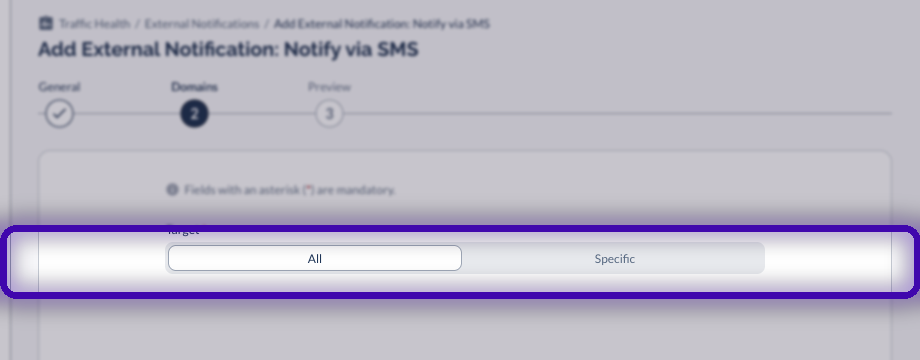
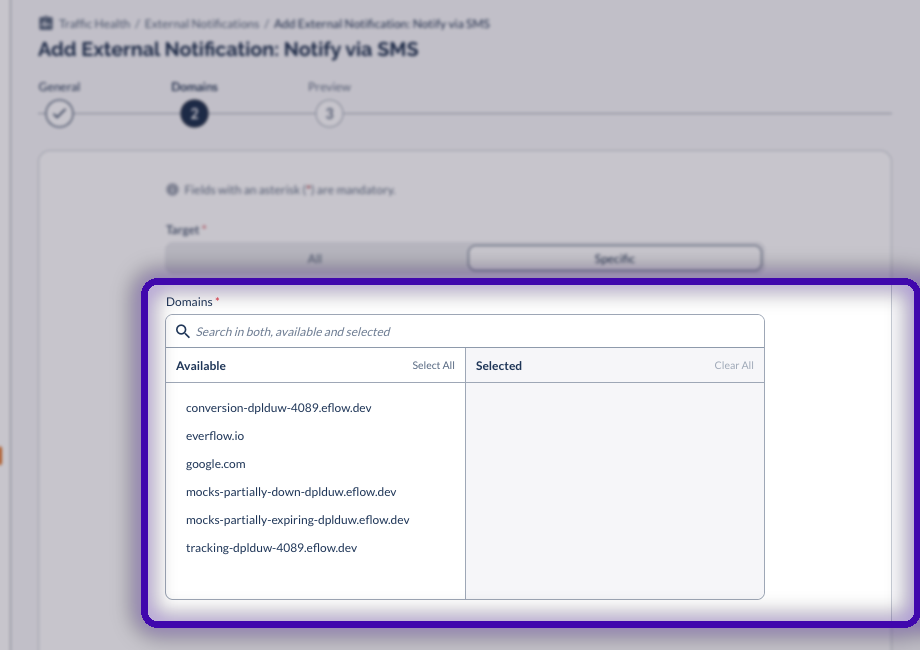
2 Domains — choose which to monitor Choose All to text the recipient about activity on every domain in your network. The Domains step with the All / Specific target toggle Or choose Specific to pick individual domains from the Available → Selected picker — with search, Select All, and Clear All. Use this to route one domain's alerts to its owner. The Specific domains picker with Available and Selected lists
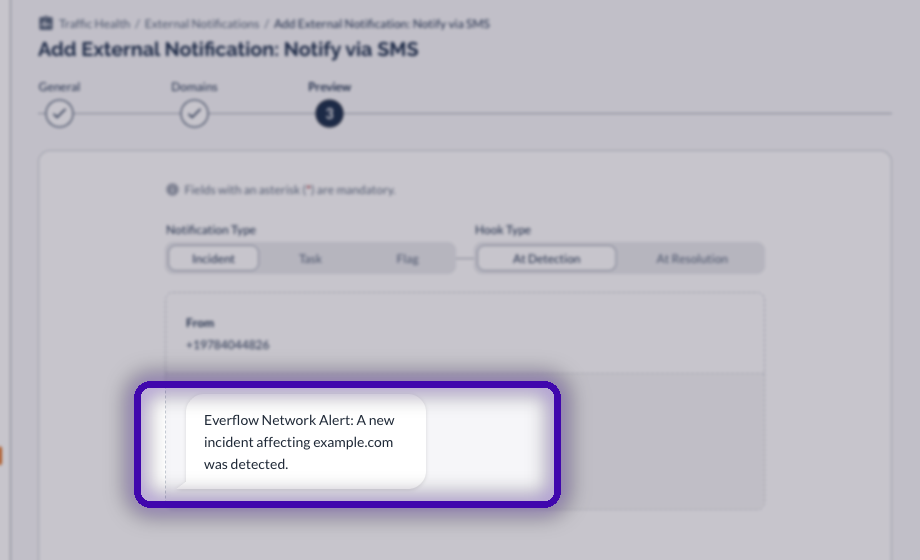
3 Preview — review and add The Preview step shows exactly what the recipient will receive. Use the Notification Type and Hook Type toggles to preview each variant, then click Add. If the status is Active and the recipient has confirmed via YES, texts start on the next matching event. The Preview step showing a sample SMS from Everflow's number
Pro Tip! If this contact is your on-call responder, keep Incidents → At Detection on so they're paged the instant uptime is affected. Leave the resolution, completion, and removal hooks on too if they want the all-clear text.

Choose What Triggers a Text

On the General step, under Notify of These Activities, pick exactly which events send a text. Each activity has two hooks you can turn on independently:

Incidents

An issue that affects your uptime. Hooks: At Detection · At Resolution.

Tasks

Something you need to do to prevent or resolve an incident. Hooks: At Detection · At Completion.

Reputation Flags

A detected issue that may affect your traffic. Hooks: At Detection · At Removal.
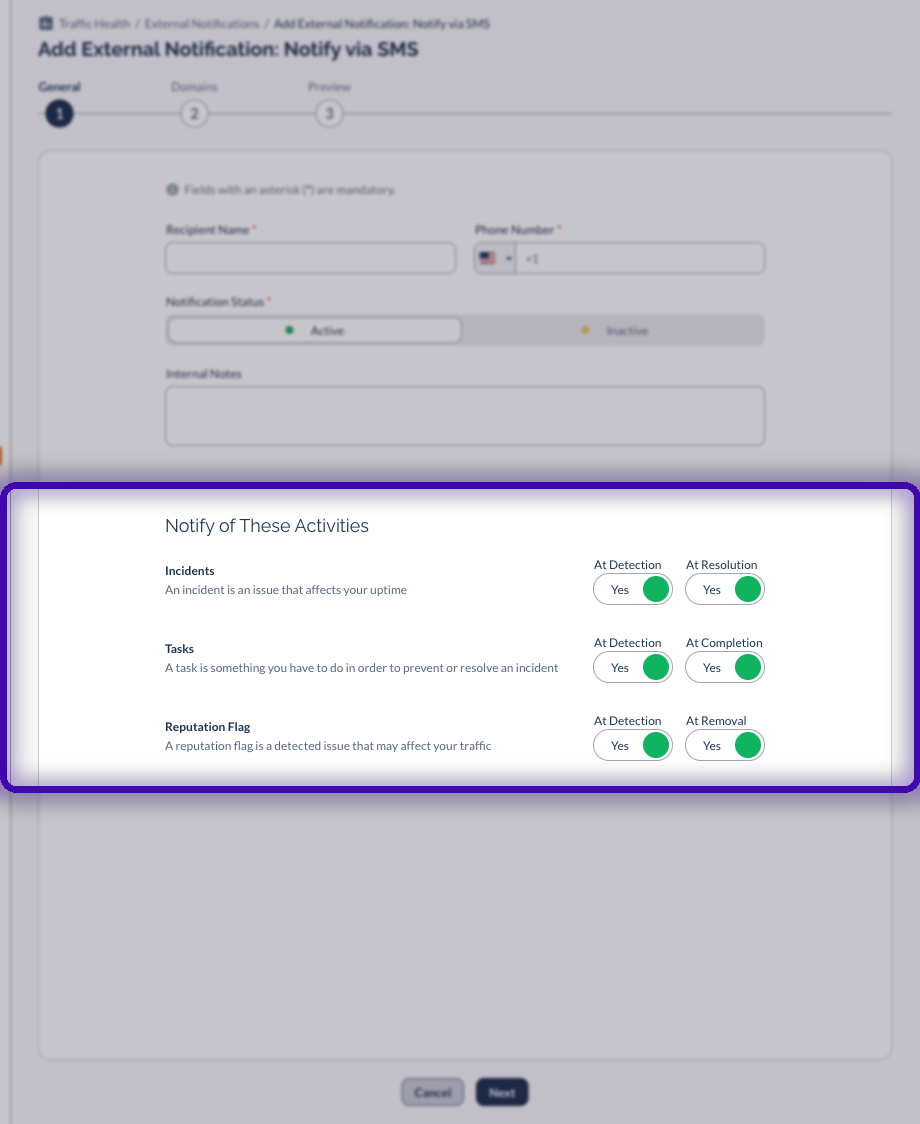
The Notify of These Activities section with the Incidents, Tasks, and Reputation Flags toggles

What the Texts Look Like

Every alert comes from Everflow's dedicated number, +1 (978) 404-4826, and follows a short, consistent format:

Sample messages Everflow Network Alert: A new incident affecting example.com was detected.
Everflow Network Alert: An incident affecting example.com was resolved.

How Recipients Opt In

Traffic Health SMS alerts use a double opt-in. Adding a number does not start texts on its own — the person must confirm from their own phone before any alert is sent.
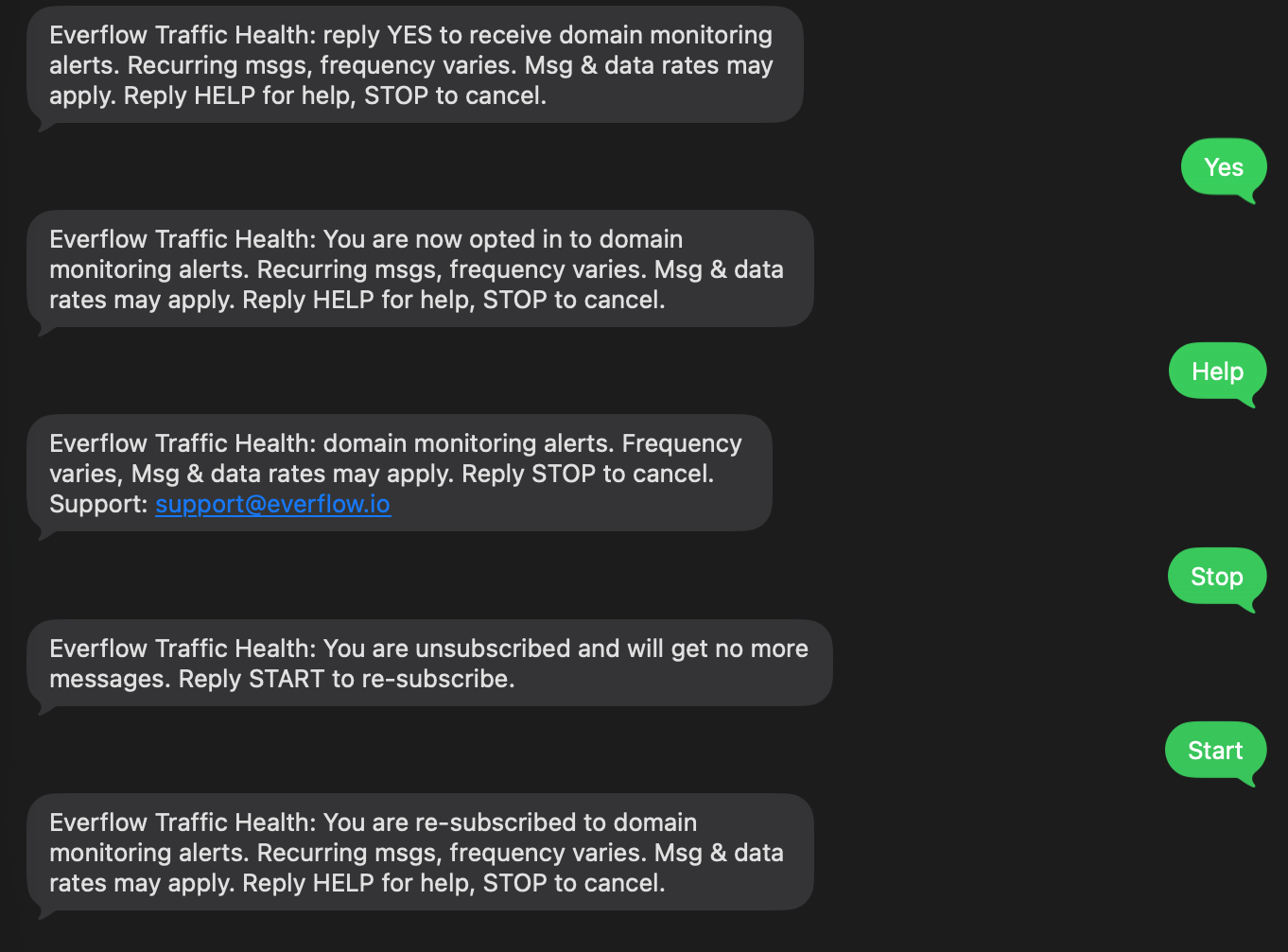
In your account, add a recipient’s mobile number. It stays in a Pending status until it is verified.That number receives a one-time confirmation text. Alerts are activated only after the recipient replies YES.Unconfirmed requests expire after 48 hours. Everflow keeps consent records (timestamps and message content) for compliance.
The confirmation text“Everflow Traffic Health: reply YES to receive domain monitoring alerts. Recurring msgs, frequency varies. Msg & data rates may apply. Reply HELP for help, STOP to cancel.”
Traffic Health SMS consent flow on a phone: the confirmation message, the recipient replying YES to opt in, then HELP, STOP to unsubscribe, and START to re-subscribe

Recipients manage their subscription from their phone at any time — reply HELP for help, STOP to unsubscribe, or START to re-subscribe.

Managing Your SMS Notifications

Editing, Pausing, or Removing

From the External Notifications list you can edit a notification to change the number, activities, or domains; activate or deactivate it without deleting; or delete it when it's no longer needed.

Message Frequency, Help & Opting Out

Message frequency varies based on account activity and domain health. Texts are event-driven — sent only when a status change occurs (a new issue is detected or an existing one is resolved).Reply HELP to any message for help, or email support@everflow.io.Reply STOP to any message to cancel — the recipient receives one final confirmation and all alerts stop. Reply START to re-enroll.Account admins can also remove a recipient at any time by deactivating or deleting the notification in the External Notifications list. Add the recipient’s number; they’ll be asked to confirm by SMS before any alert is sent. Standard message and data rates may apply.
Terms & privacyFor full details, see the Everflow SMS Alerts Messaging Terms and the Privacy Policy. Everflow does not sell or share mobile numbers collected for this program.

Frequently Asked Questions

Does the recipient need an Everflow account?

No. External Notifications are built specifically for key contacts who don't have an Everflow login.

Can one contact get alerts for only some domains?

Yes. Choose Specific on the Domains step and select just those domains.

Can I send texts to international numbers?

SMS is available for U.S. and Canada mobile numbers. For recipients elsewhere, use the Email, Slack, or Webhook channels.

How do I stop the texts?

Deactivate or delete the notification from the External Notifications list. The recipient is removed as soon as you save the change.

Related Articles

Go Further with the AI Playbook Once the alerts are reaching you, the next question is usually which partner caused the problem:

Find out which partner got your tracking domain blacklisted — a step-by-step recipe for tracing a blacklisted tracking domain back to the partner whose traffic caused it.