


.svg)

Introduction
The most costly domain issues are often the ones you don't know about — and you're not always at your desk when they happen. SMS notifications let Traffic Health text a key contact the moment a domain incident, task, or reputation flag is detected (or resolved), so the right person knows within seconds.
SMS is one of four External Notification channels in Traffic Health, alongside Email, Slack, and Webhook — all built to keep key contacts informed even if they don't have an Everflow account.
Before You Start
Have these three things ready before you begin:
Enabling SMS Notifications
First, open the SMS form: from the left navigation go to
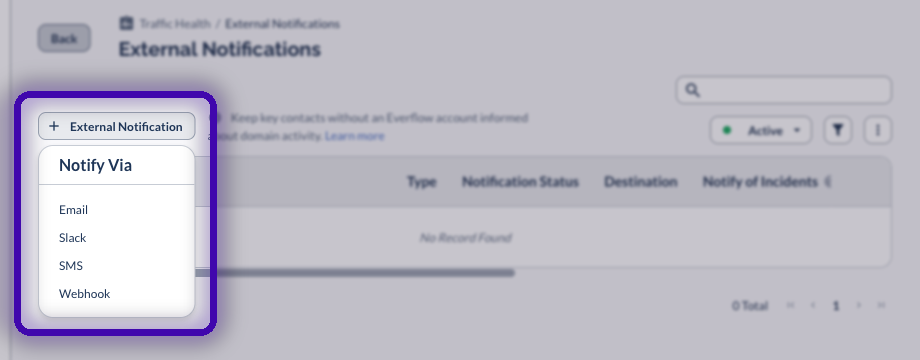
That opens a three-step wizard — General, Domains, then Preview:
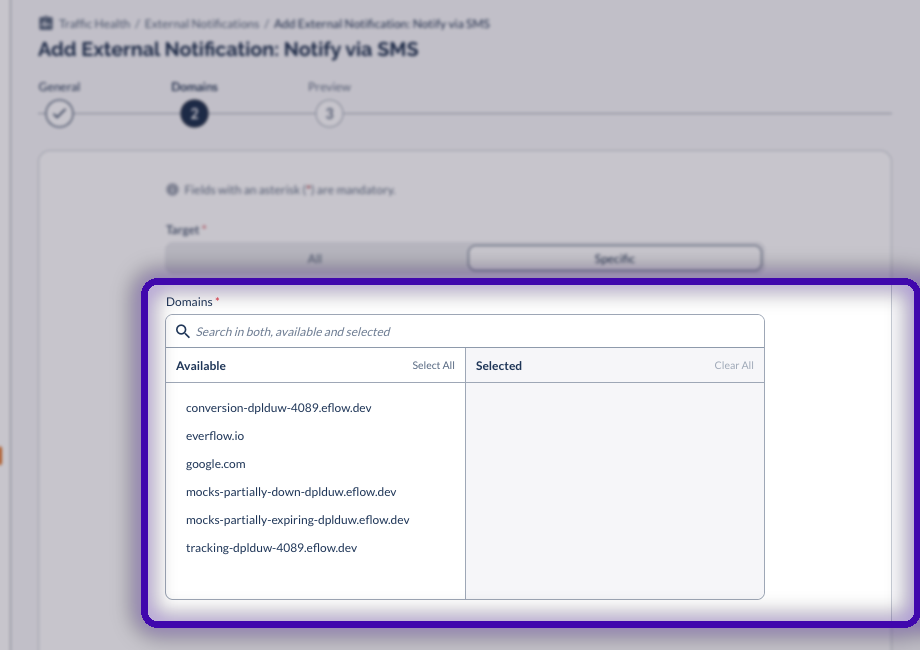
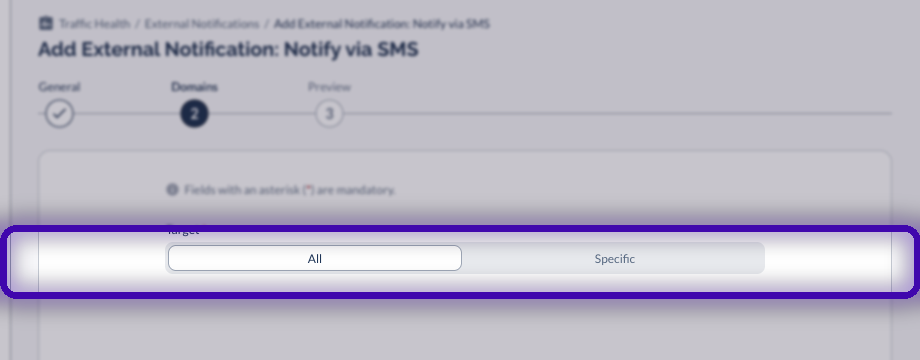 Or choose Specific to pick individual domains from the Available → Selected picker — with search, Select All, and Clear All. Use this to route one domain's alerts to its owner.
Choose What Triggers a Text
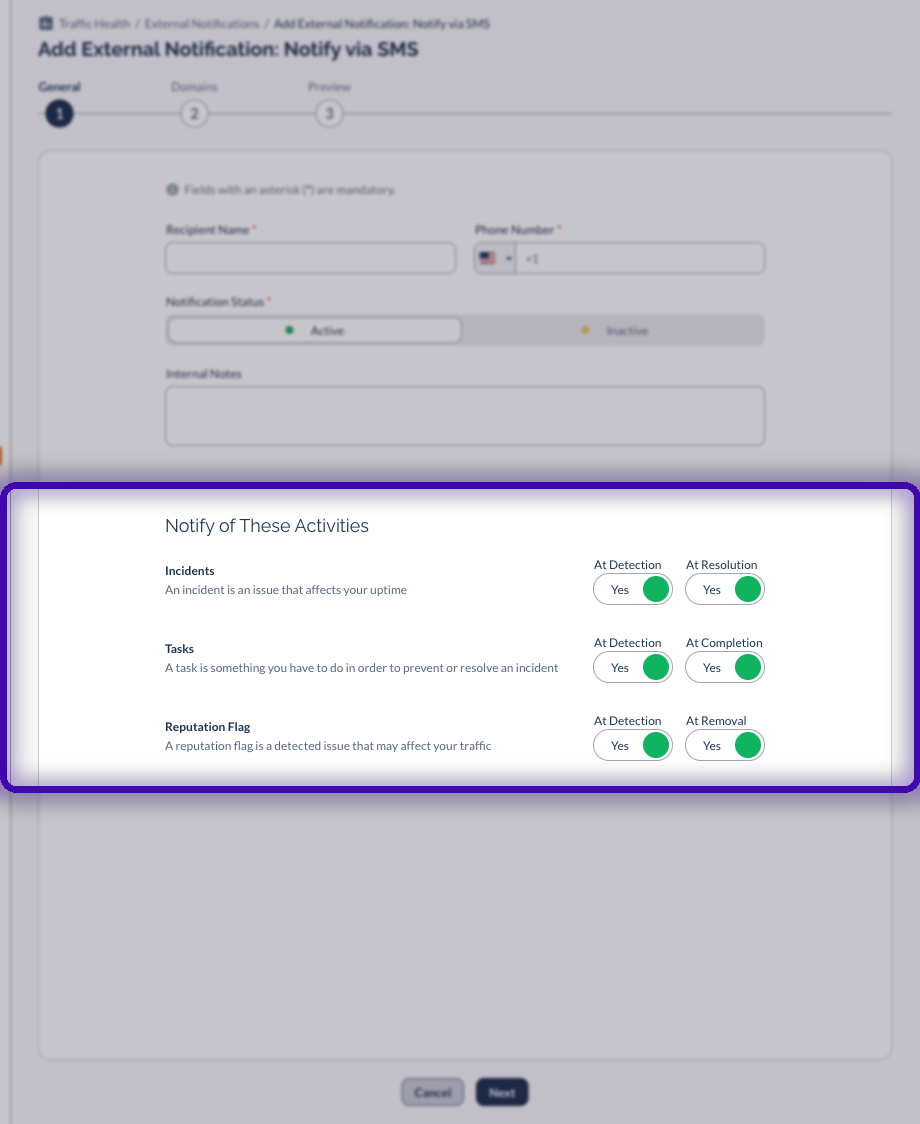
On the General step, under Notify of These Activities, pick exactly which events send a text. Each activity has two hooks you can turn on independently:
Incidents
An issue that affects your uptime. Hooks: At Detection · At Resolution.
Tasks
Something you need to do to prevent or resolve an incident. Hooks: At Detection · At Completion.
Reputation Flags
A detected issue that may affect your traffic. Hooks: At Detection · At Removal.
What the Texts Look Like
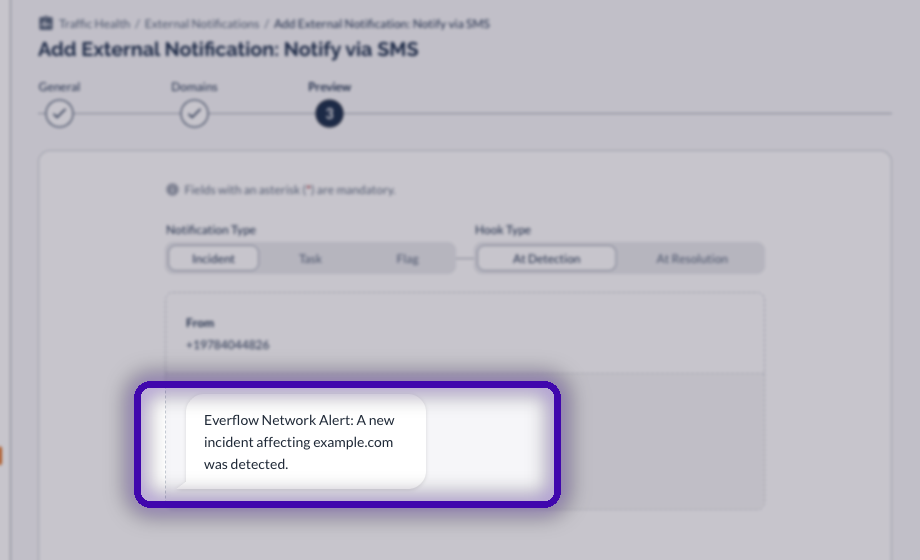
Every alert comes from Everflow's dedicated number, +1 (978) 404-4826, and follows a short, consistent format:
Everflow Network Alert: An incident affecting example.com was resolved.
How Recipients Opt In
Traffic Health SMS alerts use a double opt-in. Adding a number does not start texts on its own — the person must confirm from their own phone before any alert is sent.
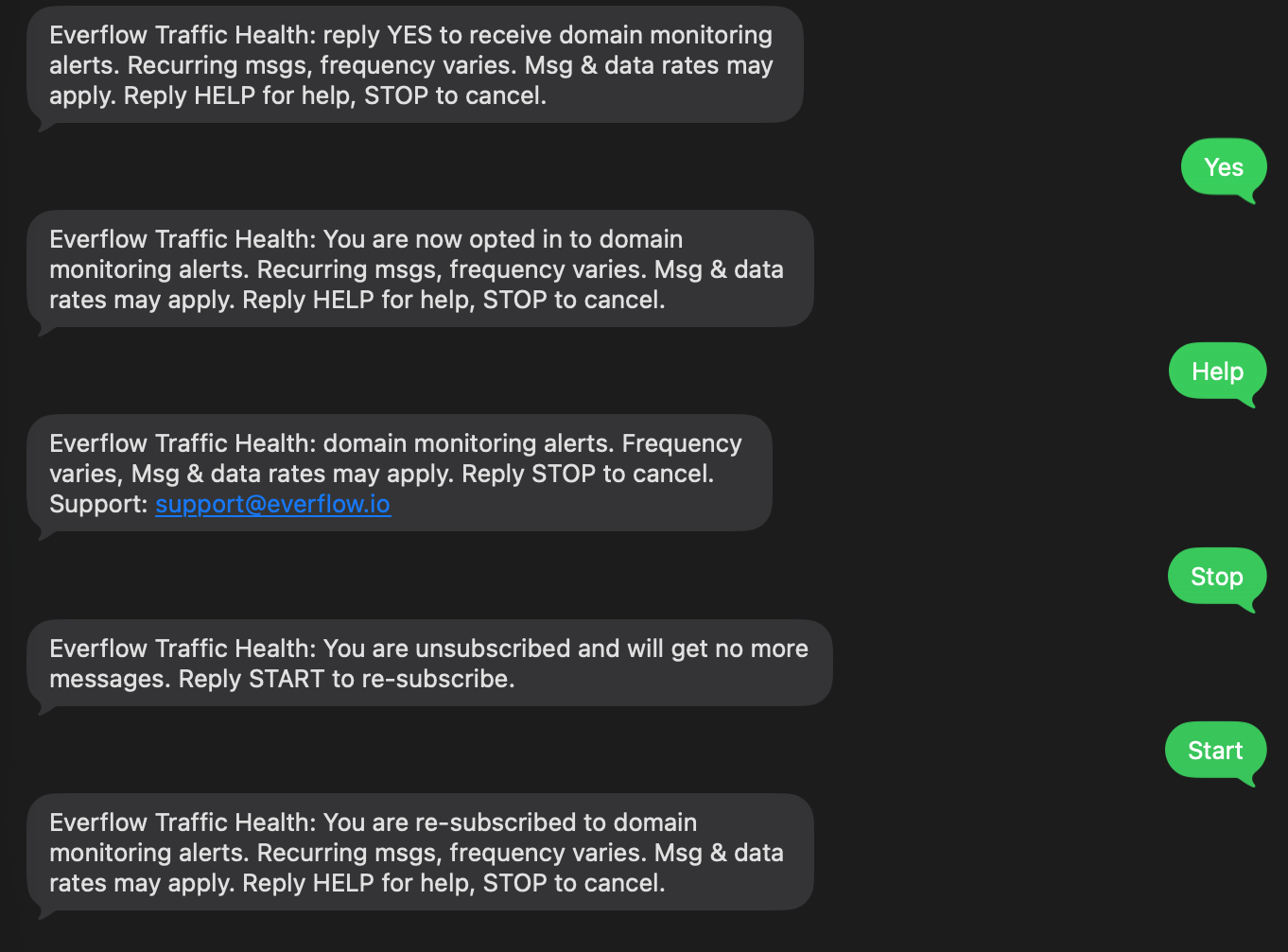
Recipients manage their subscription from their phone at any time — reply HELP for help, STOP to unsubscribe, or START to re-subscribe.
Managing Your SMS Notifications
Editing, Pausing, or Removing
From the External Notifications list you can edit a notification to change the number, activities, or domains; activate or deactivate it without deleting; or delete it when it's no longer needed.
Message Frequency, Help & Opting Out
Frequently Asked Questions
No. External Notifications are built specifically for key contacts who don't have an Everflow login.
Yes. Choose Specific on the Domains step and select just those domains.
SMS is available for U.S. and Canada mobile numbers. For recipients elsewhere, use the Email, Slack, or Webhook channels.
Deactivate or delete the notification from the External Notifications list. The recipient is removed as soon as you save the change.
Related Articles
→ Find out which partner got your tracking domain blacklisted — a step-by-step recipe for tracing a blacklisted tracking domain back to the partner whose traffic caused it.


