


.svg)

Overview
Bank Debit is the fastest way to fund your Everflow Pay account. Instead of manually sending a wire or ACH transfer and tracking it down afterward, you connect a bank account once and pull funds straight into your Everflow Pay balance, right from your dashboard.
This guide walks you through connecting your bank account, requesting a deposit, replacing an existing account, and tracking each transaction to completion.
Before You Start
Bank Debit takes just a few minutes to set up. Before you begin, make sure you have the following ready:
All deposits are processed in US dollars. If you fund from a Canadian bank, the amount is automatically converted to USD at the time of the transfer. Please note that there is a minimum deposit requirement of $10 per transaction.
Connecting or Replacing Your Bank Account
Your bank account is saved after the first time, so you only enter it once. When you need to change it, you can replace it right from the Bank Debit form by clicking Replace on the bank panel.
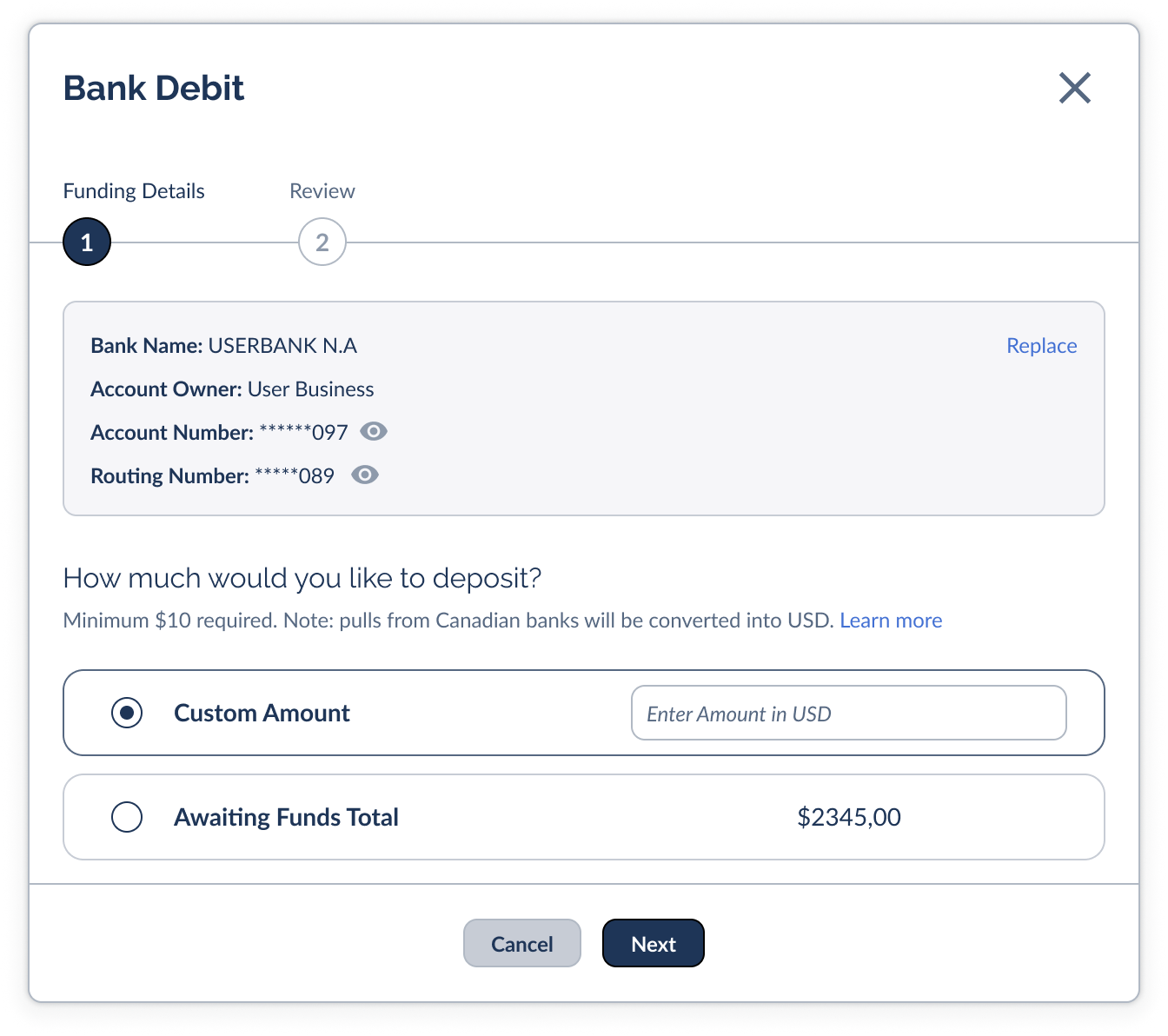
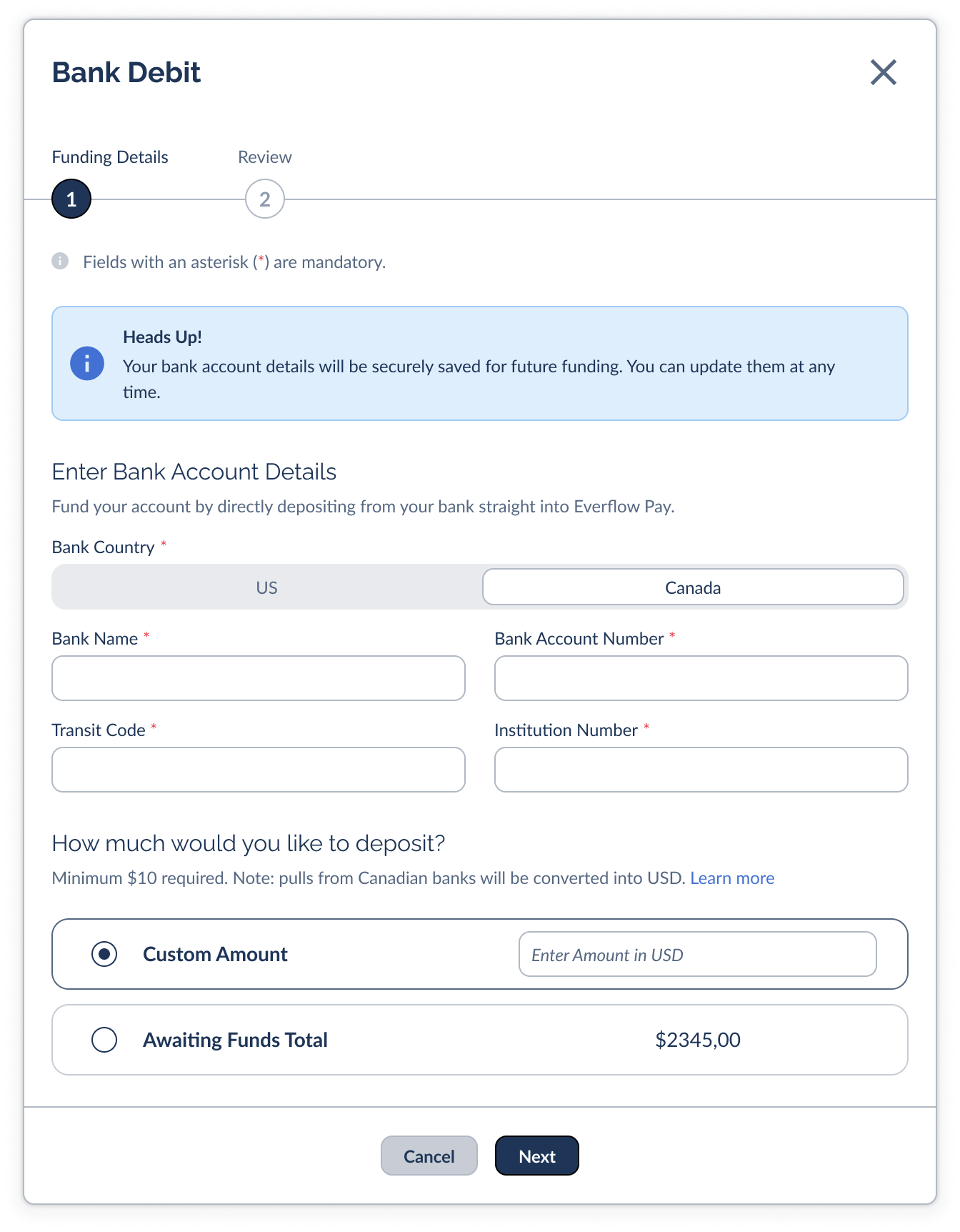
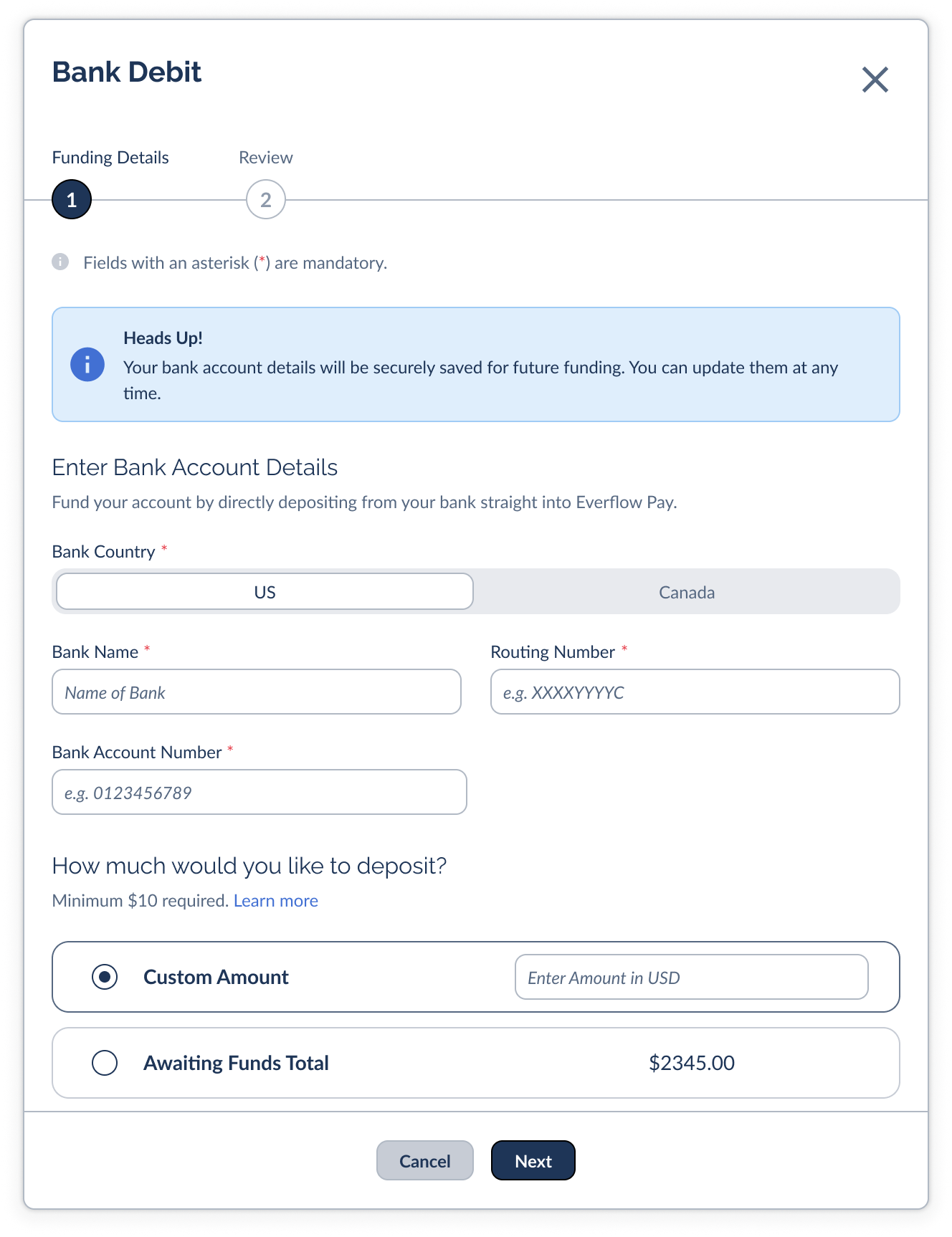
The fields you fill in depend on your bank's country. Switch between US and Canada at the top of the form to see the right set:
For Canadian banks, choose your bank name from the list rather than typing it, so your details match exactly and the deposit is not rejected.
How to Fund Your Account via Bank Debit
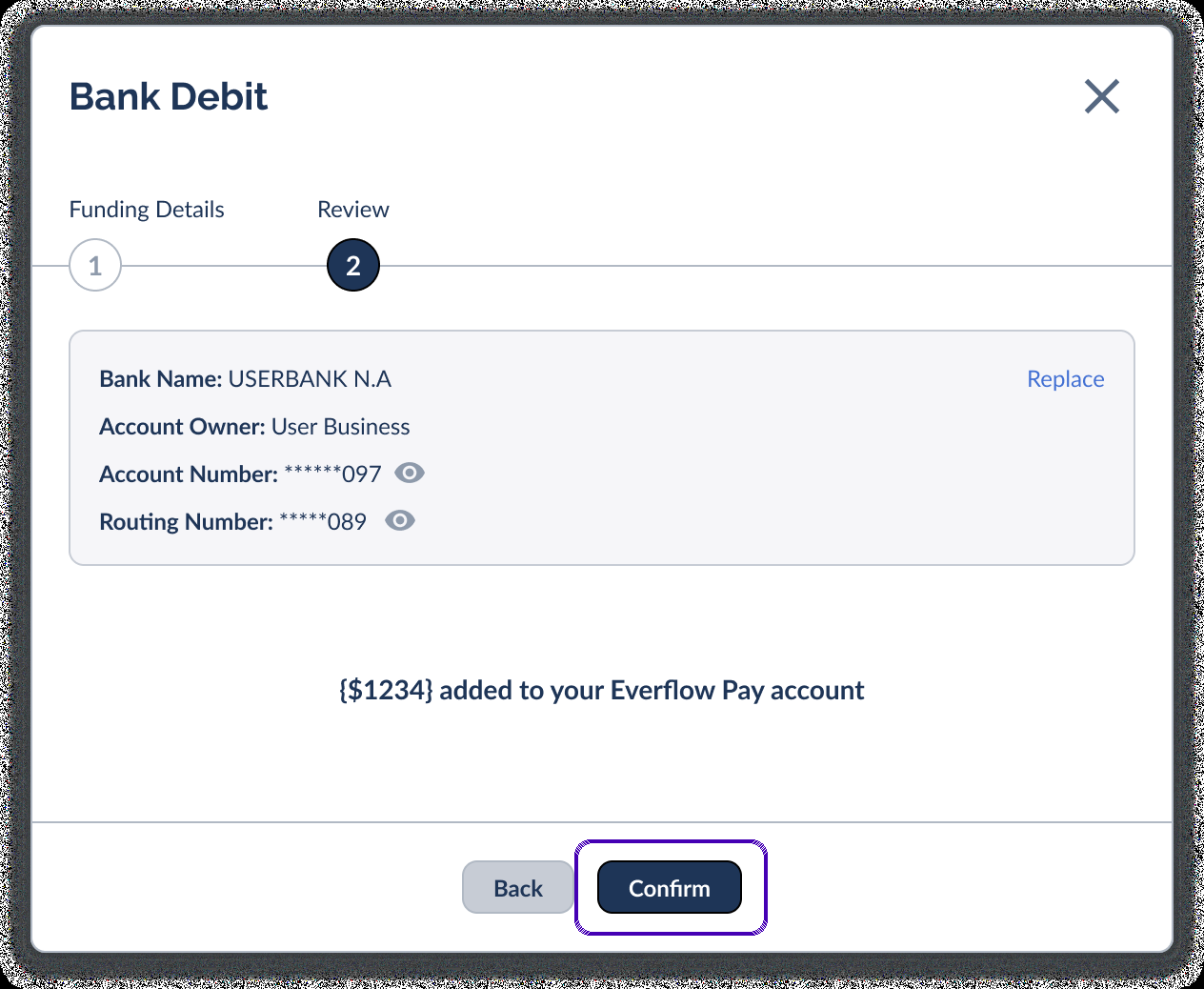
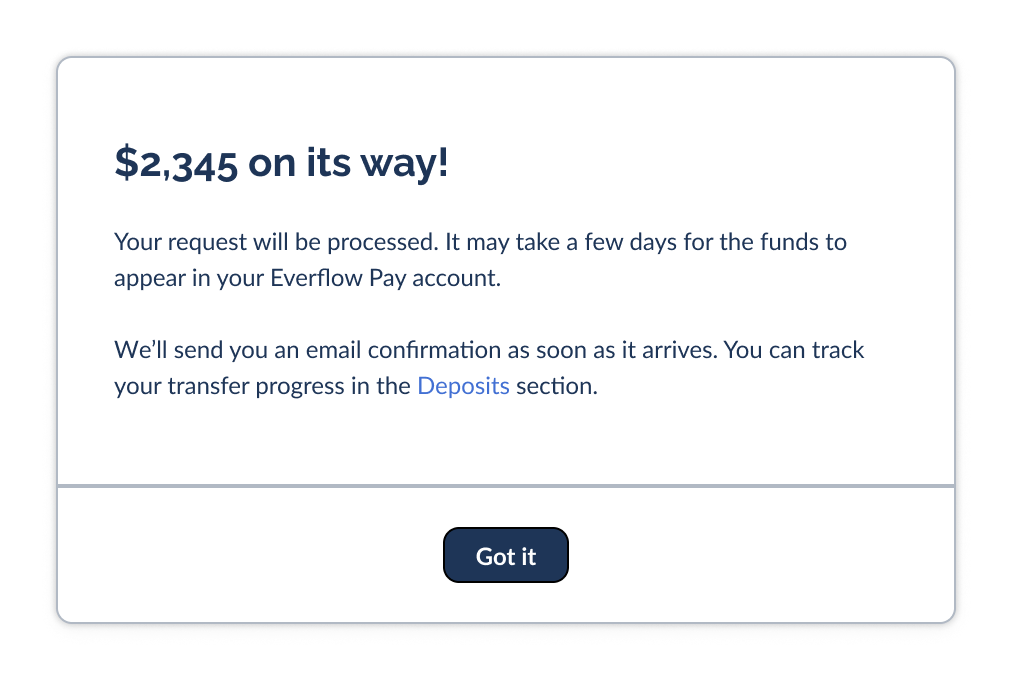
Once your bank is connected, funding your account is a quick two-step flow. Here is the full journey from start to finish.
Tracking Your Deposits
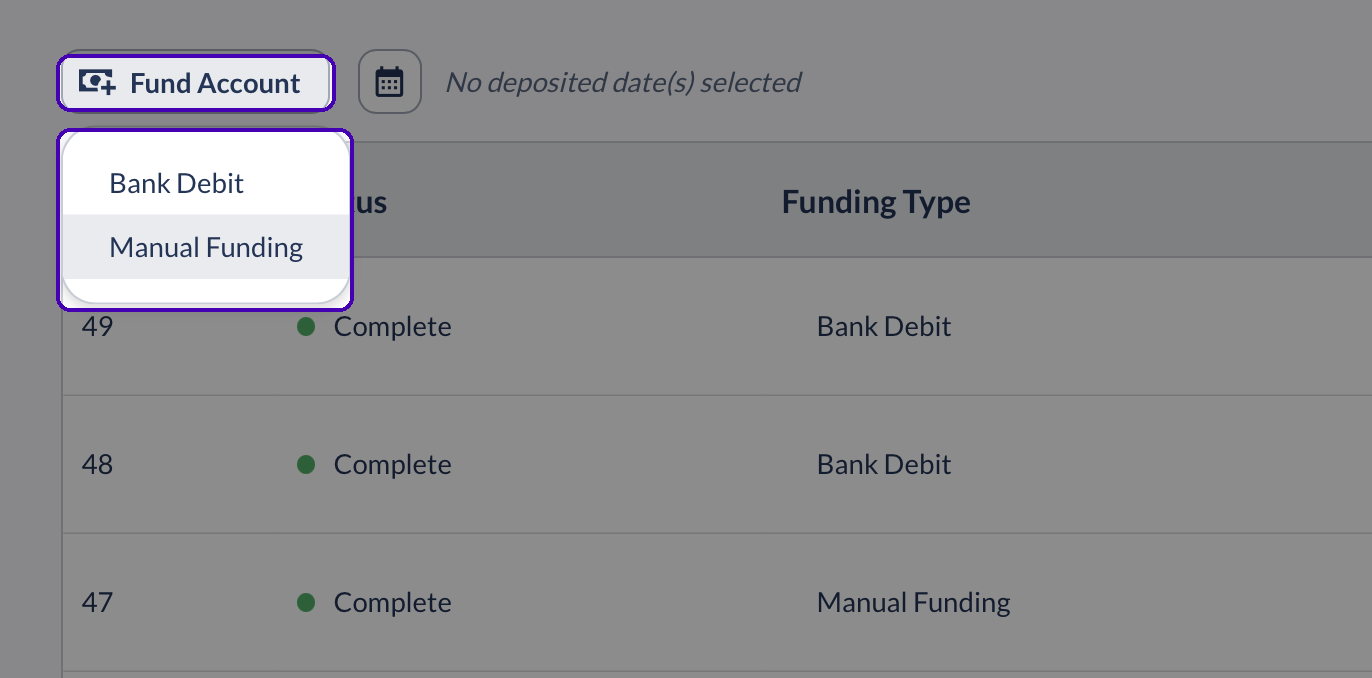
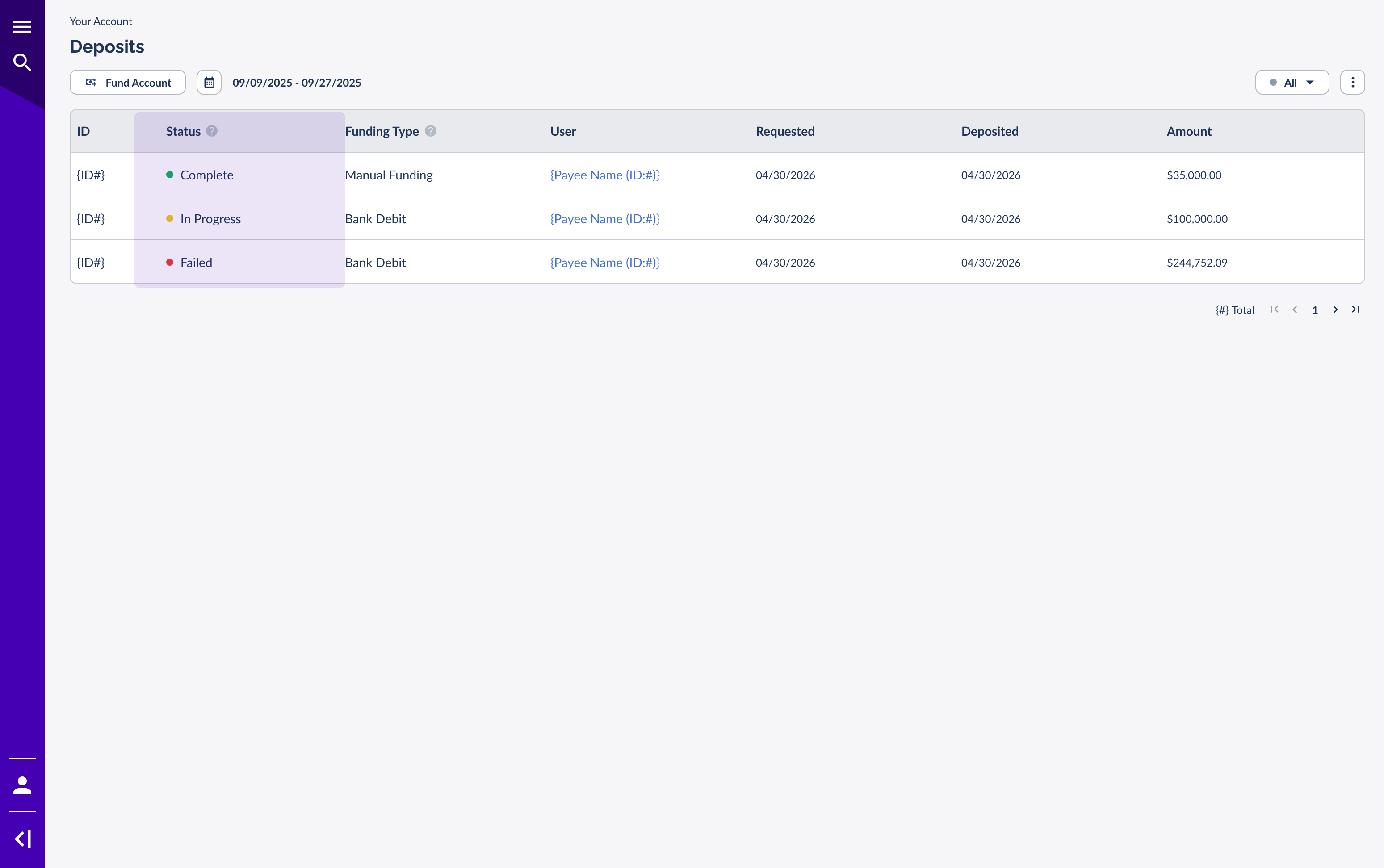
Every deposit shows up in one place, so you always know where your money is. Go to
Funding types
The Funding Type column tells you how each deposit started. Bank Debit means you initiated it from inside Everflow Pay. Manual Funding means the funds were sent in from your bank outside of Everflow Pay, such as a traditional wire or ACH.
Deposit statuses
The Status column tells you where each deposit stands. Behind the scenes a deposit moves through several processing steps, and those roll up into one of three statuses in Everflow Pay:
On its way to your balance.
The transfer was successfully deposited.
The transfer was cancelled or not completed.
Most deposits complete within a few business days, though it can take up to five depending on your bank.
Email Notifications
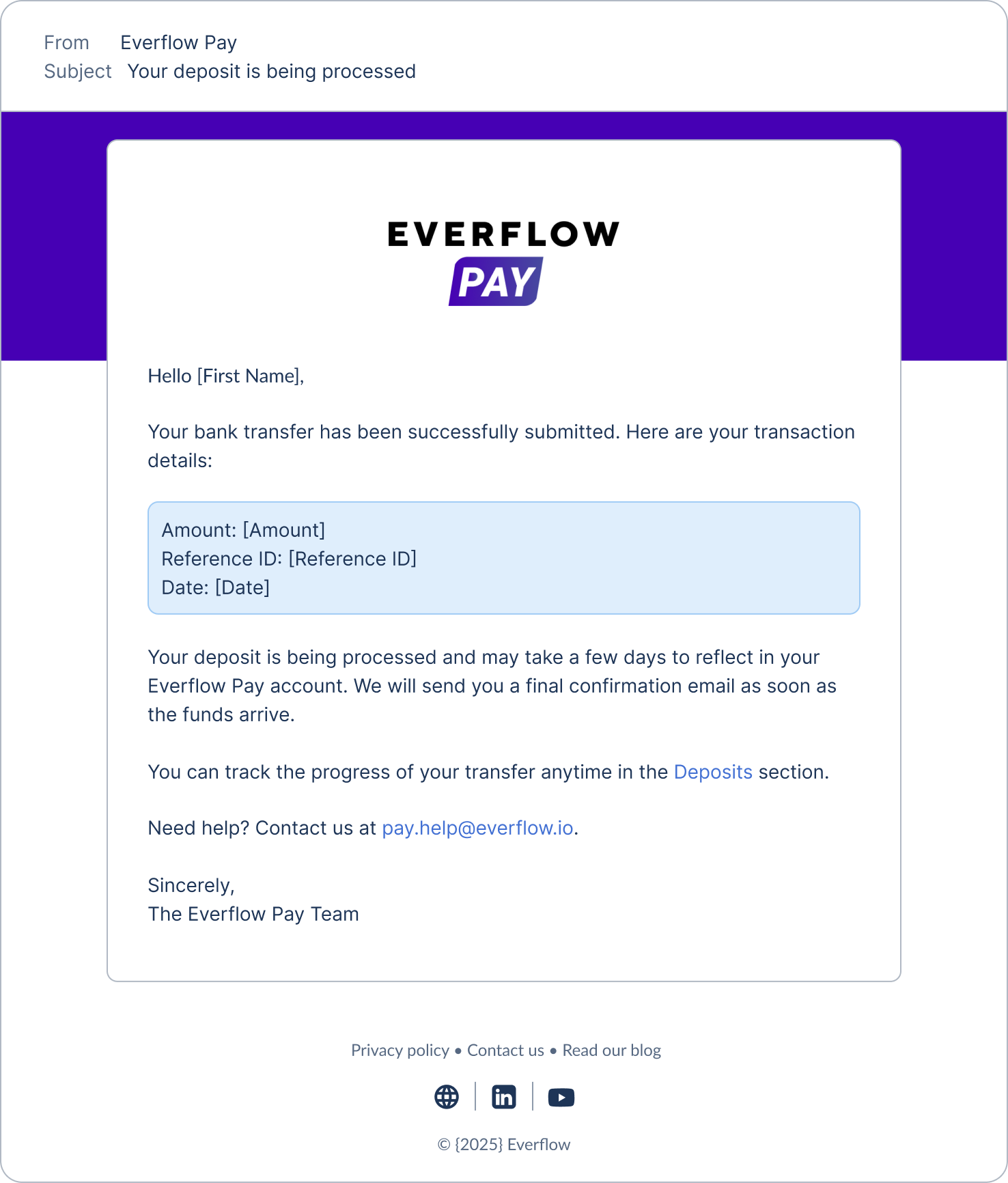
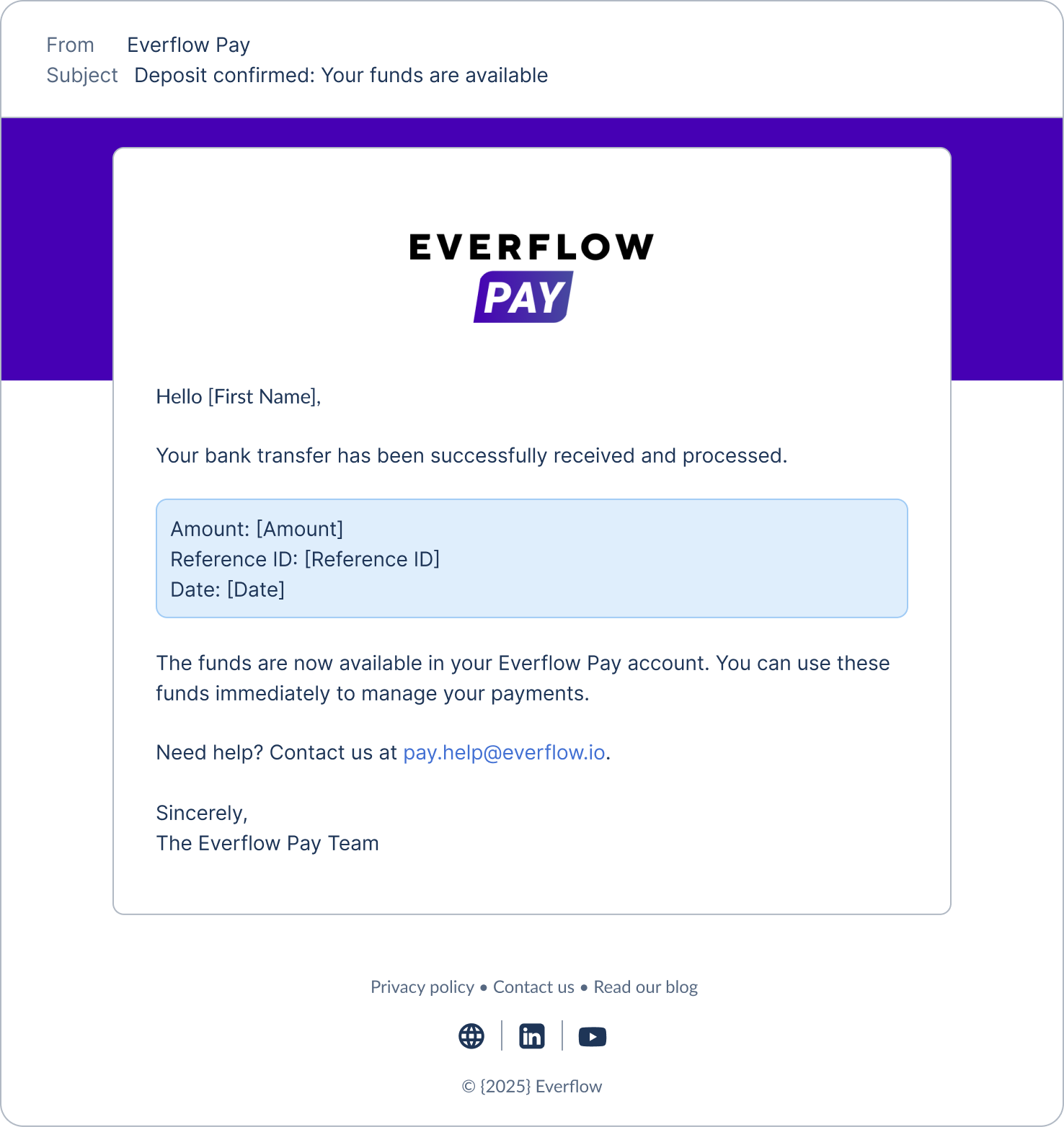
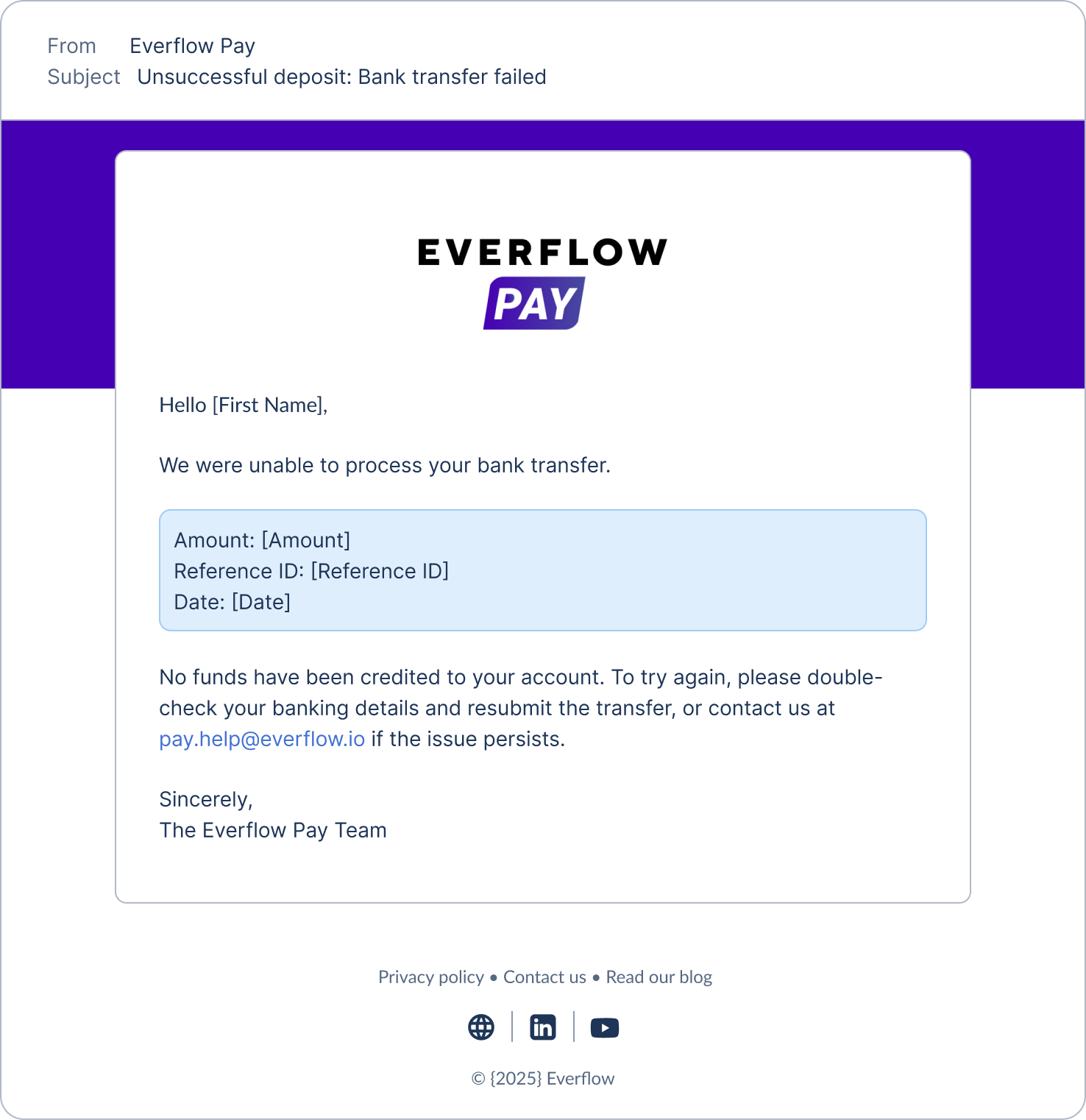
Everflow Pay keeps you posted by email at each step, so you do not have to keep checking the dashboard. For every Bank Debit, you will receive:
Frequently Asked Questions
Most deposits complete within a few business days. It can take up to five business days for the funds to appear in your Everflow Pay balance, depending on your bank.
The minimum deposit is $10. There is no maximum on Everflow Pay's side, but your bank may set its own limit. If a transfer is larger than your bank allows, your bank will decline it.
Bank Debit supports United States and Canadian banks, and eligibility is based on your billing address. If you are outside these regions, you can still fund your account using Manual Funding Instructions (a wire or ACH transfer).
No. You can keep one bank account on file at a time. You can update or replace it whenever you need to.
There is no option to delete a bank account from the interface. To remove one entirely, contact us at pay.help@everflow.io.
Yes. Your bank connection is handled through our secure payment partner, and your credentials are tokenized — Everflow never stores your full account or routing numbers in readable form. Each deposit is a one-time transfer you start yourself; nothing is debited on a recurring basis.
A Failed status means the deposit did not go through — no funds were credited to your account, and nothing is charged to you. Double-check your bank details and submit the deposit again, or contact support if the issue continues.
→ Funding Your Everflow Pay Account fund your account with a wire or ACH transfer using Manual Funding Instructions.
→ Fixing Bank Debit Funding Errors in Everflow Pay ran into an error while funding? Here is every Bank Debit error and how to fix it.
→ Understanding Your Everflow Pay Dashboard get familiar with the Your Funds panel and the rest of your dashboard.


