


.svg)

Overview
Most Bank Debit deposits go through without a hitch. When one doesn’t, Everflow Pay shows a clear error so you know what happened and what to do next. This is your error‑by‑error guide: what each error means, and whether you can fix it yourself, need to check with your bank, or should contact support.
How to Spot a Funding Error
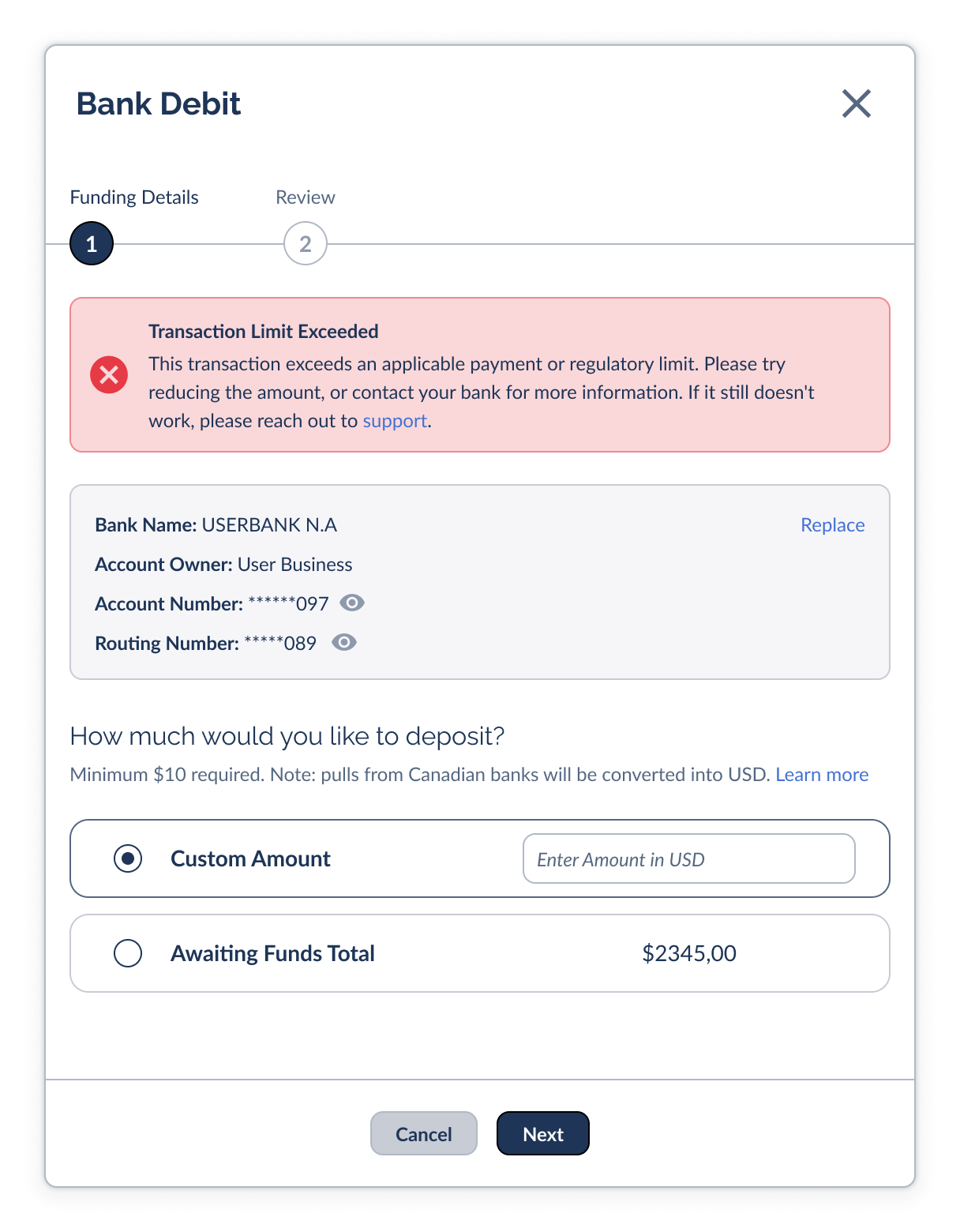
Funding errors appear right inside the Bank Debit window when you click Next or Confirm. You’ll see a red banner with the error name and a short description, while your saved bank details and amount stay on screen so you can adjust and retry.
What to Do: At a Glance
Every funding error falls into one of three buckets. Use this to triage before you dive into the details.
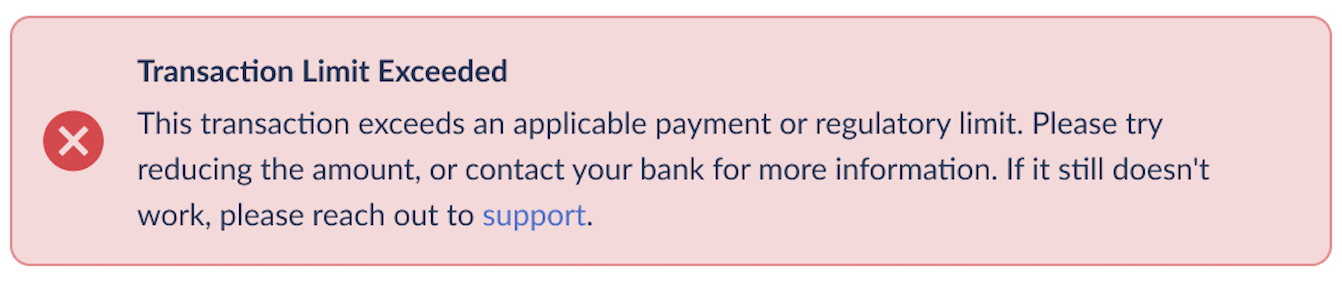
- Transaction Limit Exceeded — reduce the amount
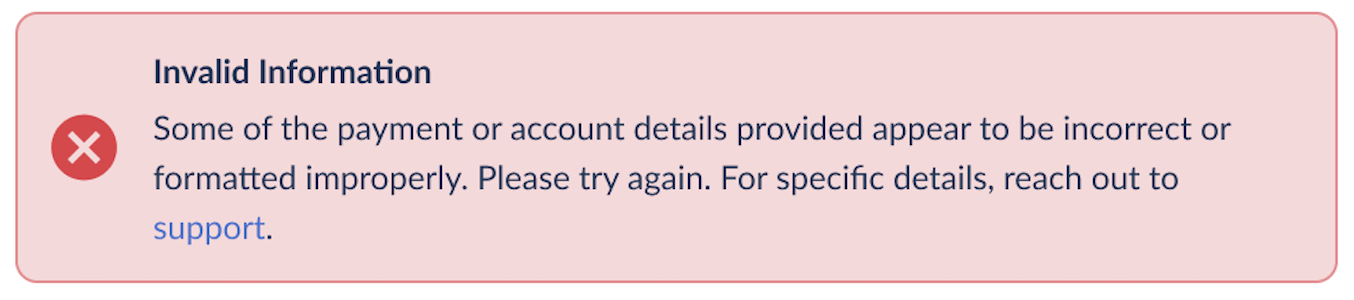
- Invalid Information — recheck your entries
- Missing Information — complete all fields
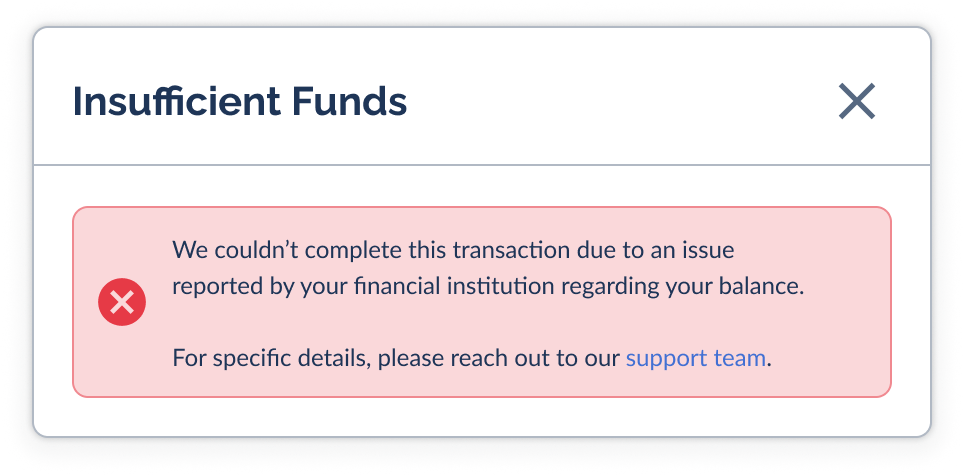
- Insufficient Funds — confirm the balance is available
- Account or Payment Method Not Found
- Account Status Restriction
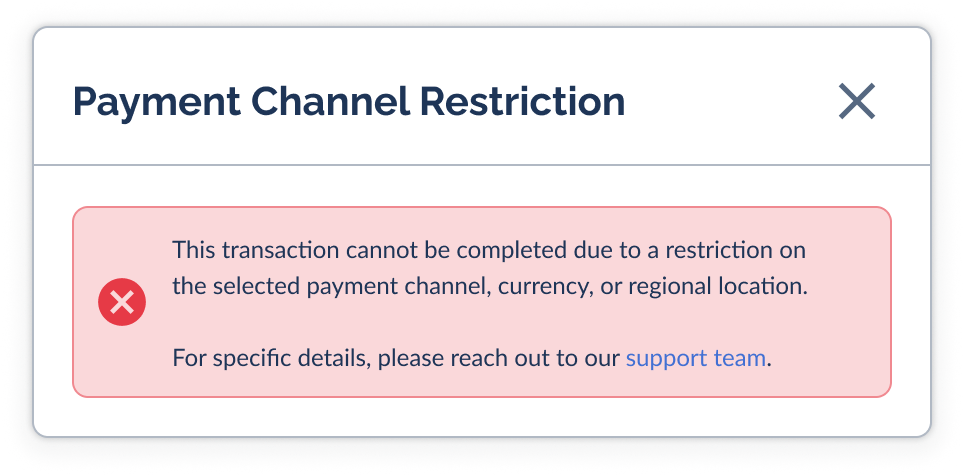
- Payment Channel Restriction
- Verification Update
The Funding Errors
Click any card to see what it means and how to fix it.



Preventing Funding Errors
When to Contact Support
Most funding errors you can clear yourself by adjusting the amount or your details. Reach out to pay.help@everflow.io if:
Explore Related Content
→ Funding Your Everflow Pay Account via Bank Debit — the full Bank Debit setup and funding guide.
→ Funding Your Everflow Pay Account via Wire Or ACH — the manual funding method.
→ Understanding Your Everflow Pay Dashboard — where to track your deposits and balance.


