


.svg)

Boberdoo is a lead distribution platform. It receives your leads, decides which buyer each one goes to, and sells it. Everflow does not do any of that, and it does not need to. Everflow tracks the click that produced the lead, and Boberdoo tells Everflow what happened to it afterwards, so you can pay the right partner the right amount.
This guide shows you how to connect the two. There is no one-click Boberdoo app to install, and this setup does not need one.
Before you start
Three things are worth settling before you touch either system: who owns what, how the pieces fit together, and what you need to hand.
What Everflow does, and what Boberdoo does
Boberdoo and Everflow both use the word Partner, and they mean opposite things. Getting these the wrong way round is the most common source of confusion in this setup, so it is worth settling before you start.
Whenever you see a value in Boberdoo with PARTNER in the name, it is describing the buyer, not your Everflow partner.
How the connection works
Four things happen, in order, and the middle two are invisible to Everflow. Only the last one involves Boberdoo telling Everflow anything.
Everything Everflow knows about the lead arrives in stage 4, which is why most of this guide is about protecting the transaction ID rather than about configuring Everflow.
What you need
Gather these first. The last one is a decision rather than a credential, and everything else follows from it.
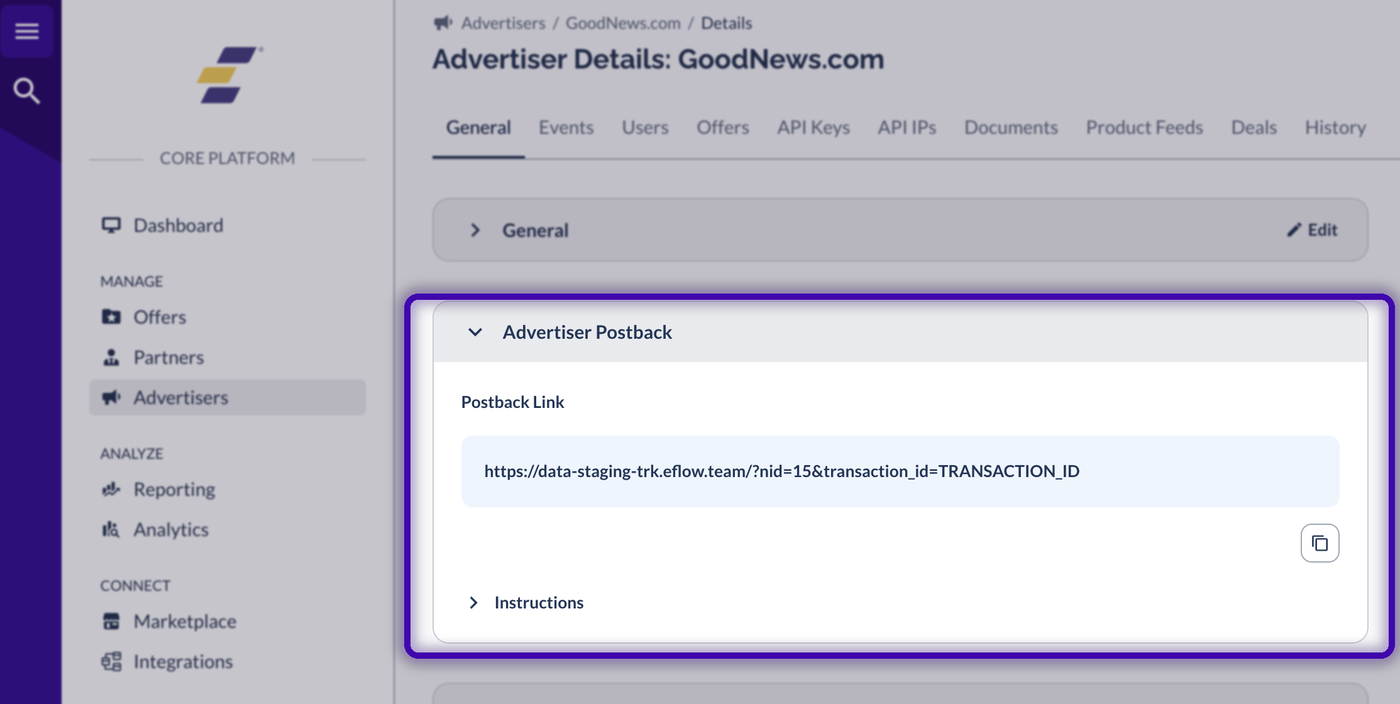
Your postback link is on the advertiser's General tab, in the Advertiser Postback card. The Network ID and conversion domain you need are both inside it.
Setting up the integration
Five steps, in order. The first two are where almost all problems originate, so do not skip ahead to the webhook.
Step 1. Send the transaction ID to your landing page
Everflow gives every click a transaction ID, and it forgets that click the moment the visitor leaves. Your lead record has to carry the ID so it can be sent back later.
Open Offers → [Offer] → Edit → Tracking and add the transaction ID macro to your Default Landing Page URL.
The macro sits inside the URL, so the rest of your landing page address is unaffected. The same tab also carries the Linking Type and Conversion Tracking Method settings you will need next.
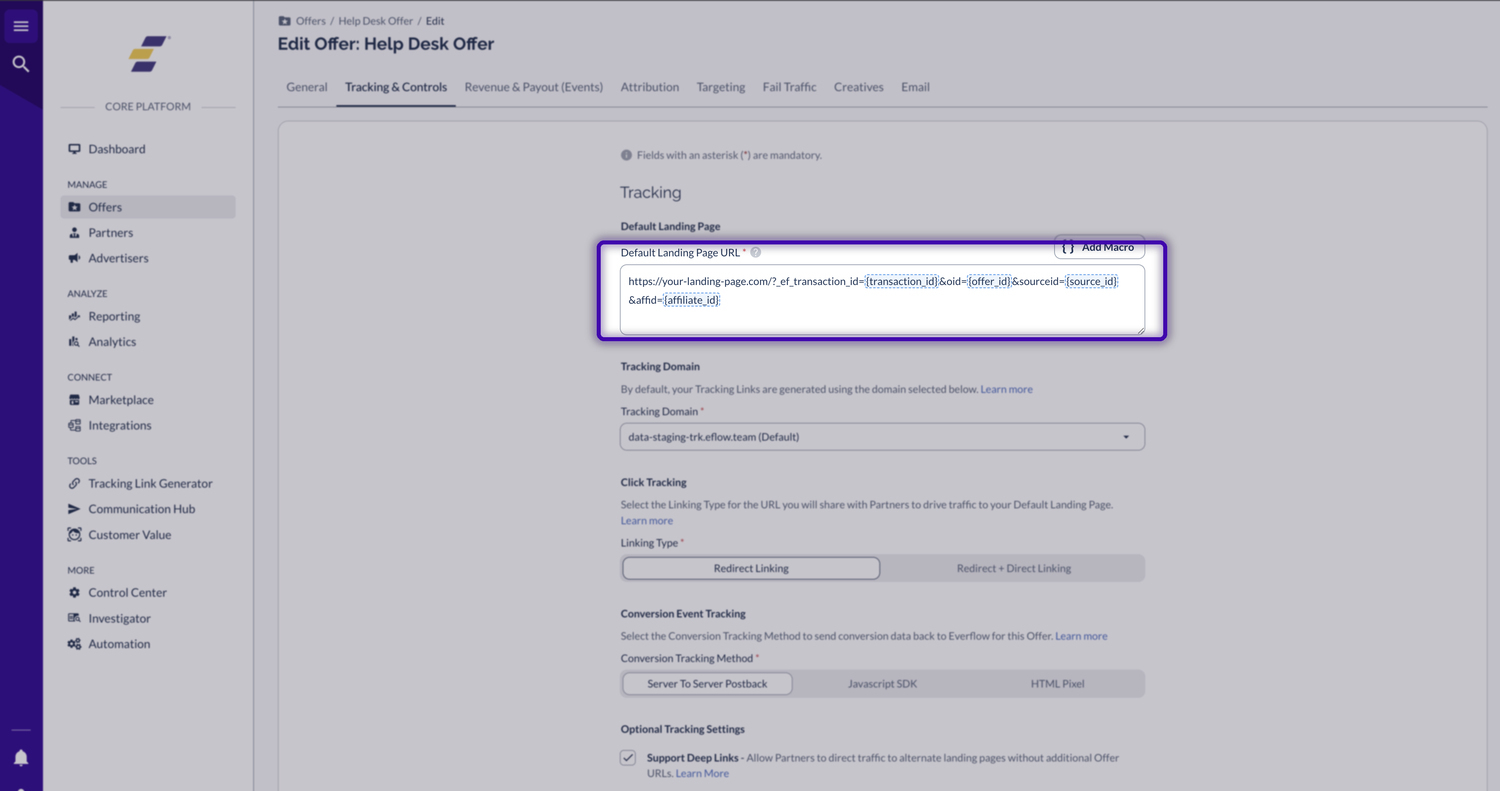
Your form then reads the transaction ID from the page address and submits it to Boberdoo in the field you set aside for it. If your form is hosted by Boberdoo's own form builder, add it as a hidden custom field.
Step 2. Build the webhook in Boberdoo
Everything on the Boberdoo side happens under Integrations → Webhooks. Add a new webhook and work through the fields in order.
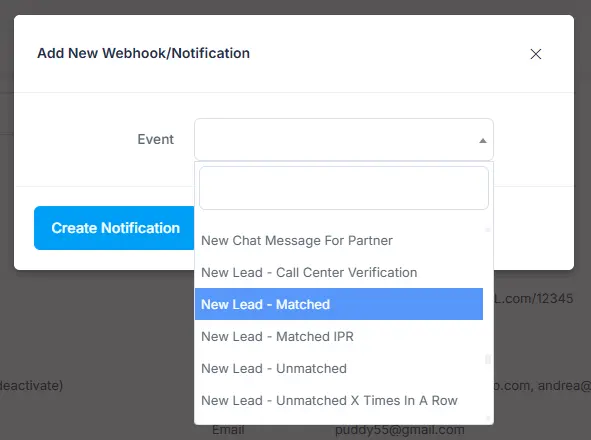
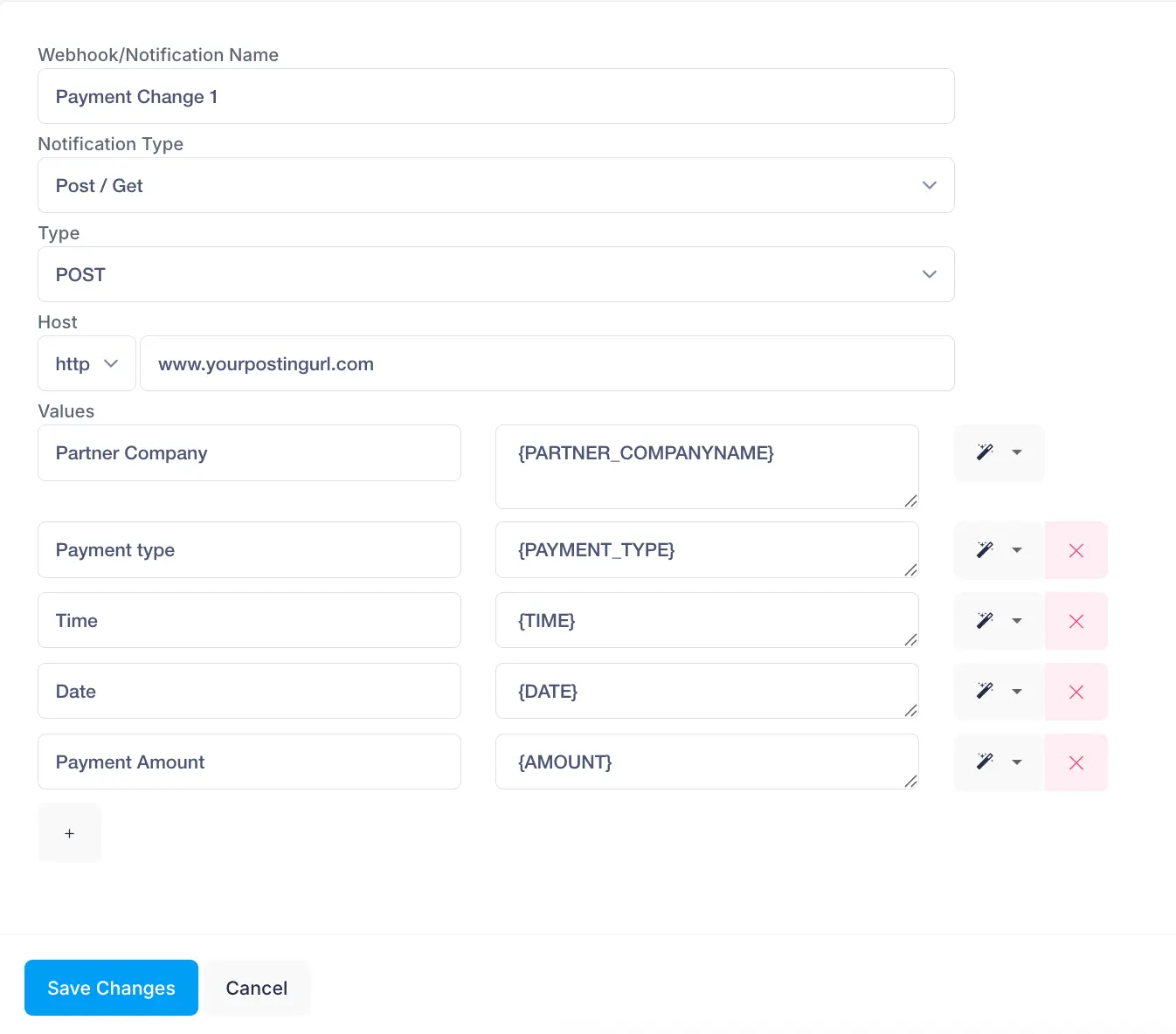
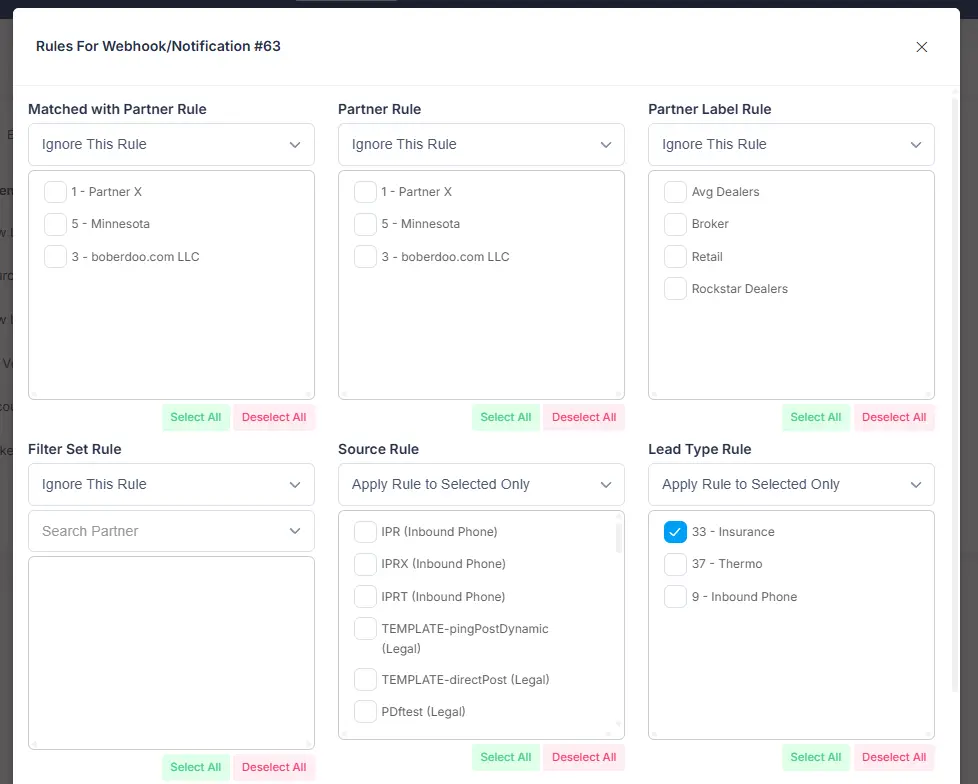
The Host field is where this setup most often goes wrong, and the symptom is not obvious.
Step 3. Match your Boberdoo values to Everflow
Add these as Values rows on the webhook. The first two are required and the rest are strongly recommended.
Boberdoo shows the values available to you once an event is chosen, and the list is different for every event. Copy them from that panel rather than typing them from memory.
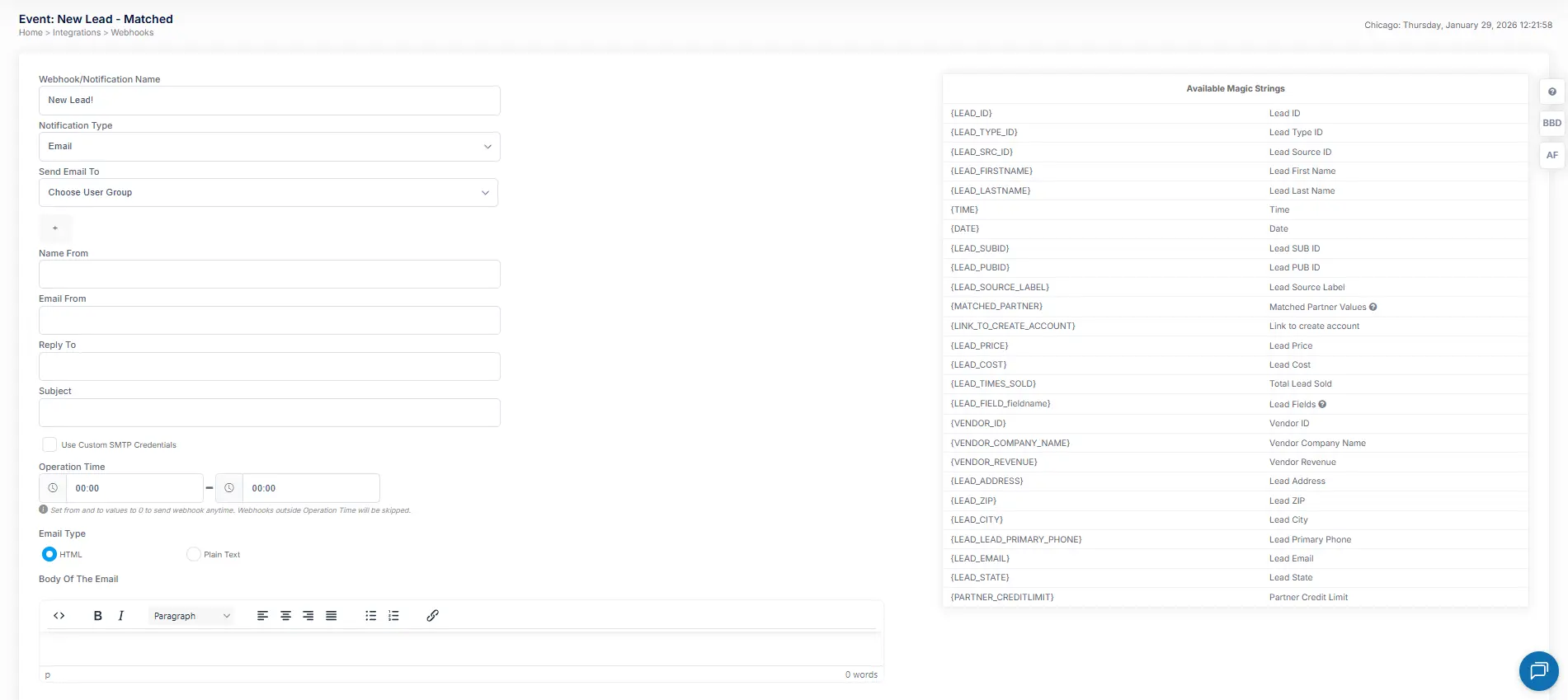
Step 4. Track more than one lead status
A lead does not simply sell or not sell. It can be checked, rejected, matched, or go unmatched, and each of those is worth seeing in your reporting. Everflow handles this with a base conversion plus additional events.
The base conversion
This is the one that carries money.
Additional events
Create the events under Advertisers → [Advertiser] → Events, then attach each one to the offers that need it from Offers → [Offer] → Edit → Revenue & Payout (Events).
Your advertiser-level events live on the advertiser's Events tab, each with the ID you will reference. The Associated to column tells you how many offers each one is attached to.
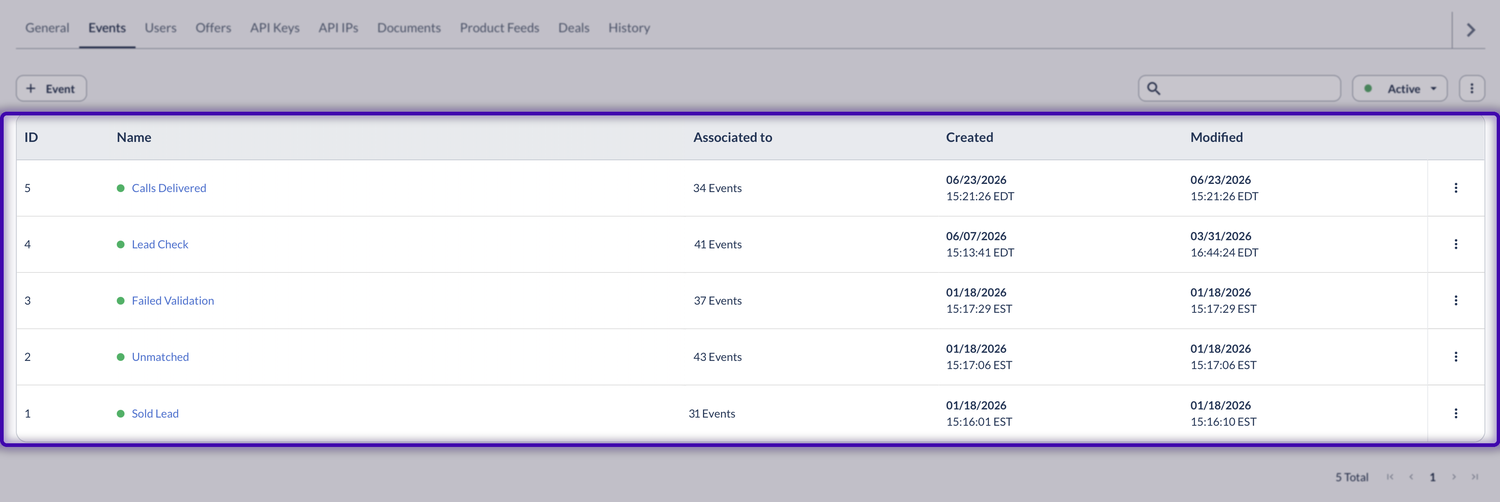
That screen lists your additional events, and it shows two different ID numbers. This catches people out, so it is worth being precise about which one you need.
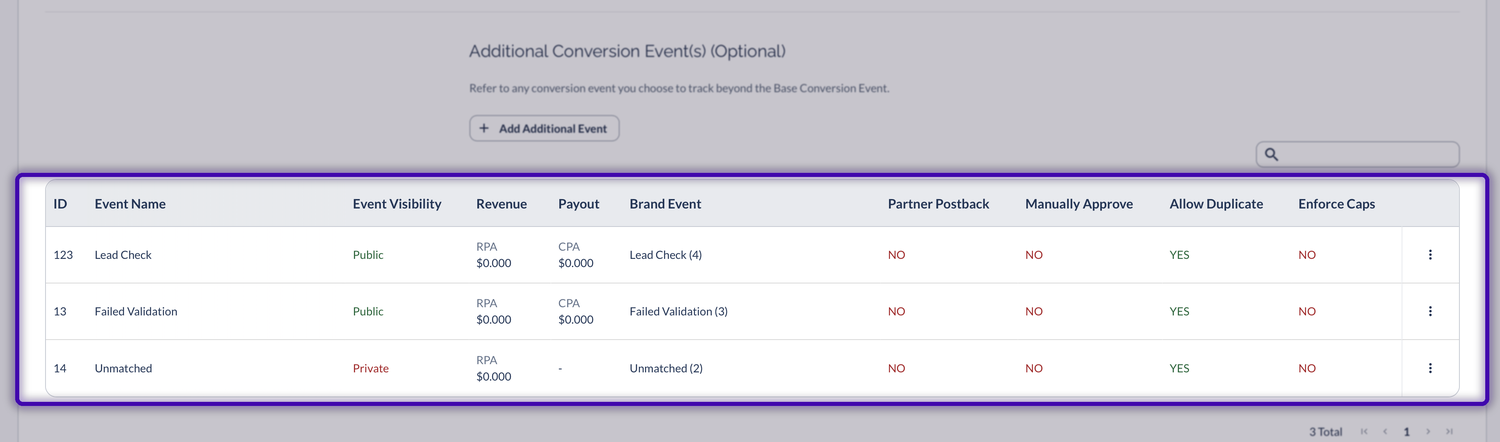
A working setup usually looks something like this.
Defining an event is only half the job, and the missing half is easy to overlook.
Step 5. Test it before you trust it
Work through these in order. If the first one fails, nothing after it can succeed.
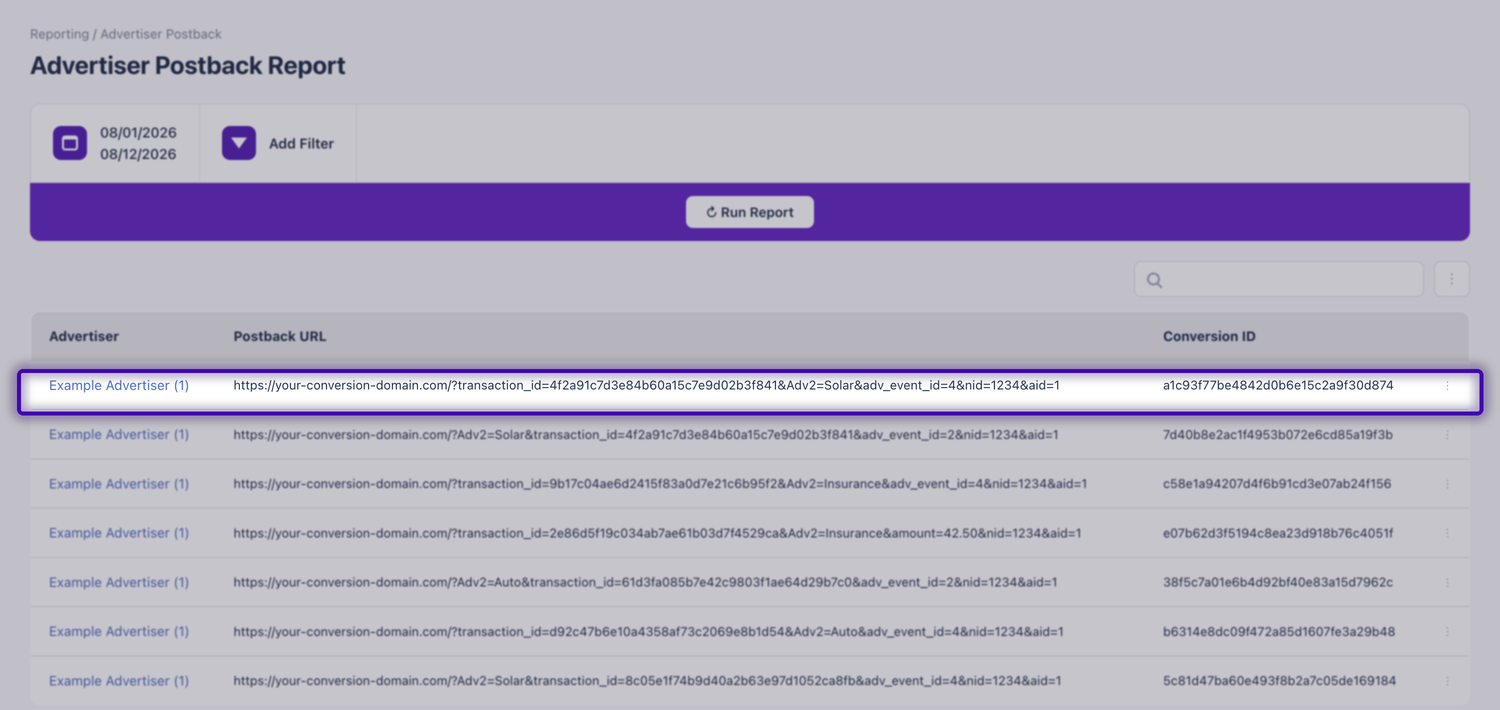
The report lists every postback Everflow received, with the full address it arrived on. Reading one row tells you which parameters Boberdoo actually sent, which event it fired, and whether the transaction ID came through.
Troubleshooting
These six cover almost everything that goes wrong here. They split into two kinds: nothing arriving at all, and data arriving but being wrong.
When nothing is tracking
Work these in order. The first is by far the most common.
When tracking works but the data is wrong
In these cases the postback is arriving, so the Advertiser Postback report will show you the request and you can compare it against what you configured.
If you are still stuck after all six, the Advertiser Postback report is the place to look, because it shows you the request exactly as Everflow received it.
More help
If this guide and the troubleshooting above have not solved it, the next places to look are Boberdoo's own reference pages and the related Everflow articles.
Boberdoo's own documentation
Boberdoo maintains four reference pages for webhooks. They describe the Boberdoo side of this setup in more depth than we cover here, and they are the right place to check if their interface has moved.
If you need something their documentation does not cover, Boberdoo asks that you open a support ticket with them directly, since the available values and events differ between systems.


