Home
Integrations Library
Customer Relationships Integrations
LeadCapture.io Integration

SERIES:

LeadCapture.io Integration

Learn how to connect a LeadCapture.io funnel to Everflow so lead submissions post back and attribute to the right partner.

Overview: What Is LeadCapture.io?

LeadCapture.io is a funnel and lead form builder. You build a quiz or a form, it collects the lead, and it passes that lead on to your buyers.

Why Integrate It With Everflow

If your partners send traffic to a LeadCapture.io funnel, Everflow needs to hear back when someone actually submits the form. That is what this integration does. LeadCapture.io posts the conversion to your Everflow tracking domain and carries the click’s transaction ID with it, so the right partner gets credit and the right payout.

How The Integration Works

When a lead is submitted, LeadCapture.io fires a postback to your Everflow tracking domain. The postback carries the transaction ID of the click that brought the visitor in. That ID is what ties the lead back to a partner.

How Partners Reach The Funnel

You choose one of these per funnel. It changes how LeadCapture.io finds the transaction ID.

Direct linking (recommended). Partners link straight to the page. There is no transaction ID on the URL. LeadCapture.io loads the Everflow SDK, reads the click ID from the cookie, and sends it back for you. This also works if a partner uses a redirect link, which is why it is the safer choice. Tracking link (redirect). Partners use a normal Everflow tracking link. It redirects to your page with _ef_transaction_id on the URL, and LeadCapture.io reads it from there.

What To Get From Everflow First

Collect these before you open LeadCapture.io. Everything except the Network ID and Tracking Domain is optional.

What Where To Find It Network ID The nid value in your Advertiser Postback. Required. Tracking Domain Also in your Advertiser Postback. Enter it without https://, for example tracking.yourdomain.com. Required. Advertiser ID The numeric ID of the Advertiser. Only needed if you use direct linking. Advertiser Event ID Under Advertisers → Events, for the specific action you want to record. Only needed if you are not recording the base conversion. See How To Create & Assign Advertiser Level Events.

Setting Up The Integration

There are two places to configure. The account level holds your Everflow connection and you set it once. The funnel level turns the postback on, and it is where the per-funnel choices live.

Account Level: Connect Everflow Once

Log in to LeadCapture.io and go to Settings → Integrations, then find Everflow and open it.
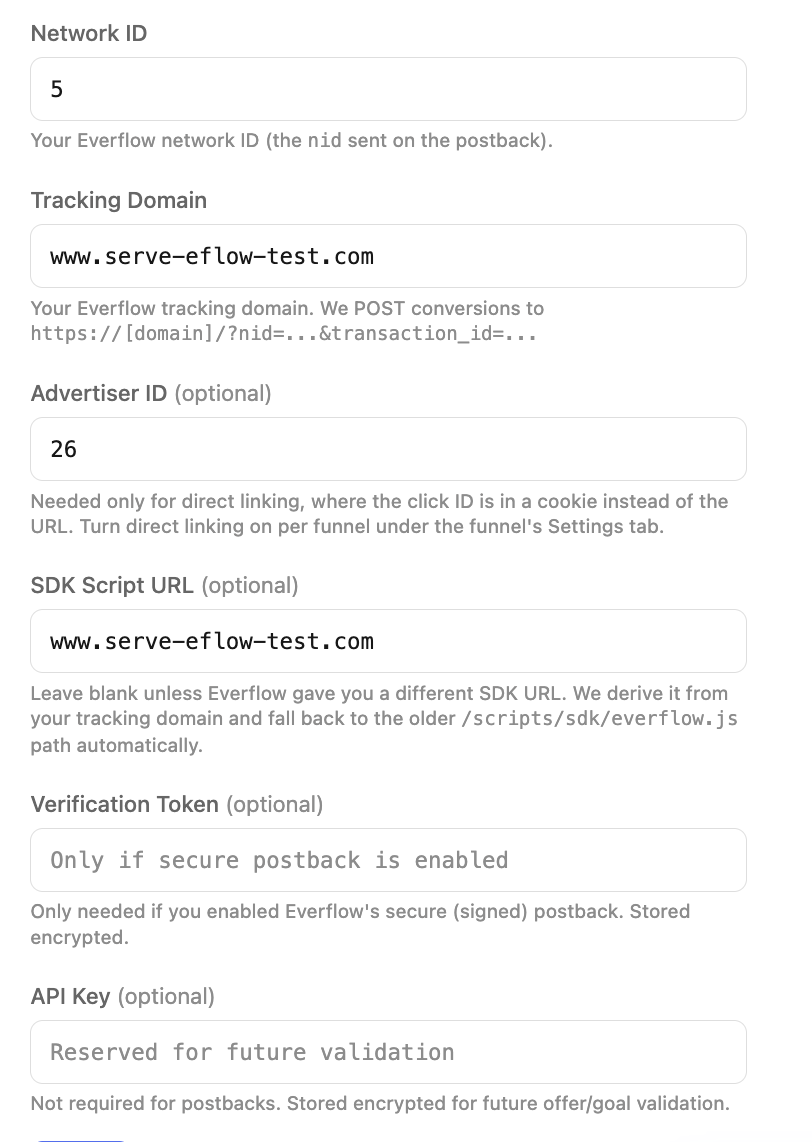
Enter your Network ID and Tracking Domain Enter your Advertiser ID if you plan to use direct linking Leave SDK Script URL blank unless Everflow gave you a different one. LeadCapture.io works it out from your tracking domain Fill Verification Token only if you turned on Everflow’s secure, signed postback Leave API Key blank. It is not used for postbacks Save
The Everflow integration form in LeadCapture.io account settings, showing Network ID, Tracking Domain, Advertiser ID, SDK Script URL, Verification Token and API Key

Funnel Level: Turn It On Per Funnel

Repeat this part for every funnel you want tracked.

1 Open The Funnel Go to your Funnels list Click the pencil on the funnel to edit it Click the Settings tab at the top
The LeadCapture.io funnels list with the edit pencil on the right of a funnel row

The Settings tab opens on Basic Settings, with the rest of the settings shown as chips across the top.

The Settings tab open inside a LeadCapture.io funnel, showing the setting groups including Tracking and Attribution
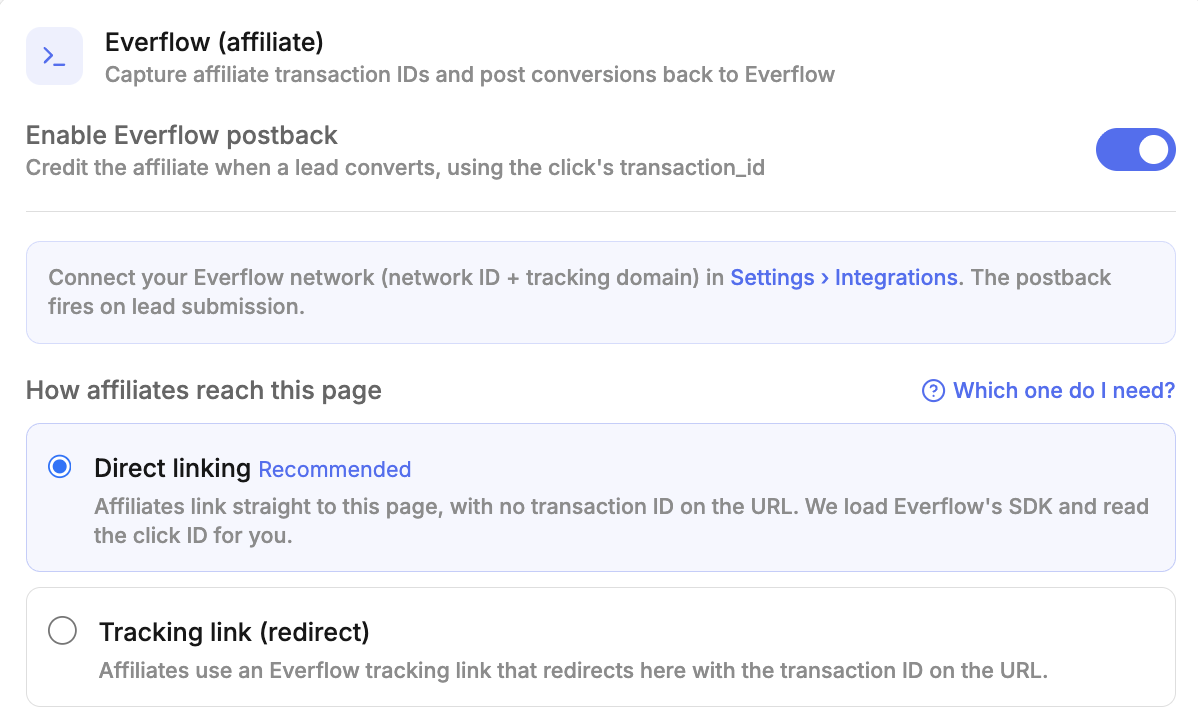
2 Turn On The Everflow Postback Pick Tracking & Attribution Scroll to Everflow (affiliate) Turn on Enable Everflow postback Under How affiliates reach this page, choose Direct linking or Tracking link (redirect) Direct linking is the recommended option. It also handles partners who use a redirect link, so you do not have to pick per partner.
The Everflow (affiliate) section in a LeadCapture.io funnel, with the postback toggle on and Direct linking selected
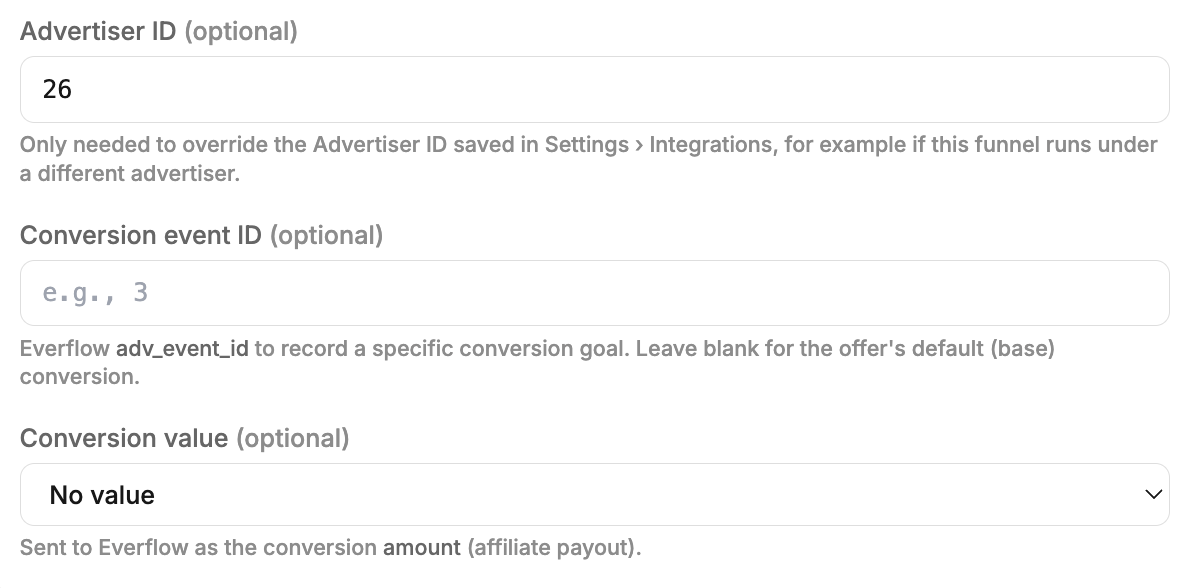
3 Set The Event And Value (Optional) Just below the linking choice are three optional fields. Advertiser ID. Only fill this in to override the Advertiser ID you saved in Settings, for example if this one funnel runs under a different Advertiser Conversion event ID. This is the Everflow adv_event_id. Use it to record a specific event. Leave it blank and the postback records the Offer’s base conversion Conversion value. Sent to Everflow as the conversion amount, which is the partner payout. Leave it on No value if you pay a flat CPA and set the payout in Everflow instead
The optional Advertiser ID, Conversion event ID and Conversion value fields in a LeadCapture.io funnel

Test It

Generate an Everflow tracking link for the Offer, or a direct link, using a test partner Open it in an incognito window and complete the form In Everflow, go to Reporting → Conversions and check the conversion landed against the right partner
No conversion showing up? Check the tracking domain first. It has to be entered without https://. After that, check that the funnel is set to the linking method your test link actually used: a direct link needs Direct linking turned on, and it needs the Advertiser ID filled in at the account level.
Explore Related Content Keep going on events and postbacks:

How To Create & Assign Advertiser Level Events, for the Advertiser Event ID this integration can point at.

Accessing & Editing S2S Postback URLs, for where the Network ID and Tracking Domain come from.

What Is A Built-In Integration In Everflow?, for how integrations fit together.