


.svg)

How You'll Be Notified
When you log into Everflow, you will be prompted to confirm the selections in one of two ways:
A window titled "Confirm Marketplace Updates" will appear immediately upon login. It includes a blue "Action Is Required" notice prompting you to take 2 minutes to review and confirm your Marketplace updates, with more granular options for categories, Conversion Funnel Expertise, geolocation, and device types.
If you dismiss the popup and do not take any action, an orange warning bar titled "Review Your Updated Profile" will remain at the top of Marketplace Dashboard. Click Review & Confirm.

Updating a Single Profile (Partner or Advertiser)
Follow the steps below if your Marketplace account operates strictly as a Partner or strictly as an Advertiser.
Step 1 — Selection
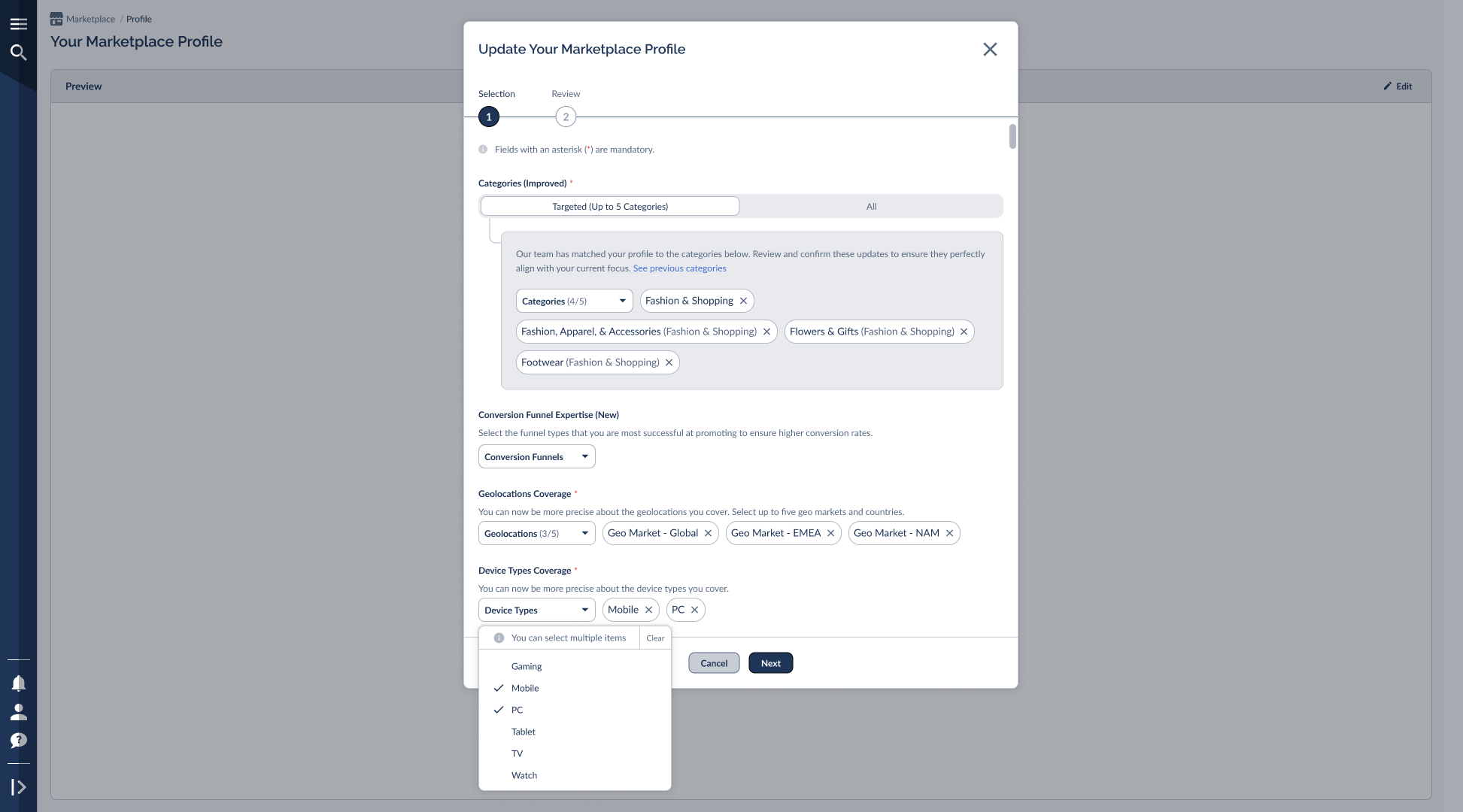
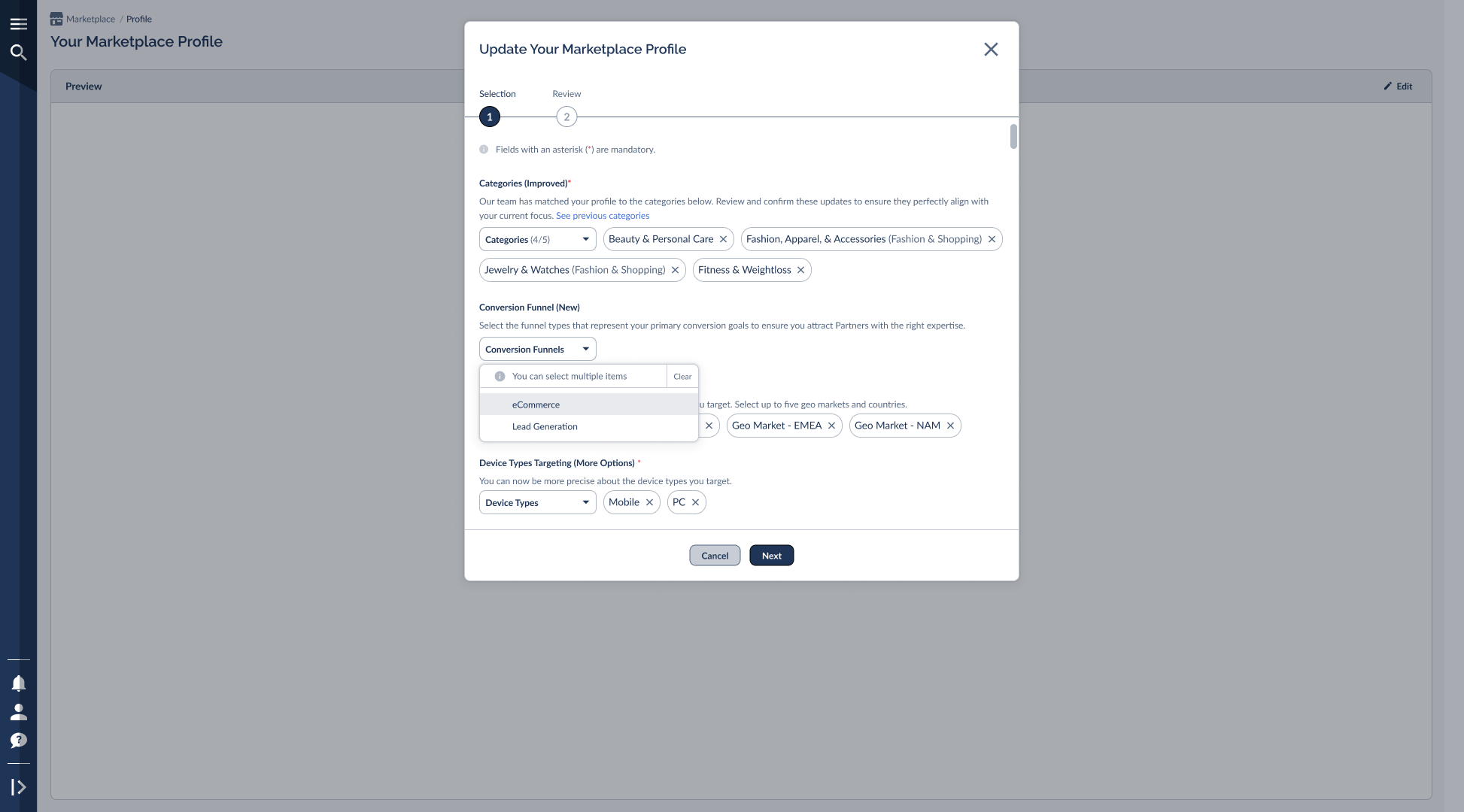
Review the pre-assigned selections and make any necessary adjustments. The labels you see will depend on whether you are a Partner or an Advertiser:
The Categories section includes a toggle between Targeted (up to 5 categories) and All. If you select Targeted, you can review and edit your specific category tags. If you select All, your profile won't be tied to specific categories, but you'll remain fully discoverable to Advertisers. Advertisers do not have this toggle and must use Targeted categories.
Review the pre-filled tags in each dropdown. You can remove incorrect tags by clicking the "x" next to them, or open the dropdown to select new ones. Once your tags accurately reflect your business, click Next.
Step 2 — Review
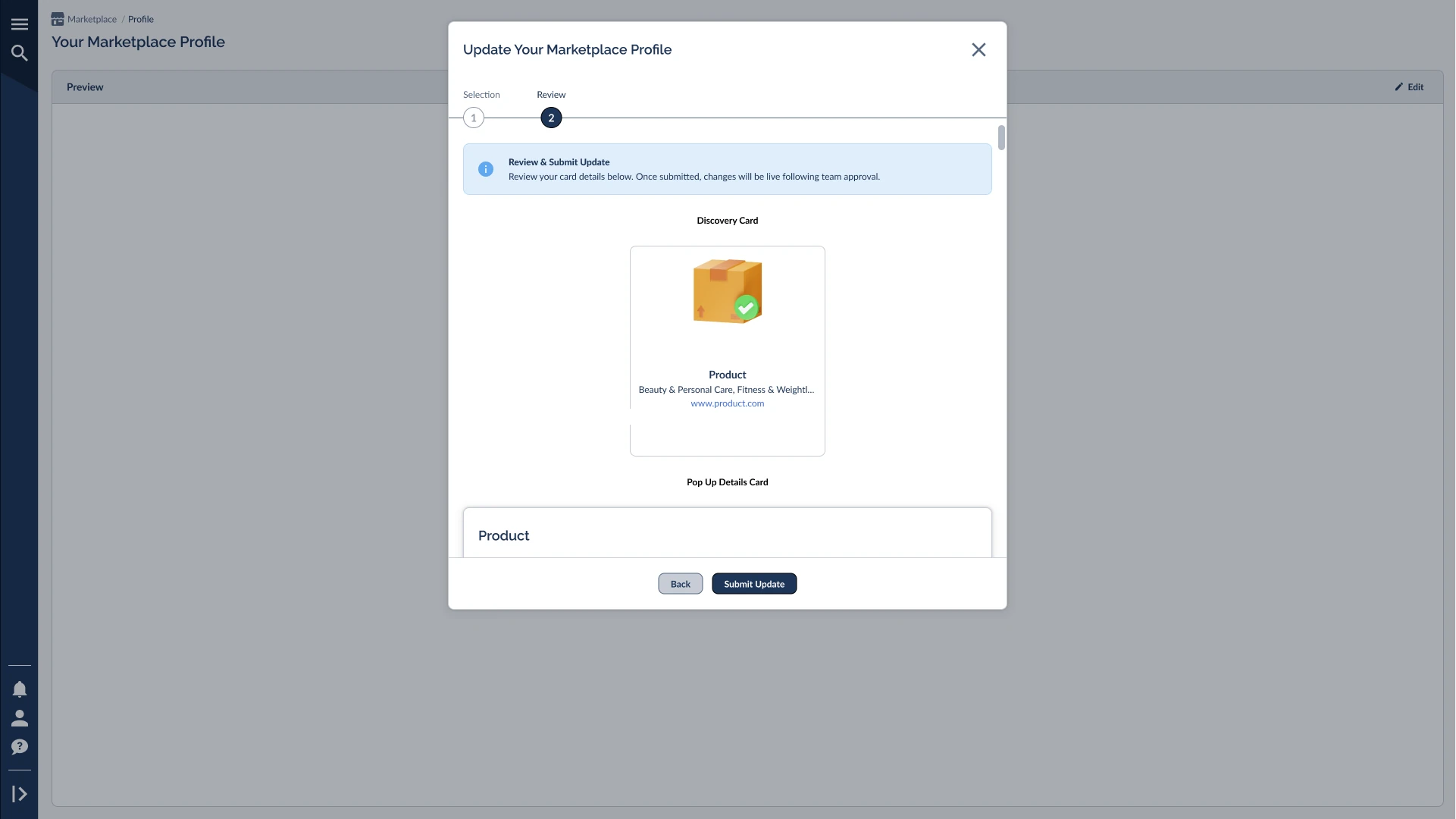
The final step lets you preview exactly how your profile will appear to others in the Marketplace. You will see a preview of your Discovery Card (showing your logo, name, NID, categories, and website) and your Pop Up Details Card.
If everything looks correct, click Submit Update. If you reviewed the pre-assigned categories and made absolutely no changes, this button will simply say Done.
Updating a Dual Profile (Advertiser + Partner)
If your account operates as both an Advertiser and a Partner, you'll need to complete three steps to ensure both profiles are accurately categorized.
Step 1 — Advertiser Selection
Review and adjust the categories, Conversion Funnel Expertise, geolocations, and device types specifically for your Advertiser profile. Click Next when ready.
Step 2 — Partner Selection
Review and adjust the categories, Conversion Funnel Expertise, geolocations, and device types specifically for your Partner profile. Remember, you can use the Targeted/All toggle here. Click Next when ready.
Step 3 — Review
You will see a collapsible Advertiser Profile Review section showing your Advertiser Discovery Card and Pop Up Details Card, followed by a Partner Profile Review section below it. Review both, then click Submit Update.
What Happens After You Submit
- 🕑 Updates sent to Everflow team for review
- 🔵 Blue "Pending Profile Changes" banner appears on your profile
- ✅ Once approved, your new categories go live
- 🌟 Your discoverability immediately improves
- ✅ Profile updates immediately — no review needed
- ⚡ You clicked "Done" instead of "Submit Update"
- 🌟 New granular categories are live right away
- 👍 No pending banner, no waiting
Frequently Asked Questions
You can access the update wizard at any time by navigating to your Marketplace Dashboard and clicking Review & Confirm in the orange warning bar at the top of the screen.
Changes are typically reviewed by our team shortly after submission. You will see a blue "Pending Profile Changes" banner on your profile until the updates are approved and live.
Yes. In the Targeted mode of the Categories section, you can click the "See previous categories" text link to reference your old tags while making your new selections.
If you review the pre-assigned categories and decide they are perfectly accurate, you don't need to change anything. Proceed to the Review step, and the submit button will say "Done". Your profile will be updated immediately without needing a manual review.


