


.svg)

Overview
Clickless conversion tracking allows you to fire a conversion into Everflow without an associated click or transaction_id. This is essential when users can't click a tracking link — such as when they use a coupon code from a podcast, dial a phone number directly, or arrive through an API integration.
Unlike regular tracking (which generates a *transaction_id* when a click happens), clickless tracking uses static identifiers to attribute conversions - oid and affid in URL postbacks, or **offer_id and affiliate_id in the JavaScript SDK.
When to Use: Clickless vs. Regular Tracking
- offer_id (or oid)
- affiliate_id (or affid)
- Recommended: user_ip, timestamp
- transaction_id (auto-generated from click)
- Automatically captures: IP, device, referrer, geo
Use Cases: When You Need Clickless Tracking
Quick Start: Coupon Code Tracking (3 Minutes)
Note: The Minimum Lookback Window setting is located under the Click-to-Conversion feature. If Click-to-Conversion is not enabled on your offer, the Minimum Lookback Window option will not be visible.
&coupon_code={coupon_entered_by_user} parameterWhen a user enters "SARAH10" at checkout, Everflow automatically attributes the sale to Sarah's partner account — no click required.
For detailed setup, see: Using Coupon Codes For Clickless Tracking
How-To: Implementation Methods
A clickless conversion can be fired into Everflow via Server Postback or JavaScript SDK**. URL postbacks must use oid and affid (short forms). The JavaScript SDK uses offer_id and affiliate_id (long forms). The long forms do not work in URL query strings.
See instructions below for replacing YOUR_DOMAIN with your conversion domain. For pixel-based implementation (image or iframe), contact your CS representative.
Method 1: Server Postback (GET Request)
Using oid + affid
Using coupon_code
When the coupon code is assigned to one partner and one offer
Using coupon_code + oid
When the coupon code is assigned to one partner and more than one offer
Method 2: JavaScript
<script type="text/javascript" src="https://YOUR_DOMAIN.com/scripts/main.js"></script>Using offer_id + affiliate_id
Using coupon_code
Using coupon_code + offer_id
Finding Your Conversion Domain
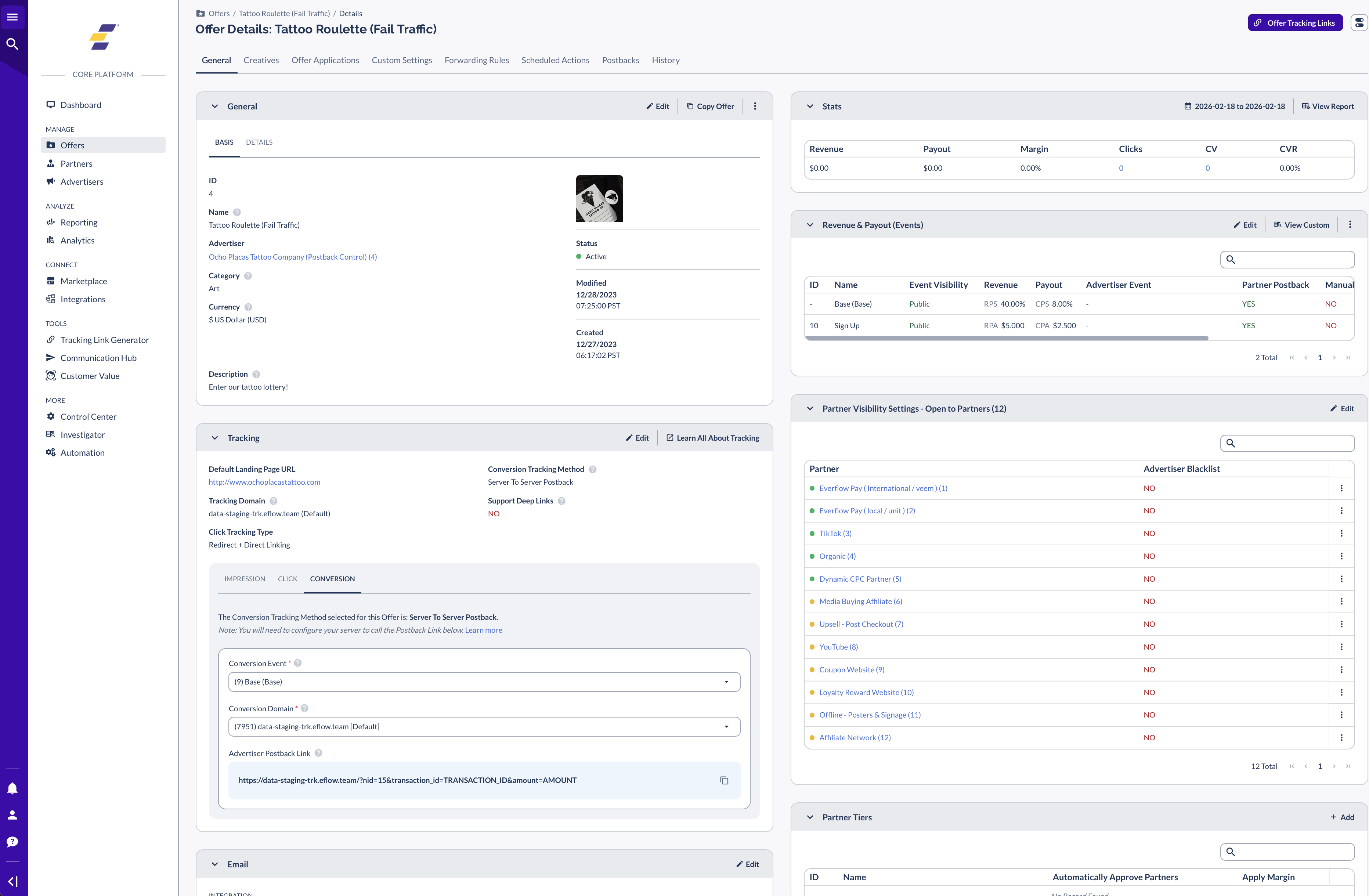
Required Parameters Checklist
What Parameters Do You Actually Need?
Use
oid in URL postbacks (GET requests). Use offer_id only in the JS SDK.Use
affid in URL postbacks (GET requests). Use affiliate_id only in the JS SDK.oid, affid). The long forms (offer_id, affiliate_id) only work inside the JavaScript SDK.All Available Parameters (Searchable Reference)
Below is a complete reference of all parameters that can be passed in a clickless conversion postback. Use the search function to find specific parameters.
URL postbacks (GET requests) must use the short parameter forms (oid, affid). The long forms (offer_id, affiliate_id) only work inside the JavaScript SDK.
&aid=ADVERTISER_ID or &advid=ADVERTISER_ID.Platform-Specific Examples
Network → Settings → Conversion Attribution → Enable "Email Attribution"# Step 2: Fire initial "Email Submit" event (zero revenue)
EF.conversion({
  offer_id: YOUR_OFFER_ID,
  affiliate_id: PARTNER_ID,
  event_id: EMAIL_EVENT_ID,
  adv1: user_email@example.com
});
# Step 3: When purchase occurs, fire conversion with email
https://YOUR_DOMAIN.com/?oid=OFFER_ID&affid=AFFILIATE_ID&email=user_email@example.com&amount=99.99https://yourpage.gohighlevel.com?oid=123&affid=456# Step 2: Add hidden fields to capture them
<input type="hidden" name="offer_id" value="{{query.oid}}" />
<input type="hidden" name="affiliate_id" value="{{query.affid}}" />
# Step 3: Fire webhook on form submit (clickless)
https://YOUR_DOMAIN.com/?oid={{offer_id}}&affid={{affiliate_id}}&email={{email}}{
"first_name": "John",
"last_name": "Doe",
"email": "john@example.com",
"bm_code": "PARTNER_ABC"
}# Step 1: Map BM Code to coupon_code parameter# Step 2: Fire postback from CRM webhook
https://YOUR_DOMAIN.com/?oid=OFFER_ID&coupon_code=PARTNER_ABC&email=john@example.com&ip=USER_IP_ADDRESS- Duplicate IP fraud flags (all conversions show same IP)
- Wrong geo-location data (shows server location, not user location)
- Incorrect device data (often defaults to "PC")
Troubleshooting: Conversions Not Showing Up
Problem: You fire the postback and get a 200 OK response, but conversions don't appear in reporting.
Most Common Cause: Your offer has "Minimum Lookback Window" enabled. Coupon code conversions happen instantly (no click timestamp), so they violate the time-based validation rule and get rejected.
Solution:
- Navigate to Offers → Manage → Click on your offer
- Go to Attribution tab
- Find "Minimum Lookback Window" and disable it
- Click Save
⚠️ Critical: This is the #1 reason coupon tracking "doesn't work." Multiple customers have hit this issue.
Problem: All conversions show the same IP address, or you're getting "Duplicate IP" fraud alerts.
Cause: You're firing the postback from your server (CRM, backend), and Everflow is recording your server's IP address instead of the user's IP.
Solution:
- Capture the user's IP address when the lead/sale occurs
- Add
&user_ip=USER_IP_ADDRESSor&ip=USER_IP_ADDRESSto your postback - Example:
https://YOUR_DOMAIN.com/?oid=123&affid=456&ip=203.0.113.45
💡 Why this matters: Without the user's IP, geo-location data is wrong (shows server location), and duplicate IP fraud rules may block legitimate conversions.
Problem: You're uploading historical data via CSV or reconciliation, but conversions show today's date instead of the original conversion date.
Cause: Without the timestamp parameter, Everflow timestamps the conversion at the moment the postback fires.
Solution:
- Convert the original conversion date/time to Unix timestamp (e.g., 1640995200)
- Add
×tamp=UNIX_TIMESTAMPto your postback - Example:
https://YOUR_DOMAIN.com/?oid=123&affid=456×tamp=1640995200
Tool: Use unixtimestamp.com to convert dates to Unix timestamps.
Problem: A partner shows a 100% conversion rate with conversions but no corresponding clicks.
Cause: The coupon code was leaked to a public coupon scraping site (e.g., RetailMeNot, Honey). Organic users are finding and using the code, and clickless tracking attributes ALL usage to the partner — even if they didn't click the partner's link.
What's Happening: Clickless coupon tracking works exactly as designed. ANY use of the code = partner gets credit. If the code is public, anyone can use it.
Solutions:
- Use unique codes per partner: Instead of "SAVE20", use "SARAH20", "MIKE20", etc.
- Enable Click Priority: Navigate to Advertisers/Brands → Manage → select the advertiser → General tab → General Card (Edit) → set Attribution Priority to "Click." This means if a user clicked a different partner's link, the click wins over the coupon.
- Monitor public coupon sites: Search for your codes on RetailMeNot, Honey, Slickdeals to detect leaks.
🚨 Real Example: Company A had "Sale20" code show 100% conversion rate because it leaked to a public site. Users scraped the code and used it without clicking affiliate links.
Problem: Postback fires but conversion is marked as "Invalid" or doesn't appear at all.
Cause: You forgot to pass the required identifiers in your postback.
Solution: Verify your postback includes both required parameters. Use the correct form for your method:
- URL postbacks (GET requests):
&oid=YOUR_OFFER_IDand&affid=YOUR_AFFILIATE_ID - JS SDK:
offer_idandaffiliate_id(inside the EF.conversion() call)
Common mistake: Using offer_id and affiliate_id in a URL postback. These long forms do not work in URL query strings — you must use oid and affid.
Alternative: Instead of affiliate_id, you can use &coupon_code=PARTNER_CODE if you've set up coupon codes. Everflow will look up which partner owns the code.
💡 Pro Tip: Use your browser's Network tab (Developer Tools) to inspect the actual postback URL being fired. Look for the oid and affid parameters.
➔ Using Coupon Codes For Clickless Tracking — Step-by-step setup for influencer and offline tracking
➔ Introduction To Conversion Attribution — Understand attribution priority (Click vs Coupon vs Email)
➔ Direct Linking — When to use clickless as a fallback method
➔ Organic Tracking — Set up catch-all tracking for unattributed traffic
Platform Walkthrough: Ringba Call Tracking
Ringba is a call-tracking platform that fires clickless conversions into Everflow when a user dials a phone number directly. To attribute calls correctly, you map the Everflow Offer ID onto the Ringba campaign and the Everflow Affiliate ID onto the Ringba publisher, then build a server postback that reads those values back out using Ringba tags.
Associate the Everflow Offer ID with a Ringba Campaign
Associate the Everflow Affiliate ID with a Ringba Publisher
Build the Server Postback
Configure the Ringba server postback so that it passes the Everflow Offer ID and Affiliate ID back to Everflow using Ringba tags. The [tag:Campaign:TrackingId] tag resolves to the Offer ID you set on the campaign, [tag:Publisher:SubId] resolves to the Affiliate ID you set on the publisher, and [Call:ConversionAmount] passes the call's conversion value:
Ringba server postback (Offer ID + Affiliate ID)
Alternative: Coupon-Code (Phone Number) Attribution
Instead of mapping the Affiliate ID onto the publisher, you can attribute calls using a coupon code whose value is an identifiable phone number. Everflow looks up which partner owns the code, so the Affiliate ID is not needed in the postback.
coupon_code parameter:https://your-conversion-domain.com/?nid=YOUR_NID&coupon_code=RINGBA_TAG_PARTNER_PHONEhttps://your-conversion-domain.com/?nid=YOUR_NID&coupon_code=1234568732Swap your-conversion-domain.com for your conversion domain and YOUR_NID for your Network ID. The Ringba tags ([tag:Campaign:TrackingId], [tag:Publisher:SubId], [Call:ConversionAmount]) are resolved automatically by Ringba when the postback fires.


