


.svg)

Overview
Thinkific is a 3rd party platform designed for online courses and membership sites.
This guide explains how to track your activity with Thinkific in Everflow.
Step-By-Step Guide
Step #1
- First, set up an Offer in Everflow.
When creating this Offer, be sure to:
- Enter the same Default Landing Page as the page which is used in Thinkific,
- Turn on Direct Linking in the Tracking & Control section, and
- Select any conversion method except Server Postback.
If applicable, set up any associated Events such as Leads or Signups in the Revenue & Payout section.


- Once the Offer is created, scroll down to the Everflow JS SDK card and copy the Click Script.

Step #2
- Log into Thinkific. Navigate to Settings, then click the Code & analytics tab.
- Paste the Everflow JS SDK Click Script into the Site footer code box.
(Please note that the Site Footer Code isn't available in the "Free" plan)

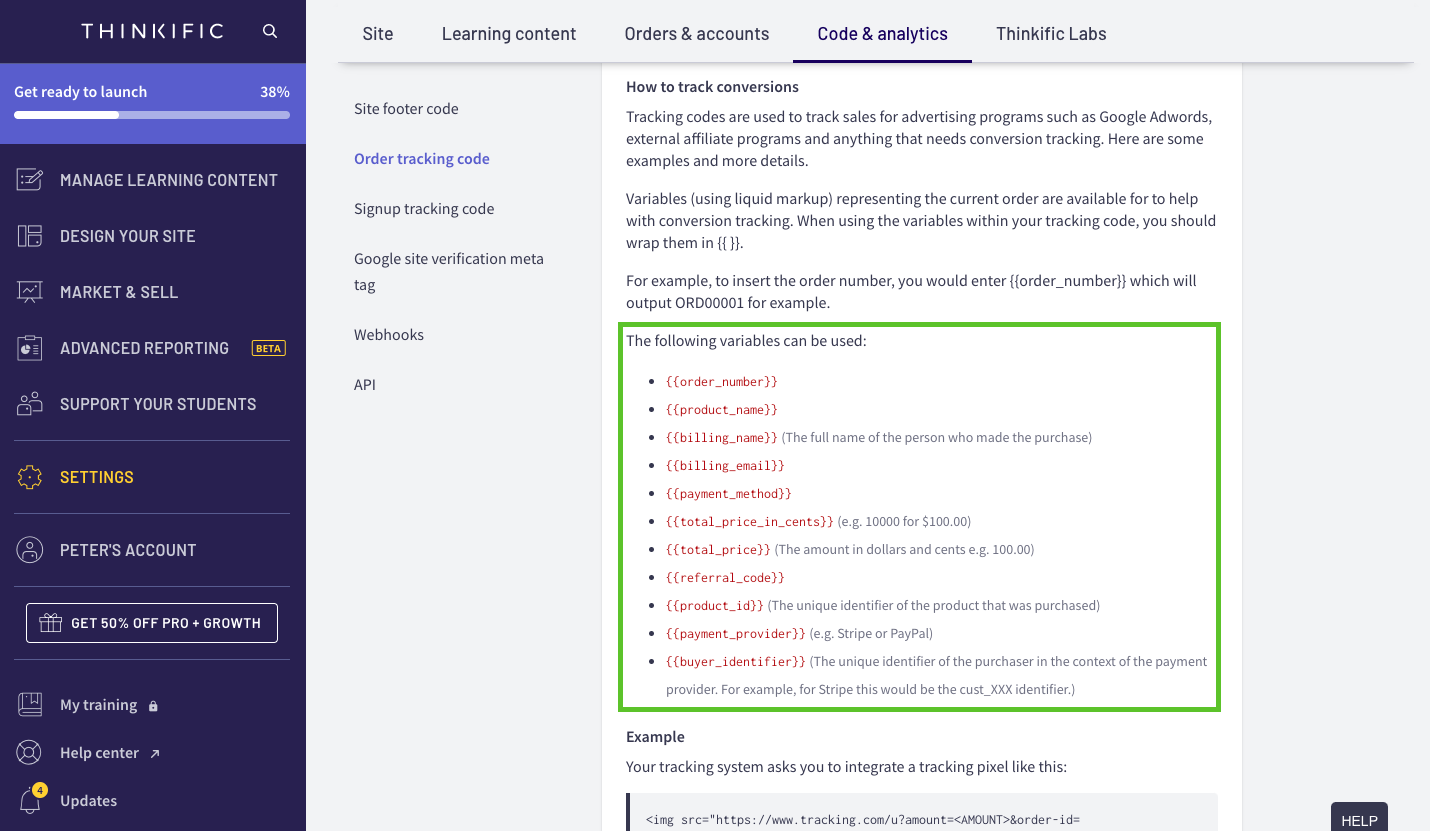
- Scroll down to the section: How to track conversions. Choose which supported variables you want to pass into Everflow for tracking.
Step #3
- Go back to your Offer in Everflow. On the Everflow JS SDK card, click the Conversion tab to generate the Conversion Script.
- Be sure the Base Conversion is selected. Prepare the script by pasting the Thinkific macros into corresponding parameters, then copy the script.


- Go back to Thinkific and paste the Conversion Script into the Order tracking code box.

Step #4
- Go back to your Offer in Everflow. On the Everflow JS SDK card, select the Lead Event.
- Delete any unnecessary macros, then copy the script.

- Go back to Thinkific and paste that Conversion Script into the Signup tracking code box.


