


.svg)

Overview
SamCart is a 3rd party shopping cart service. This guide demonstrates how to set up an Everflow Offer to track products sold using SamCart.
When using a third party landing page in front of the XXXXX.samcart.com url you MUST add in a custom domain inside of Samcart to support this. The integration does not work without doing that. Here is how to add a custom domain to Samcart.
For more information about SamCart - [Click Here]
Step-By-Step Guide
Step #1
- Once you have added your product in SamCart, click the dots icon for More, then select Share.

- On the next page, select Copy Link. This is the URL you will use when creating the Offer in Everflow.

Step #2
- In Everflow, create the Offer.
- Under General, paste the product link from SamCart as the Default Landing Page URL.
- Under Tracking & Control, turn on the toggle for Use Direct Linking. We recommend selecting JavaScript SDK as the Conversion Method.
Step #3
- Once the Offer is created and saved, copy the Click Script from the Everflow JS SDK card.

Step #4
- In SamCart, click the Settings icon.

- Scroll down to Global Product Details, and paste the Everflow JS SDK Click Script under Embed HTML/Scripts in Header.

- Be sure to scroll up and click Save Changes.
Step #5
- Click Products, then click on the product.

Step #6
- Click on the Advanced Settings tab. Under Fire pixels/scripts after an order is completed, paste the script below.
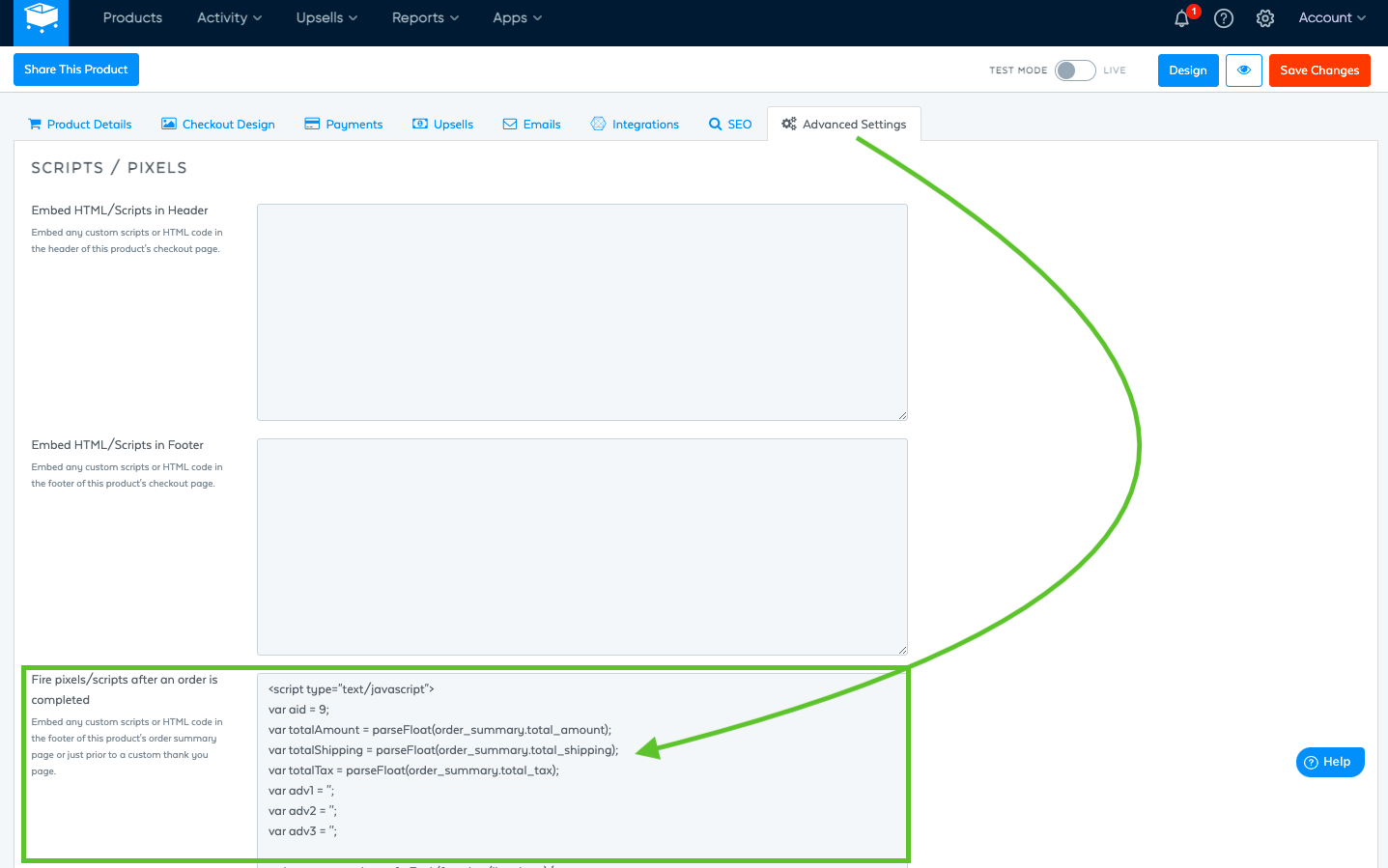
Be sure to plug in your Advertiser ID into the code under var aid = INSERT_ADVERTISER_ID.
Additionally, don't forget to replace www.TRACKINGDOMAIN.com with your own tracking domain.


