


.svg)

What to Expect
Welcome to the Partner Platform. This is your home base as an Everflow partner: you browse offers here, generate tracking links, watch your performance, and set up how you get paid.
You probably arrived one of two ways. An Advertiser set you up directly and sent you a login link, or you applied through a sign-up form that an Advertiser, network or agency reviewed. Either way the platform looks the same from here, and this guide takes you from first login to first click.
Who to Ask When You Get Stuck
You have an Account Manager. Click My Account in the platform and their name and email are at the top of the panel. They are the right first stop for anything about a specific offer, your payout terms, or an approval that has not come through.
Your Dashboard
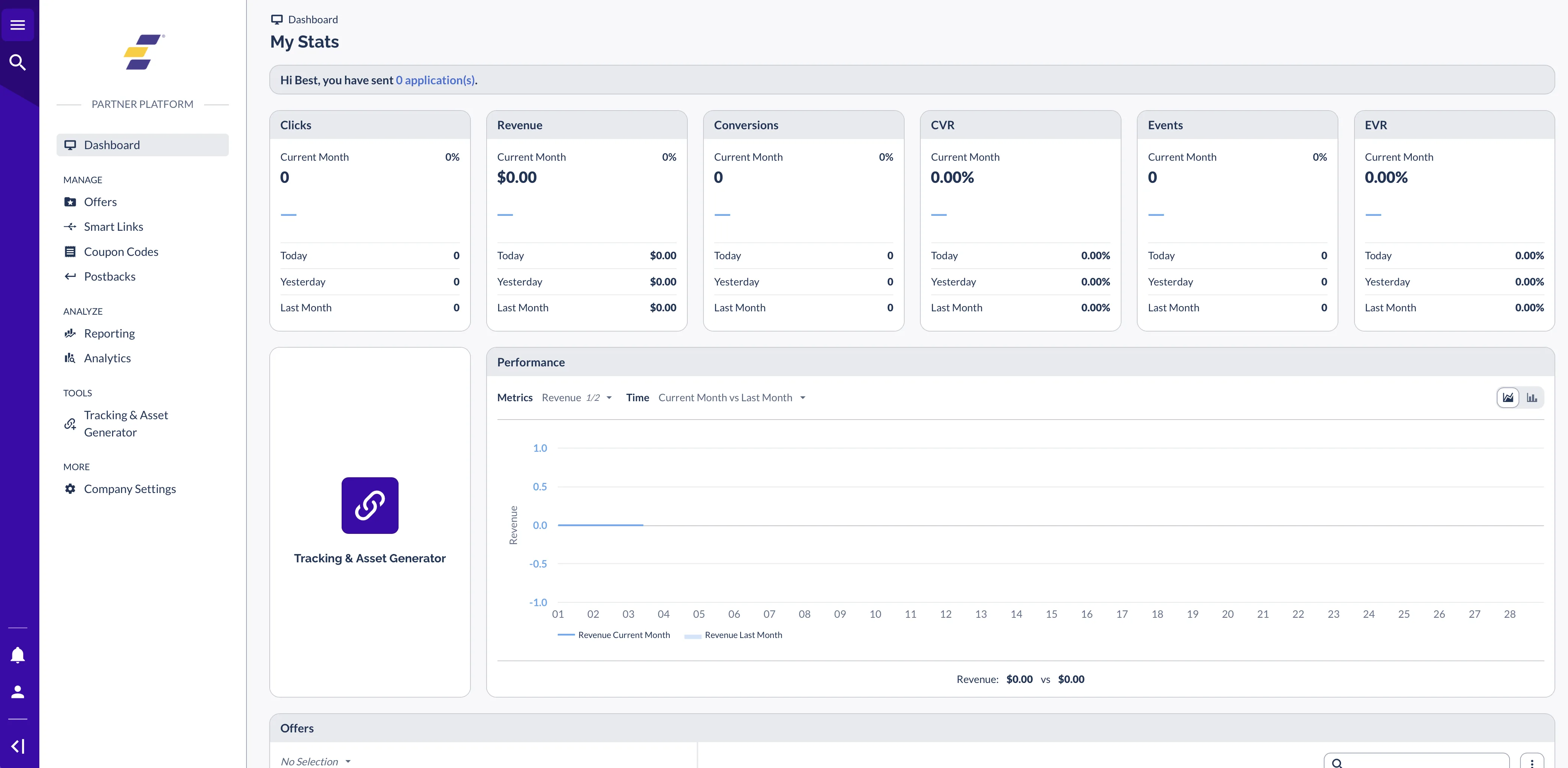
When you first log in you land on the My Stats dashboard, a snapshot of your clicks, revenue, conversions and event metrics.
What Lives in the Sidebar
The left sidebar is grouped, and the grouping tells you what each thing is for.
What Each Section Does
Two of these are easy to miss, so they are worth naming: Marketing Integrations, and Connections.
From Offer to Tracking Link
The two things you need before you can earn anything are an offer to promote and a link that credits the traffic to you. Do them in that order.
Finding an Offer
Go to Offers in the sidebar to see everything available to you.
Each offer shows its payout structure, the traffic types it allows, and any geographic targeting. Read the payout field before you commit to anything, because it tells you exactly what you earn and on what. Once you find one you want to run, request access, or start generating links immediately if you are already approved.
Generating Your First Link
Head to the Tracking & Asset Generator and create your link for that offer. This link is how Everflow knows the traffic came from you. Without it your clicks and conversions are not attributed to your account and you are not paid for them.
There are three link types, and which one you want depends on where you are sending traffic from.
If you are not sure, start with a Redirect Link.
Tag your traffic while you are here
The generator lets you add sub parameters, Sub1 through Sub10, to your link. Use them to label your traffic source, your creative, or your placement. It costs you nothing now and it is the difference between knowing which channel earns and guessing.
Setting Up How You Get Paid
Do this on day one, before you send any traffic. Conversions can be tracking and money accruing while your payout sits stuck because nobody has your bank details.
Go to Company Settings → Billing. What you see there depends on the payment method your Advertiser has enabled for you.
If Your Advertiser Uses Everflow Pay
You complete one short form: your business details, your banking details, and a review screen where you accept the terms. When you submit it your Payment Method Status changes from NOT PAYABLE to PAYABLE, usually within a few minutes. There is no test deposit and no approval queue.
Whether you also file a US tax form depends on the business paying you, not on where you are. Partners paid by a business registered outside the US do not file one. Partners paid by a US-registered business file one if that payer requires tax verification: a W-9 if you are US-based, a W-8 if you are not. Your setup screen tells you which applies by whether it shows a tax stage at all. The full walkthrough is in Setting Up Your Everflow Pay Account.
If Your Advertiser Uses Something Else
Everflow supports a range of methods, including PayPal, Payoneer, Wise and direct bank transfer, and your Advertiser chooses which are available to you. Enable your method on the same Billing page and fill in the details it asks for. How To Get Paid As A Partner covers the options and your payment terms.
Common Mistakes to Avoid
These four account for most of the support tickets new partners open in their first month.
Using a preview URL instead of your tracking link
If you copy the offer's preview URL and share it, Everflow has no way to attribute the traffic to you. Your clicks show up as "Others" and pay you nothing.
Not testing your link first
Sending traffic to a broken link means lost conversions, and you will not find out until your report shows zero clicks.
Skipping payment setup
Conversions are tracking and money is accruing, but nothing can be paid out until your banking details are in place.
Timezone mismatch
Your daily totals do not match what you expect because the network's timezone differs from yours. A conversion at 11pm PST lands on the next day in EST.
Tips for Success
What's Next
You have the basics. These are the articles to read as you start running real traffic.
→ How Everflow Tracking Works. How clicks, cookies and conversions connect behind the scenes.
→ Essential Reports For New Partners. The handful of reports worth checking daily.
→ Troubleshooting: Why Isn't My Tracking Working?. A diagnostic guide for when the numbers look wrong.
→ How Partner Payments Work. What happens between a conversion and money in your account.
→ Managing Your Partner Notifications. So you hear about expiring codes and offer changes.


